Start free Start free Open Plannerly (opens in a new tab)

Verify - BIM model and LOD checking

BIM model checking software that checks what you actually asked for

Plannerly Verify is BIM model checking and validation software. It checks every model against your own requirements automatically - the data on every element and, with the Geometry check (beta), its LOD - and shows what passes, what fails and who owns the fix. Upload IFC, Revit or over 60 formats, or connect ACC.

Free plan, no card. The 14-day Pro trial includes model checking.

app.plannerly.com

Check LOD automatically

How do you check LOD in a BIM model?

The short answer

Check the geometry against the level, not a number in a cell

To check LOD in a BIM model, agree what each level means, set the LOD each type of element needs at each milestone, then compare the model's geometry with it. In Plannerly Verify, link the elements to their task and run the Geometry check (beta): AI judges detail, completeness, placement and purpose against that LOD, with reasons and pictures.

  • Detail: does the geometry reach the level of detail the task asks for?
  • Completeness: are the elements there on every level they should be?
  • Placement: are they the right elements, plausibly placed and joined?
  • Purpose: will they serve the milestone, such as coordination?
  • Each marked Pass, Partial, Fail or Can't judge, then scored against your pass mark
Read the Geometry check guide

Step by step

How to check LOD in a BIM model, in four steps

  1. Agree what each level means

    Pick the project's LOD standard, such as BIMForum or ISO 19650, or write your company's own scale once: what each level means and what a checker should look for in the model.

    One meaning of LOD 300 for everyone
  2. Set the LOD for each element

    In Scope, give each type of element its level for each milestone - LOD 300 for ductwork at design coordination, say - with an owner and a short description of what it's for.

    Your LOD matrix, as tasks with owners
  3. Link the model elements

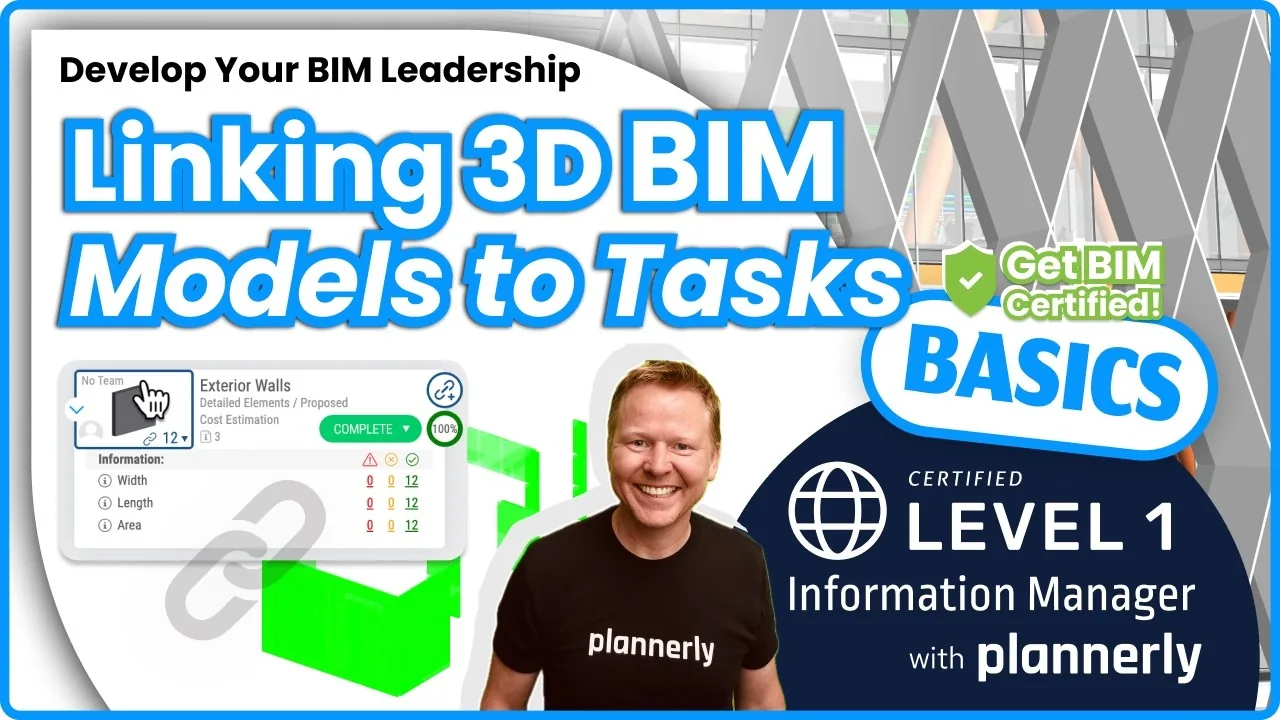
    Bring the model into Verify and link its elements to their tasks with mapping rules, so each task knows exactly which pipes, ducts or doors it covers. No LOD parameter needed.

    Every element tied to its requirement
  4. Run the Geometry check

    Select Check beside Geometry on the task. AI judges detail, completeness, placement and purpose and scores the task against your pass mark - 80% unless you set your own. Share it in a PDF report and check each new version.
    A verdict and a reason, version by version

AI model checking

LOD, rules and requirements: three AI checks on one model

Auto-LOD: the Geometry check

True LOD, checked in the geometry itself

Choose the level you agreed, such as LOD 300, and AI looks at pictures of the task's elements - the overview, every level and close-ups - and says what looks right and what to fix first. It works from pictures, so it can't measure exact sizes or tolerances: clash and clearance checks stay a separate job.

  • No LOD parameter to type into the model
  • Judged against your company's own LOD scale, if you have one
  • In beta: sign in, open Support and type add me
Watch this demo, from 21:46

Auto-Checks: rules in plain language

If you can say it, you can check it

Describe a good value in your own words - fire ratings for doors on a school in Spain, say - and AI writes the rule, names the standard it used and explains what it accepts. Then every value on every model is marked correct, incorrect or missing, and you can see each one on the model.

  • No regular expressions to learn
  • The same answer on every model version, for the same reason
  • Green, amber and red, element by element
Watch this demo, from 15:28

Auto-EIR: requirements from the model

No EIR? Start checking anyway

Handed a model with no requirements? Plannerly groups its elements into tasks, attaches the properties to check and sorts project requirements from asset requirements. The first check shows at once what's there and what's missing, and you refine the requirements with your client from there.

  • Project (PIR) and asset (AIR) requirements, sorted for you
  • A starting point to agree with your client, not a replacement
Watch this demo, from 10:56

LOD checking

Checking LOD in BIM: your questions, answered

What is LOD in BIM?
LOD, or Level of Development in the BIMForum LOD Specification, says how far a model element has been developed and how far others can rely on it: from LOD 100, a symbol or placeholder, through LOD 200, 300 and 350 to LOD 400, ready for fabrication. LOD 500 is used for field-verified models. In Plannerly each level combines a geometry level (Symbolic, Generic, Detailed or Fabrication) with a reliability level (Preliminary, Proposed, Coordinated or As-Built). LOD 100 to 500, explained.
What's the difference between LOD, LOI and LOIN?
LOD is about the geometry and how far you can rely on it. In the UK's older PAS 1192 approach it stood for level of detail, and LOI, level of information, was the data on each element: its properties and values. ISO 19650 brings geometry, information and documentation together as the level of information need (LOIN): what's needed for each purpose at each milestone, and no more. In Plannerly one task can hold all three: its LOD, the properties to check and the documents to deliver. LOD, LOIN and LOA explained.
Can software check LOD automatically?
Yes, with care. Many checks still read a number - an LOD parameter on each element, or a cell in an LOD matrix - and LOD 300 in a cell only proves somebody typed 300. Plannerly's Geometry check (beta) looks at the geometry itself and judges it against what the level means in your project's standard, with a reason for each verdict. It works from pictures of the model, so it can't measure exact sizes or tolerances. How the Geometry check works.
How is this different from an LOD matrix in a spreadsheet?
An LOD matrix, often built from the BIMForum specification, says which element needs which LOD at which milestone, and who models it. That's the right start, but a spreadsheet can't look at the model, so "does it meet LOD 300?" turns into a debate. In Plannerly the matrix is your scope: each type of element is a task with its LOD for each milestone and its owner, linked to its elements in the model, and the Geometry check judges them against it. Write your company's own LOD scale.
Do my models need an LOD parameter?
No. The Geometry check judges the geometry itself, not a value typed into the model. Link the elements to their task with mapping rules, and the task's LOD is what they're checked against. Map tasks to model elements.
Which LOD standards can I check against?
The project's standard decides the levels: ISO 19650 + LOD, ISO 19650 - Level Of Information Need, LOD US BIM Forum 2022, LOD UK, GID (111-444) and several national scales. An account admin can also write your company's own LOD scale once - each level's name, description and what the Geometry check should look for - and any project can use it. Choose your project's LOD or LOIN standard.
How do I check LOD 300 automatically?
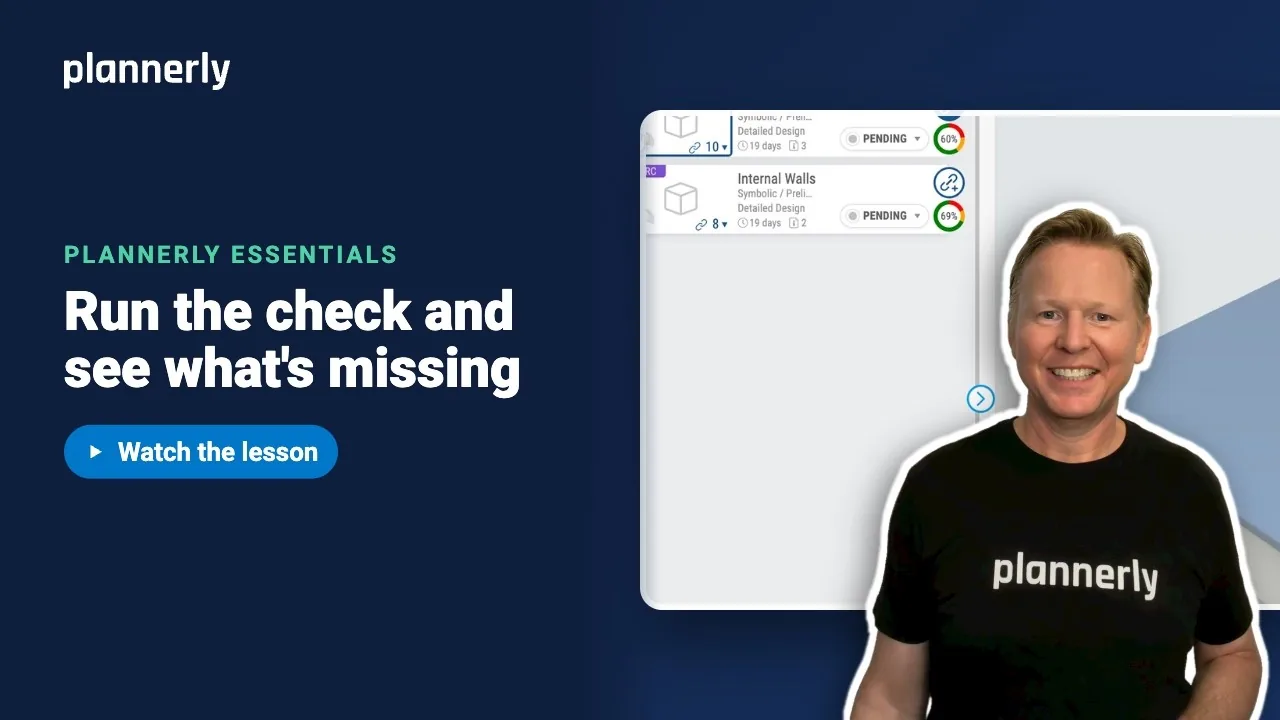
Give the task LOD 300 in Scope, link its model elements, open the model in Verify and select Check beside Geometry on the task card. Detail, completeness, placement and purpose are each marked Pass, Partial, Fail or Can't judge against what LOD 300 means in your standard, and the task is scored against your pass mark. See what LOD 300 actually expects, in the free webinar replay.
Can I try the Geometry check?
Yes. It's in beta and open to everyone in the Plannerly beta testing community: sign in, open Support, type add me and select Yes. It runs on a computer, not on a phone. Start with a free account, and when you add a model Plannerly offers a 14-day trial with one model included, no card needed. Join the beta.

Learn it properly

Level 1 · BIM Management Basics

Visualizing BIM, LOD and information requirements

What automated BIM model checking saves

  • 95%Less time spent validating modelsJTC Corporation, Singapore: from weeks of model checks to hours
  • 11,000Excel rows replaced by automated checksJTC Corporation, Singapore: 2,000+ object types across 27 model categories
  • 60%Less time tracking scope and verifying modelsJonathan Griffiths, Senior VDC Engineer, reiSource

How it works

How Verify checks every model against your requirements, step by step

  1. Set the rules once

    A PDF of requirements can't check anything. Write each property the project needs - name, rule, value, unit and property set - against the elements and milestones it applies to.

    One set of rules, for people and software
  2. Bring the models in

    No more models arriving by email. Upload IFC, Revit or any of over 60 formats, or connect Autodesk Construction Cloud and BIM 360 so new versions come across by themselves.

    Every version in one place
  3. Check every element

    Nobody has time to click through every element. Verify checks each linked element automatically: the property is there, its value and unit meet the rule, and it sits in the right property set.

    Pass or fail, element by element
  4. Fix it and report it

    Each team sees its own failed checks as tasks on the Kanban board. The charts update automatically as they fix them, and a PDF report can go out every week by itself.

    Evidence of who fixed what

Watch the overview

See a model checked against its requirements

From the free Level 1 course

The Verify overview

The Kanban board, the 3D model, the elements linked to each task and the share of checks each task passes. It's the first Verify lesson of the free Level 1 course.

Charts that update themselves

See how complete every model is, without building a report

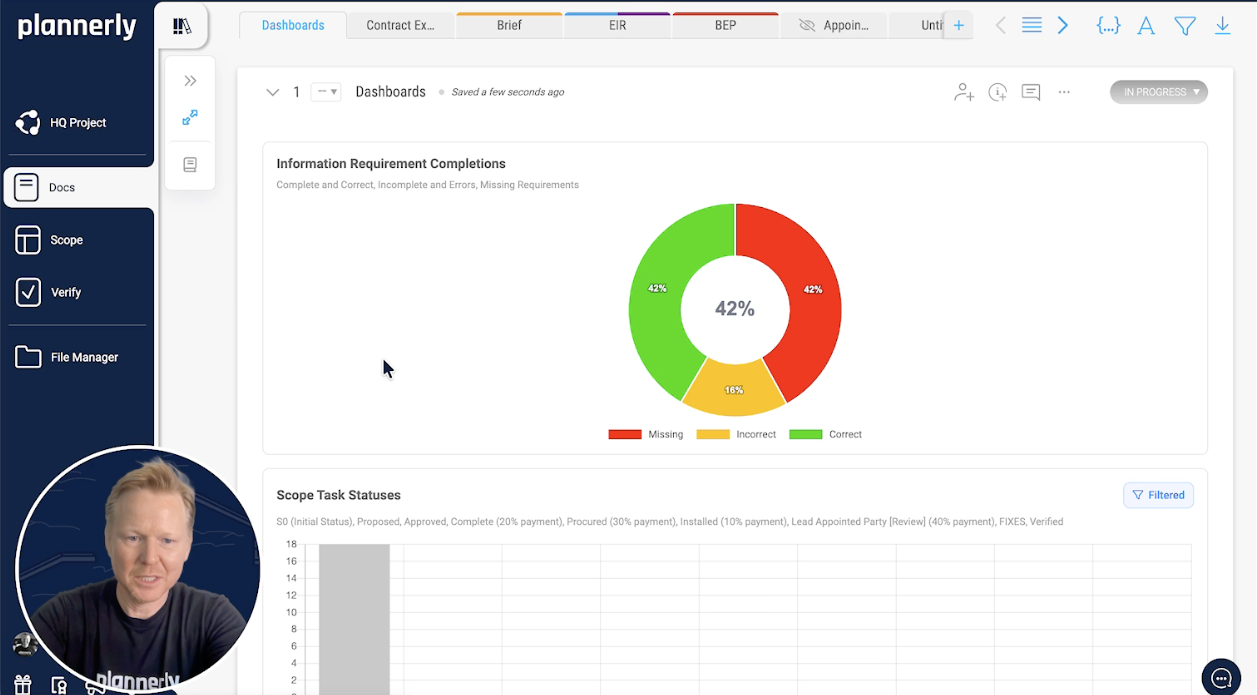
Requirement completions

Correct, incorrect or missing, at a glance

"How are the models looking?" shouldn't cost you an afternoon in Excel. Add a chart to any document in Docs and it counts every requirement check on the linked model elements as correct, incorrect or missing. Filter it by milestone, team, team member, status or work package, so each person sees the part they're accountable for.

  • Requirement completions, task status and scope task status charts
  • Side by side or stacked, as donuts or bars
  • No export to Excel or Power BI, and no filters to rebuild
Model checking slides (PDF) (opens in a new tab)
Plannerly Docs dashboard: an Information Requirement Completions donut chart showing 42% correct, 16% incorrect and 42% missing, above a bar chart of scope task statuses

Updated automatically

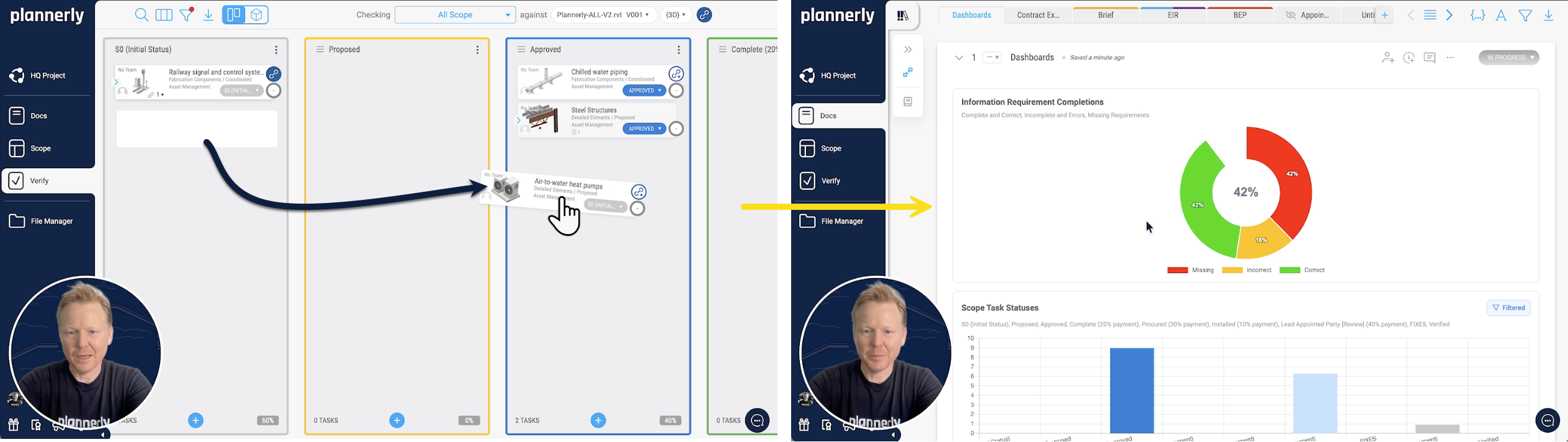
Fix the model, move the task, and the charts follow

When a team fixes what failed and moves its task across the Kanban board, the dashboard updates automatically. Nobody refreshes it, copies numbers into a spreadsheet or rebuilds a slide, and everyone sees the same picture of who has fixed what.

ISO 19650 tracking guide (PDF) (opens in a new tab)
Plannerly Verify: a task moved across the Kanban board, and the Docs dashboard of requirement completions and task statuses updating

Shared every week

A progress report that sends itself

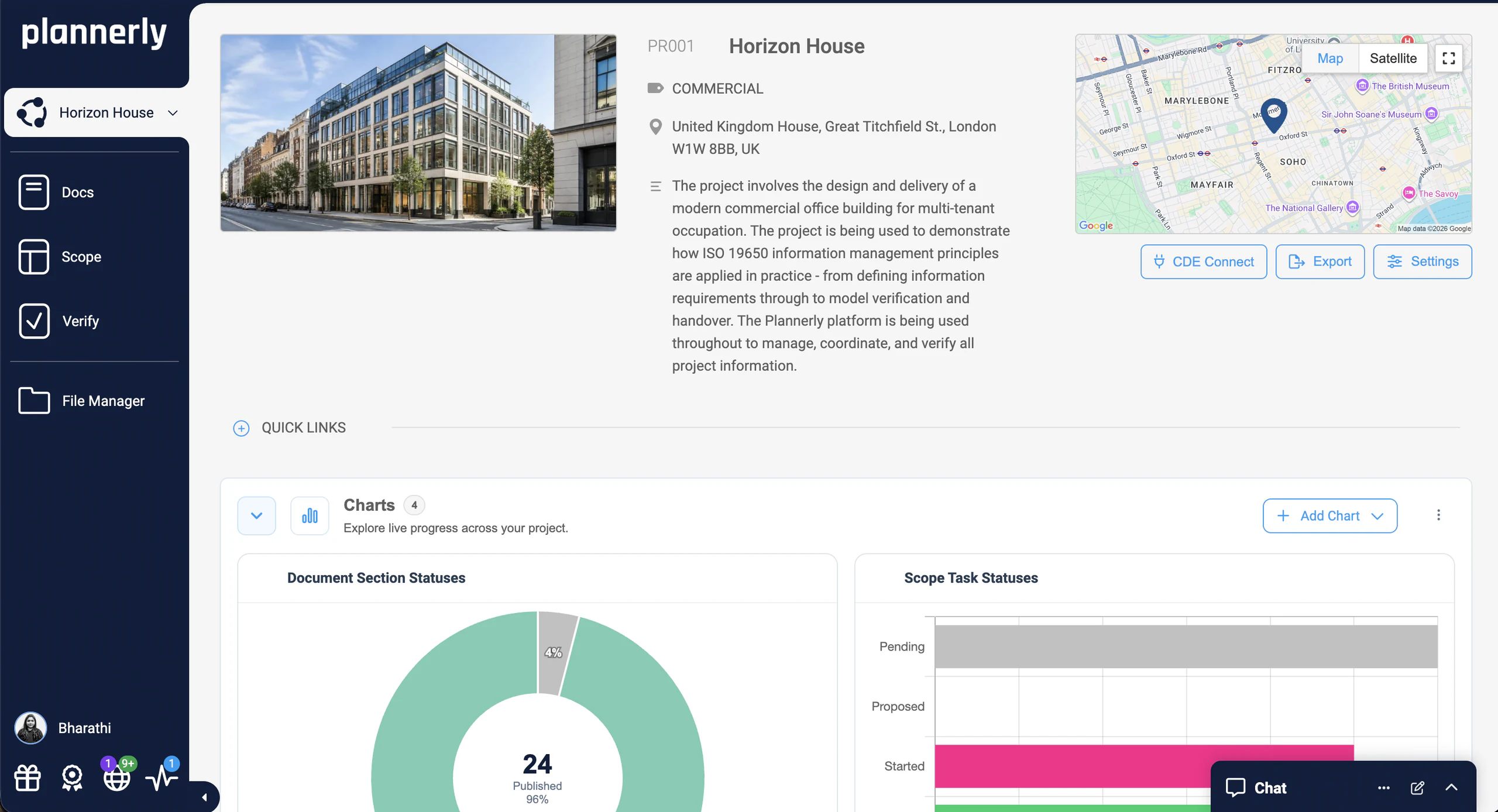
The project dashboard shows live charts of document and task statuses to everyone on the project. Export your model checking dashboard to PDF once, set it to go out every week - Monday at 9am, say - and your team gets the latest statuses without you lifting a finger.

Build a model checking dashboard
Plannerly project dashboard for Horizon House: the project details, CDE Connect, and live charts of document and scope task statuses

IDS and your CDE

BIM validation that fits how your project already works

IDS checking

One set of requirements for every checker

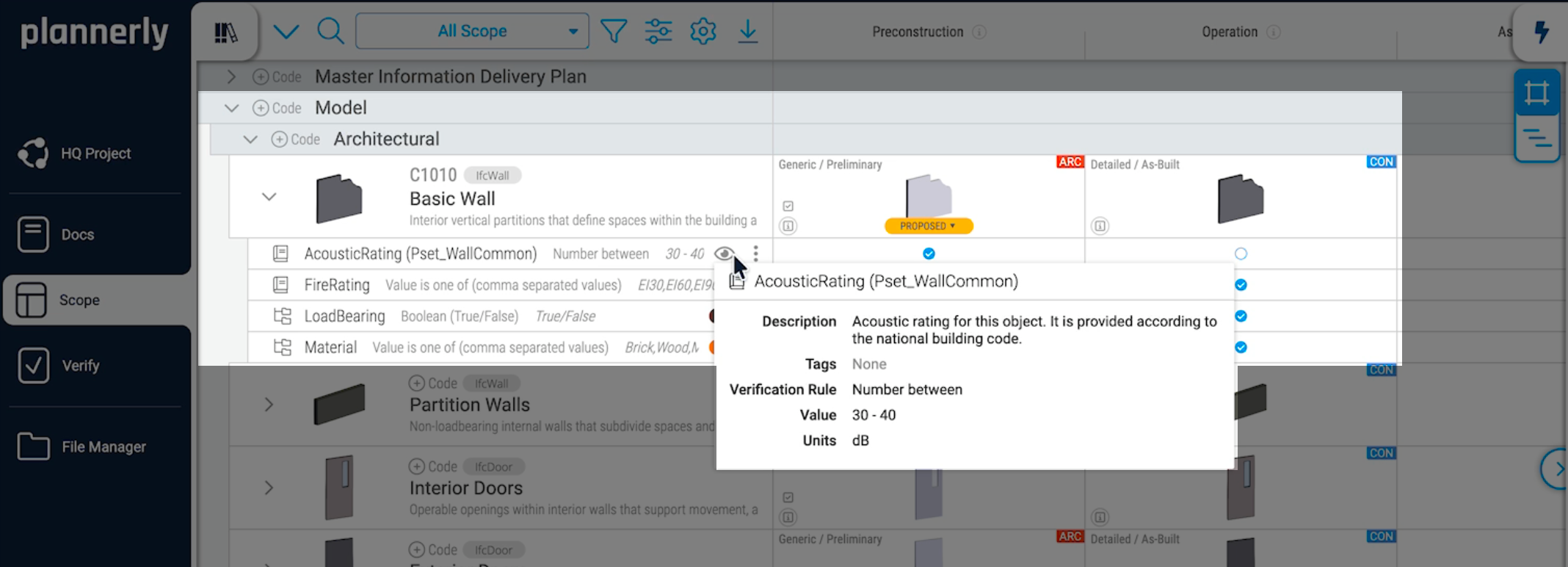
Requirements in a PDF get skimmed once and forgotten. In Plannerly they live as data, and you can export them as a buildingSMART IDS (Information Delivery Specification) file. Authors check their own models against it in tools such as Solibri or Archicad before they submit, and Verify checks the delivered model against the same rules. Nobody checks against a different version of the truth.

  • Export your requirements as a buildingSMART IDS file
  • Authors check before they submit, in their own tools
  • Verify checks the delivered model against the same rules
Download the IDS guide (PDF) (opens in a new tab)
Plannerly Scope: the requirements on a basic wall, with AcousticRating in Pset_WallCommon set to a number between 30 and 40 dB

Autodesk Construction Cloud

Check the version the team actually shared

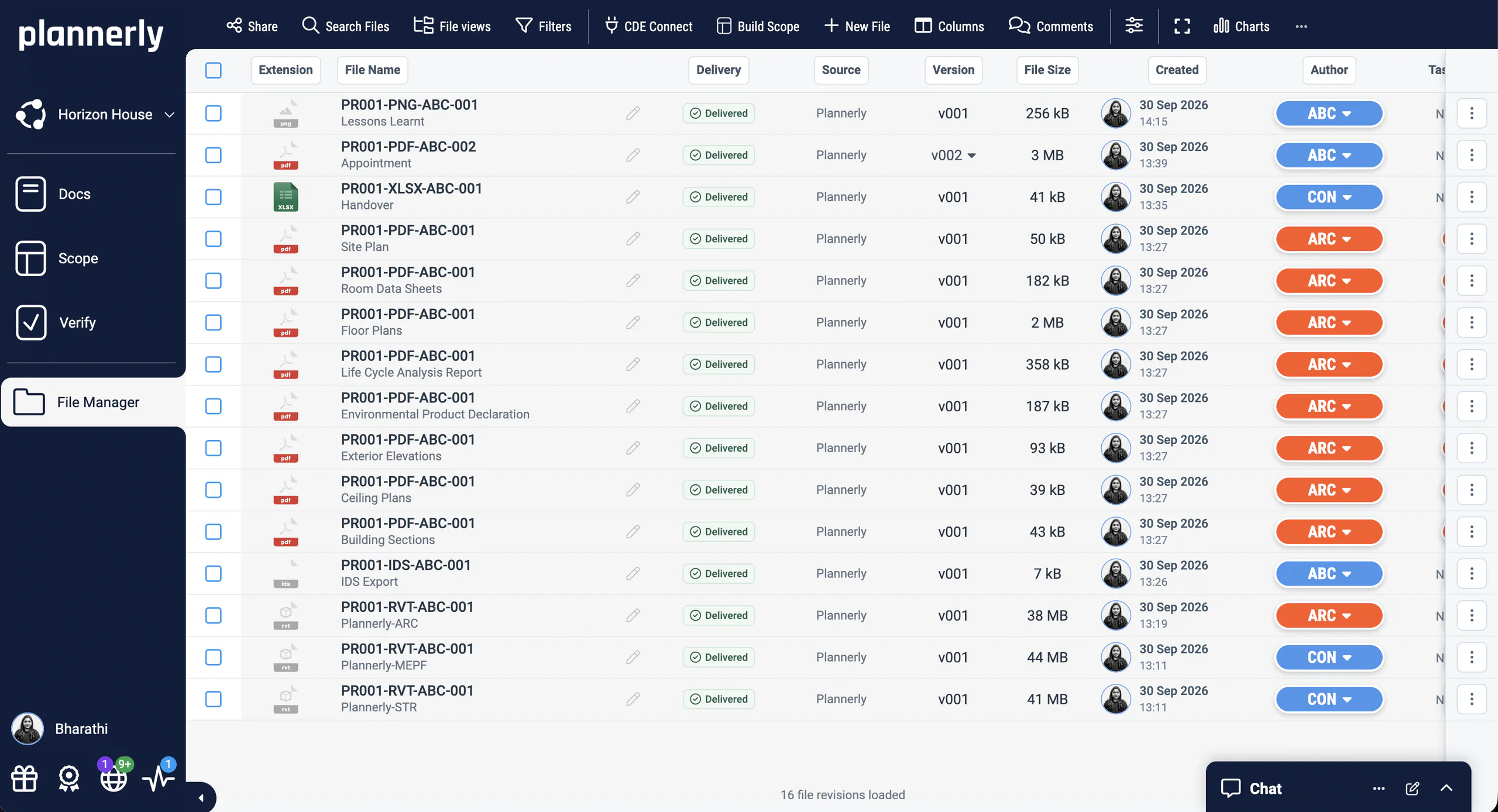
Checking last week's emailed copy wastes everyone's time. Your ACC or BIM 360 administrator enables the Plannerly app once per hub, then someone with Manager permission in Plannerly connects the hub in Verify and links the models you need. New versions come across by themselves, and the permissions you already have in ACC still apply. In File Manager, CDE Connect syncs the Autodesk folders you choose.

  • ACC, BIM 360, Autodesk Docs and Forma Data Management
  • Your existing ACC permissions still apply
  • Part of Pro, including its 14-day trial, and Company
See how CDE Connect works
Plannerly File Manager for Horizon House: the handover files, every one delivered, each with its source, version, size, creation date and author

41 minutes, with chapters

How to implement model checking with AI

Why model checks break, the open-book fix, and three live demos on an architectural and an MEP model: requirements written from the model, rules said in plain language and LOD checked in the geometry itself.

  • Why checking breaks: no EIR, hard-to-check rules, LOD opinions
  • Auto-EIR: requirements written from the model
  • Auto-Checks: rules said in plain language
  • Auto-LOD: true LOD, checked in the geometry
  • Share it: reports, PDFs and charts

Free live webinar

3 December: never name a file by hand again

Live
Dec3Thu

How to survive as a BIM Manager

ISO 19650 File Naming

10:00New York 15:00London 19:00Dubai
Save my seat

A free 45-minute webinar from How to survive as a BIM Manager.Name files automatically from their metadata, keep every version together and find the right file wherever it lives.

Free download

Take the AI model checking kit: the slides, a one-page handout and the complete guide

Free download

AI Model Checking Survival Kit: the slides, the handout and the complete guide

Everything from our webinar 'How to implement model checking with AI': all 39 slides, a one-page handout of the three checks, and the complete guide with the replay.

  • 39 slides
  • 1-page handout
  • 1 step-by-step guide

Case studies

How JTC cut model checking from weeks to hours, and two more teams that check this way

A government agency in Singapore that replaced 11,000 Excel rows with automated checks, a transport department in Australia checking its supply chain's models, and a consultancy bringing Plannerly and Solibri together across three countries.

  • Singapore

    95% faster

    Model validation time

    From 11,000 Excel rows to automated checks

    JTC Corporation · Government agency

    Eliminated 11,000 Excel rows and automated compliance checks across 2,000+ object types and 27 model categories with Plannerly's Verify module.

    Before Plannerly, it took weeks to do model checks. Now we do it in hours.
    John Kiong, Director · JTC Corporation
    • ISO 19650
    • Verify
    • Government
  • Australia

    Government QA

    Model data checked against information requirements

    Government model checking for transport infrastructure

    Queensland Department of Transport and Main Roads · Government owner

    Queensland's Department of Transport and Main Roads uses Plannerly Verify to check supply-chain model data against defined information requirements, giving the team more certainty that model deliverables contain the information they expect.

    It highlights the need for due diligence when pulling all of the pieces of the puzzle together.
    Bryan McSweeney, Manager - Special Projects · TMR
    • Government
    • Verify
    • Model Checking
  • Southeast Asia

    3 countries · Plannerly + Solibri

    Singapore, Malaysia & Indonesia

    Bringing government BIM compliance to Southeast Asia

    AdRem IT Solutions · BIM services

    Integrated Plannerly with Solibri's Accessibility Code Checker for automated CORENET X compliance in Singapore, and now rolling out ISO 19650 certification across Malaysia and Indonesia.

    Plannerly is critical to our information compliance standards and now with the tracking reports built in, we can spend more time ensuring better quality deliverables and less time collecting compliance statistics with screenshots.
    Voon Lok, Managing Director · AdRem IT Solutions
    • CORENET X
    • Solibri
    • ISO 19650

See all case studiesOwners, design teams, contractors, consultants and educators - filter them by your kind of organisation.

What teams say

Owners, consultants and Autodesk on checking models in Verify

In their own words: what changes when every requirement is checked automatically and every check is on the record.

  • 5 out of 5

    Compliance checks used to be a black box. Now, every requirement is traceable and auditable.
    John KiongDirector, Future of Building & Infrastructure · JTC Corporation
  • 5 out of 5

    Plannerly cut the time we spent tracking scope and verifying models by 60%.
    Jonathan GriffithsSenior VDC Engineer · reiSource
  • 5 out of 5

    When you're helping governments go digital, you need a platform teams actually understand. That's Plannerly.
    Voon LokManaging Director · AdRem IT Solutions
  • 5 out of 5

    It highlights the need for due diligence when pulling all of the pieces of the puzzle together to make sure there are no errors in the definition of our information requirements.
    Bryan McSweeneyManager - Special Projects, Digital Systems · Queensland Department of Transport and Main Roads
  • 5 out of 5

    Verify's integration with Autodesk Construction Cloud helps make BIM management more seamless for customers.
    James CookHead of Integrations · Autodesk
  • 5 out of 5

    Best software that I ever used for BIM check!
    Bruno Oliveira
  • 5 out of 5

    This software is fantastic for checking model LOD and LOI.
    Naga Mahesh UddamdamBIM Manager

Questions

BIM model checking and validation: your questions, answered

What is BIM model checking software?
Software that checks whether a BIM model contains what the project asked for. Plannerly Verify checks the information in the model - each element's properties, values, units and property sets - against your project's own information requirements, and shows the result element by element. With the Geometry check (beta), it also judges each element's geometry against the LOD it should reach. It answers the question that matters at handover: does this model carry the data we specified? The model checking guide walks through the whole job, and BIM model checking software, compared sets out the other approaches.
What does BIM validation check in Plannerly?
Three things for every linked element: the required property exists, its value meets the rule (unit included), and it sits in the property set or requirement group the requirement names. If the value is right but it's in the wrong property set, Verify reports it as missing, so the model follows the structure your project defined. How property sets and requirement groups are validated.
Are models checked automatically?
Yes. Once a model is processed and its elements are linked to their tasks, every check runs automatically and the charts update automatically as teams fix what failed. Processing runs in the background and emails you when it's done; a 150 MB Revit file typically takes 5 to 20 minutes. Linking models for auto-checking, a free lesson, shows how.
What should a BIM model validation checklist include?
For each element and milestone: the properties it must carry, the rule each value must meet (a number between two values, one of a list, true or false, or simply not empty), the unit, and the property set it belongs in. Add your file and naming checks from your quality control process. Written in Plannerly, that checklist becomes the checks themselves, so nobody ticks it by hand. The UK BIM Framework guidance covers what to ask for.
What is IDS checking, and does Plannerly support IDS?
IDS (Information Delivery Specification) is the buildingSMART standard for writing information requirements as a file that checking software can read. In Plannerly you write the requirements once and export them as an IDS file. Authors check their own IFC models against it before they submit, and Verify checks the delivered model against the same requirements. IDS: the complete guide and how to create an IDS file.
Which file formats can Verify check?
Over 60 model file formats, IFC, Revit, DWG and DWF among them. Before processing you can already walk through, measure, section and inspect a model; processing extracts every element and property so the automatic checks can run. What processing does, and how long it takes.
Does Verify work with Autodesk Construction Cloud and BIM 360?
Yes. An administrator enables the Plannerly app once in each ACC or BIM 360 hub, then someone with Manager permission in Plannerly connects the hub in Verify and links the models. New versions come across by themselves, and the permissions you already have in ACC still apply. Connecting ACC is part of Pro, including its free 14-day trial, and Company. Link your ACC or BIM 360 account, then see CDE Connect for files.
Can I see model checking progress in a chart?
Yes. Add a chart to any document in Docs to show requirement completions (correct, incorrect or missing), task status or scope task status, and filter it by milestone, team, team member, status or work package. The charts update automatically as models are checked and tasks move, and you can export the dashboard to PDF and have it sent every week by itself. Build a model checking dashboard and filter charts by work package.
Why does a property show as missing when it's in the model?
Usually because the names don't match exactly - a trailing space, or a lowercase l where the requirement has a capital I - or because the property sits in a different property set, or on a parent assembly rather than the element itself. Checking is exact by design. Why a property is connected but not checking, and why properties turn red after grouping.
Is Verify a clash detection tool?
Not yet, though it's on the way. Today Verify checks the information in the model - whether each element carries the data you asked for - and, with the Geometry check (beta), whether its geometry reaches the LOD it should. Neither finds clashes between elements, so keep your clash detection tool for clashes for now. What a model check finds.
Can I validate a model offline, or before it's shared?
Verify runs in your browser, so checking in Plannerly needs a connection. Before anything is shared, give your authors the IDS file: they can check their models offline in their own tools, such as Solibri or Archicad, or bring the IDS into Revit. Verify then checks the delivered model against the same rules.
Can I try model checking for free?
Yes. On the Free plan you can write your requirements and explore Verify. Checking your own models is part of Pro, and the 14-day Pro trial includes model checking, with no card. The free education plans come with example models. Start free, or compare the plans.

Pricing

Start free, and check your own models on the 14-day Pro trial

Free $0forever
  • Five projects included
  • The account owner edits; everyone they invite can view
  • 100 MB of project files
  • Explore Docs, Scope and Verify
  • Write your requirements and explore Verify
Start free
5 projects included free Pro
Choose your modules
$249/ month
  • Five projects included
  • Unlimited editors and viewers
  • 50 GB of project files
  • Your branding on everything you export
  • Each project beyond five: $49 a month
  • Models checked automatically, in over 60 file formats
  • Charts and dashboards that update automatically
  • Connect Autodesk Construction Cloud and BIM 360
  • The 14-day Pro trial includes model checking, no card
Start free, then try Pro for 14 days

Prices in US dollars. You'll see the price for your country in the app.

Stop checking models by hand.

Set the requirements once, let every model be checked against them automatically, and let the report go out on Monday by itself.

Free plan · No card · The 14-day Pro trial includes model checking

Sign in to keep your progress

Use your Plannerly account - the same email and password as the app. Every lesson stays open either way.

Learned with a different email? Sign in to that account here and we'll bring its courses, progress and certificates into the one you're signed in with. Certificate links and QR codes keep working.

Forgot that password? Reset it first, then come back. Want to keep the other account instead? Sign out and sign in with that one.