
Video
How to Duplicate a Project in Plannerly: What to Keep and Leave Behind
About this video
Step-by-step guide: https://help.plannerly.com/en/article/109-how-to-duplicate-a-project-in-plannerly-using-templates-instead
Free Certified Plannerly Administrator course with certificate: https://plannerly.com/courses/admin/
Starting every job from scratch throws away what you got right last time. See how to duplicate a project in Plannerly, choose what comes across (documents, scope, teams, settings), and know that people, signatures and approvals stay behind for a clean start.
In this video:
0:00 Why not start from scratch
0:11 Duplicate project
0:25 What stays behind
Next: Archive or Delete? The Right Way to Manage Plannerly Projects: https://youtu.be/XuBos4Vdnv0
The whole Certified Plannerly Administrator course in order: https://www.youtube.com/playlist?list=PLXI2hGj1X37s
Plannerly is the BIM management platform used by nearly 150,000 teams to plan, scope and check project information.
Try it free: https://plannerly.com/
Free training: https://plannerly.com/training/
Help Center: https://help.plannerly.com/en/
LinkedIn: https://www.linkedin.com/company/plannerly
Instagram: https://www.instagram.com/plannerlyAEC
#BIM #ISO19650 #Plannerly
Featured in
Where this video is used
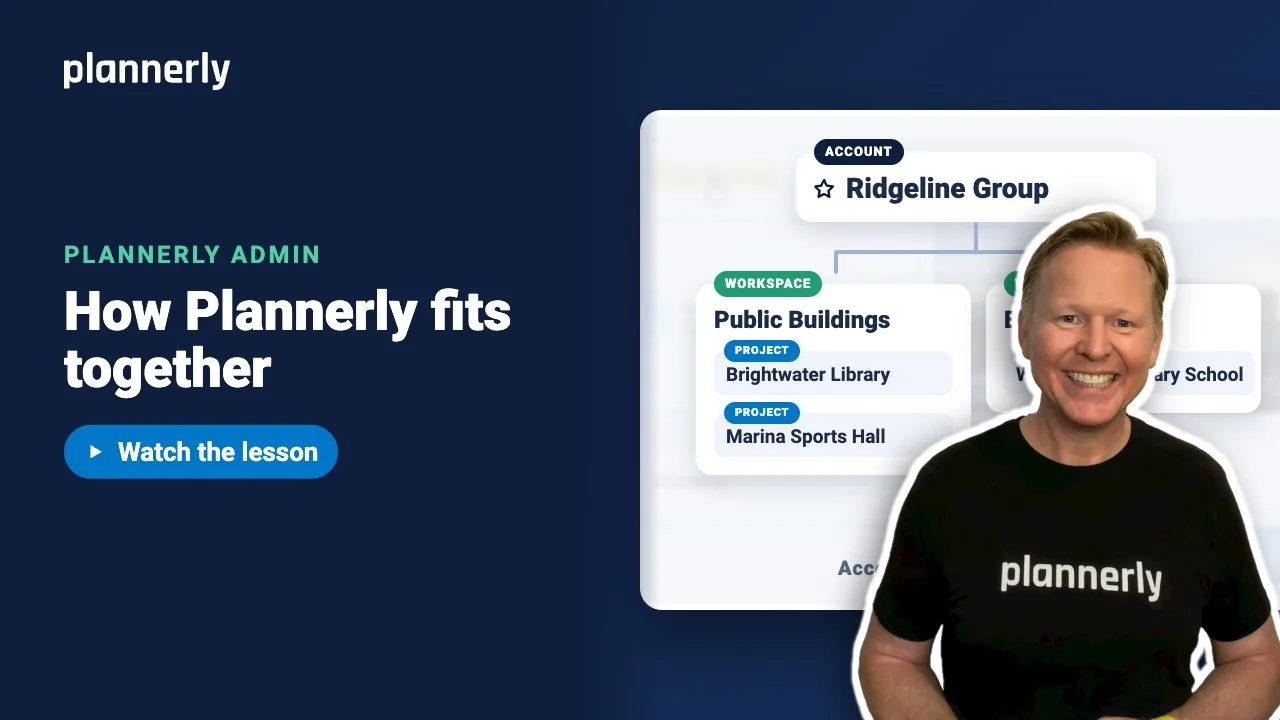 Video · 1:01
Plannerly Accounts, Workspaces and Projects Explained
Step-by-step guide: https://help.plannerly.com/en/article/accounts-workspaces-and-projects-in-plannerly-explained Free Certified Plannerly Administrator course with certificate: https://plannerly.com/courses/admin/
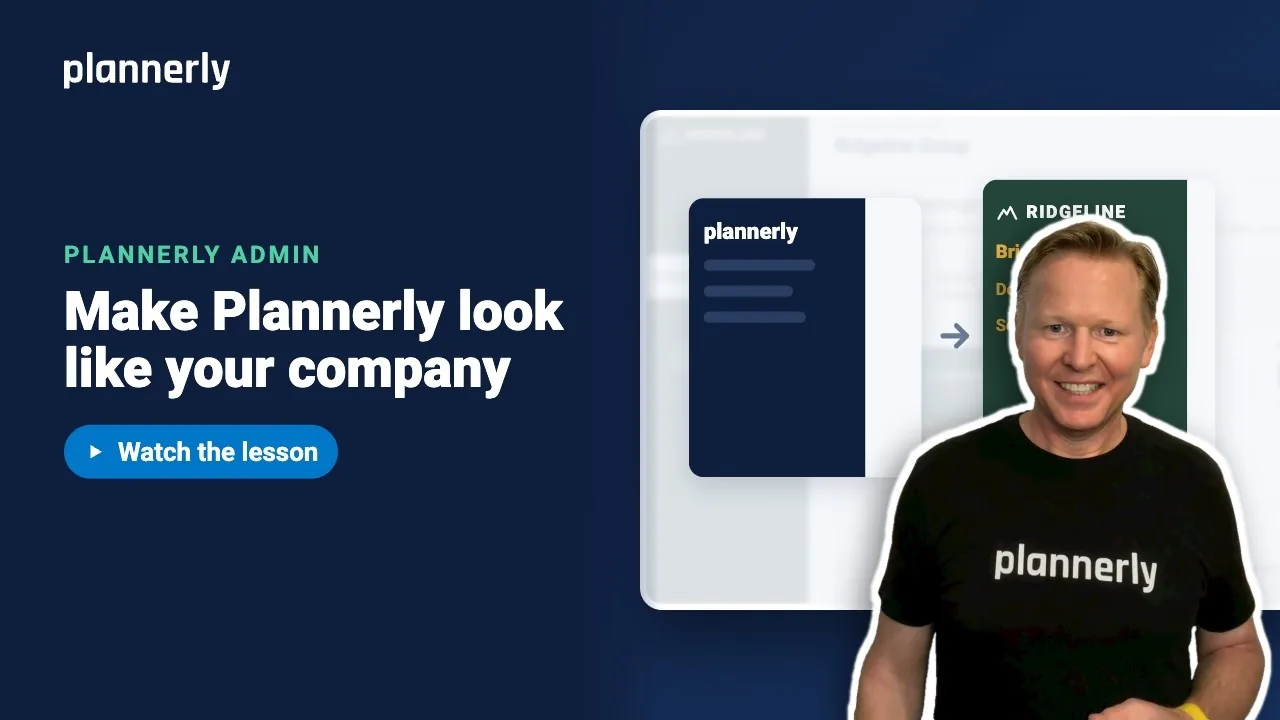 Video · 0:47
How to Add Your Logo and Colors to Your Plannerly Account
Step-by-step guide: https://help.plannerly.com/en/article/how-to-add-your-company-logo-and-colors-to-plannerly Free Certified Plannerly Administrator course with certificate: https://plannerly.com/courses/admin/
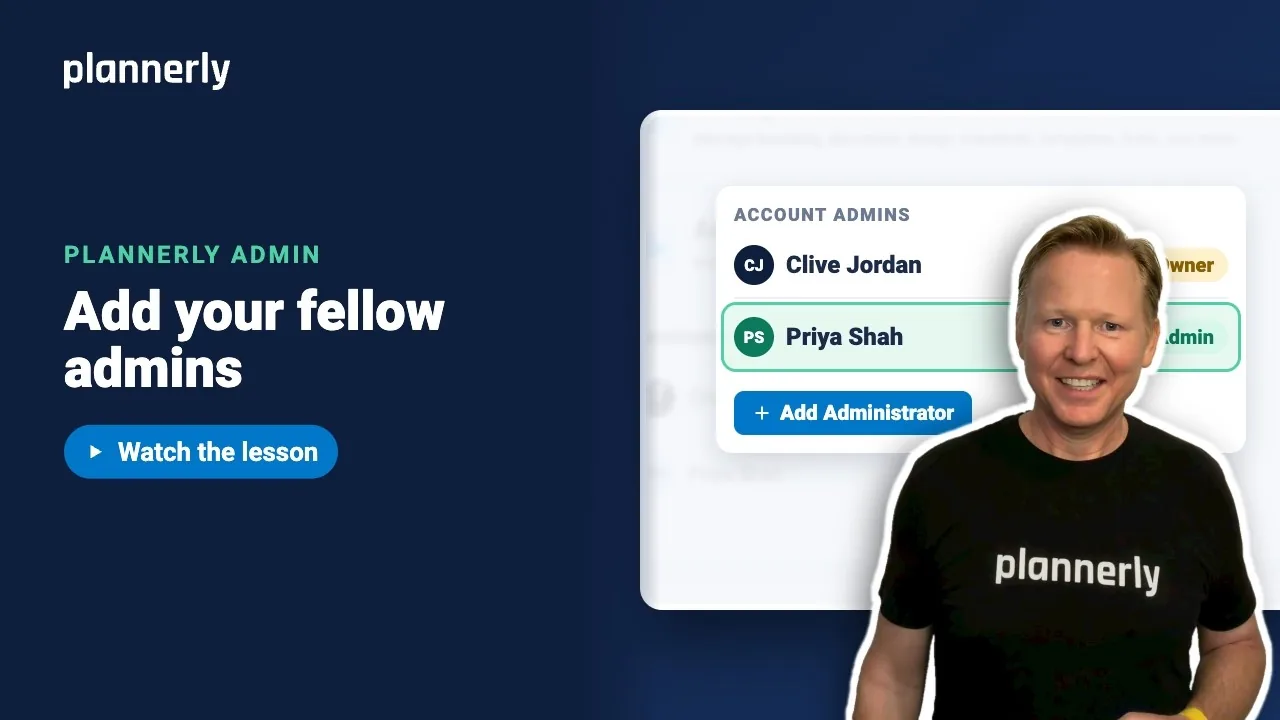 Video · 0:49
How to Add a Second Admin to Your Plannerly Account
Step-by-step guide: https://help.plannerly.com/en/article/how-to-add-another-account-admin-in-plannerly Free Certified Plannerly Administrator course with certificate: https://plannerly.com/courses/admin/
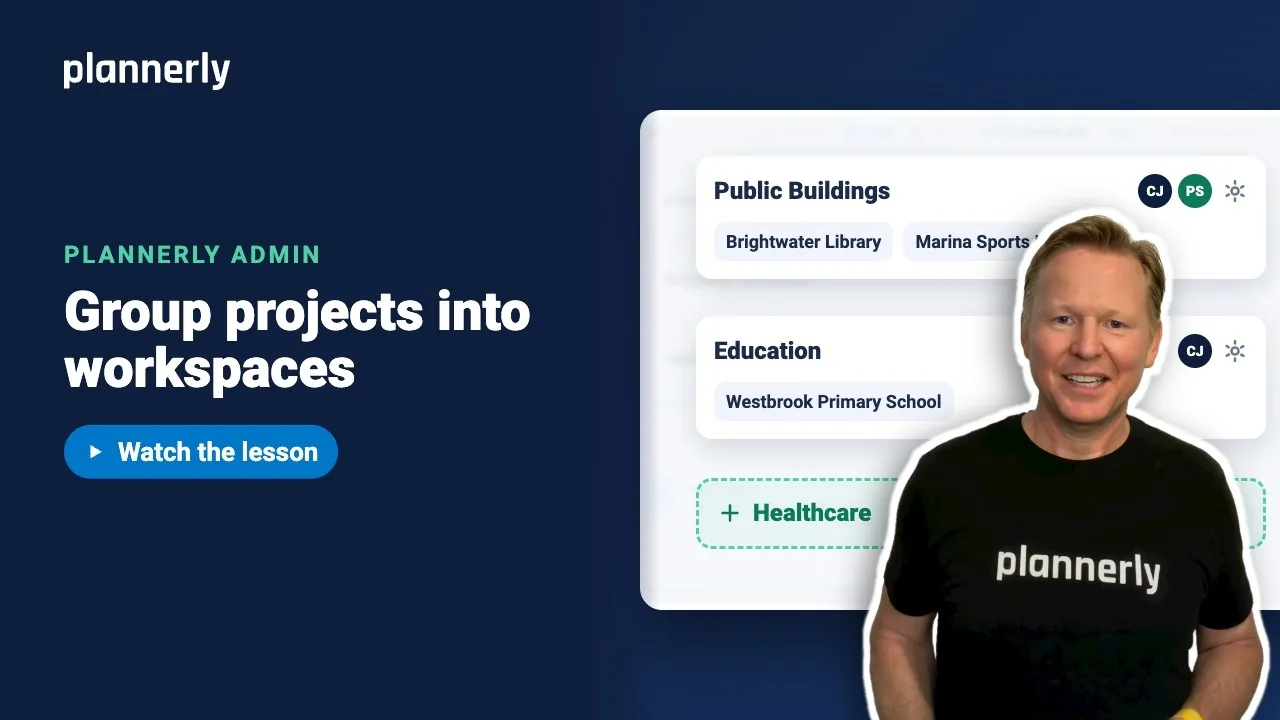 Video · 0:54
How to Group Projects into Workspaces in Plannerly
Step-by-step guide: https://help.plannerly.com/en/article/66-how-to-create-a-new-workspace-in-plannerly Free Certified Plannerly Administrator course with certificate: https://plannerly.com/courses/admin/
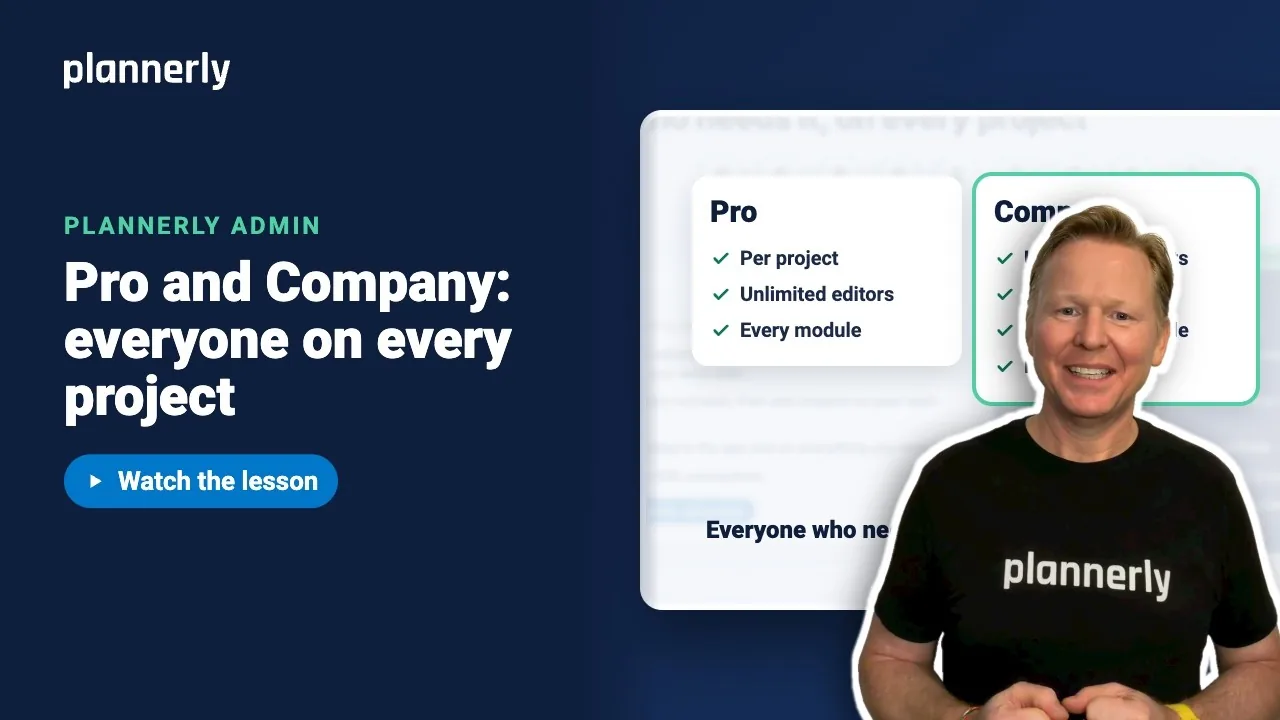 Video · 0:55
Plannerly Pro or Company? Choosing the Right Plan for Your Team
Step-by-step guide: https://help.plannerly.com/en/article/51-how-much-does-plannerly-cost Free Certified Plannerly Administrator course with certificate: https://plannerly.com/courses/admin/
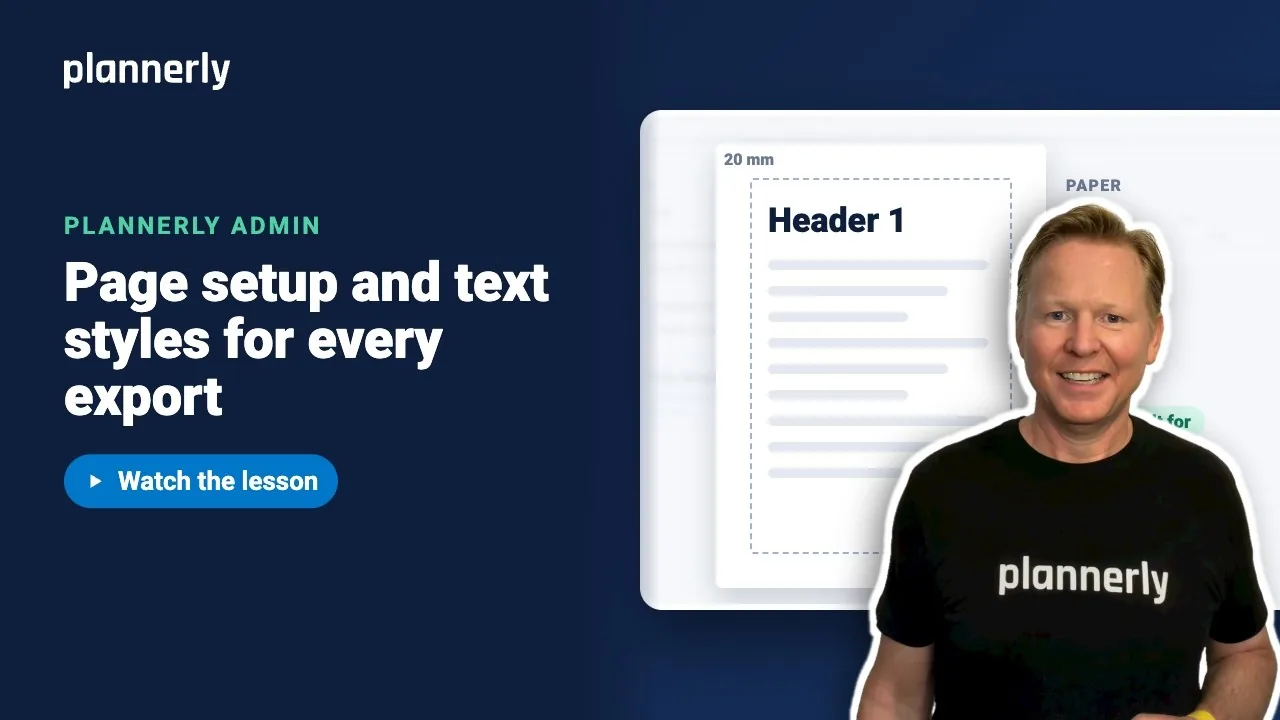 Video · 1:00
How to Set a Default Page Size and Margins in Plannerly
Step-by-step guide: https://help.plannerly.com/en/article/set-company-page-size-margins-and-text-styles-in-plannerly Free Certified Plannerly Administrator course with certificate: https://plannerly.com/courses/admin/