
Video
How to Set Up Custom Templates in Plannerly (the Right Way)
About this video
Step-by-step guide: https://help.plannerly.com/en/article/choose-which-templates-appear-in-project-libraries-in-plannerly
Free Certified Plannerly Administrator course with certificate: https://plannerly.com/courses/admin/
Copying an old project to start a document carries out-of-date wording from job to job. Here is how to use Template Management in Account Settings so every project Library offers only your company's approved templates and nothing else. No more documents copied from last time.
In this video:
0:00 Why old copies spread
0:15 Template Management
0:33 Save and check Library
Next: SmartFields: Change One Value, Update Every Document: https://youtu.be/vvPC04w1-Z8
The whole Certified Plannerly Administrator course in order: https://www.youtube.com/playlist?list=PLXI2hGj1X37s
Plannerly is the BIM management platform used by nearly 150,000 teams to plan, scope and check project information.
Try it free: https://plannerly.com/
Free training: https://plannerly.com/training/
Help Center: https://help.plannerly.com/en/
LinkedIn: https://www.linkedin.com/company/plannerly
Instagram: https://www.instagram.com/plannerlyAEC
#BIM #ISO19650 #Plannerly
Featured in
Where this video is used
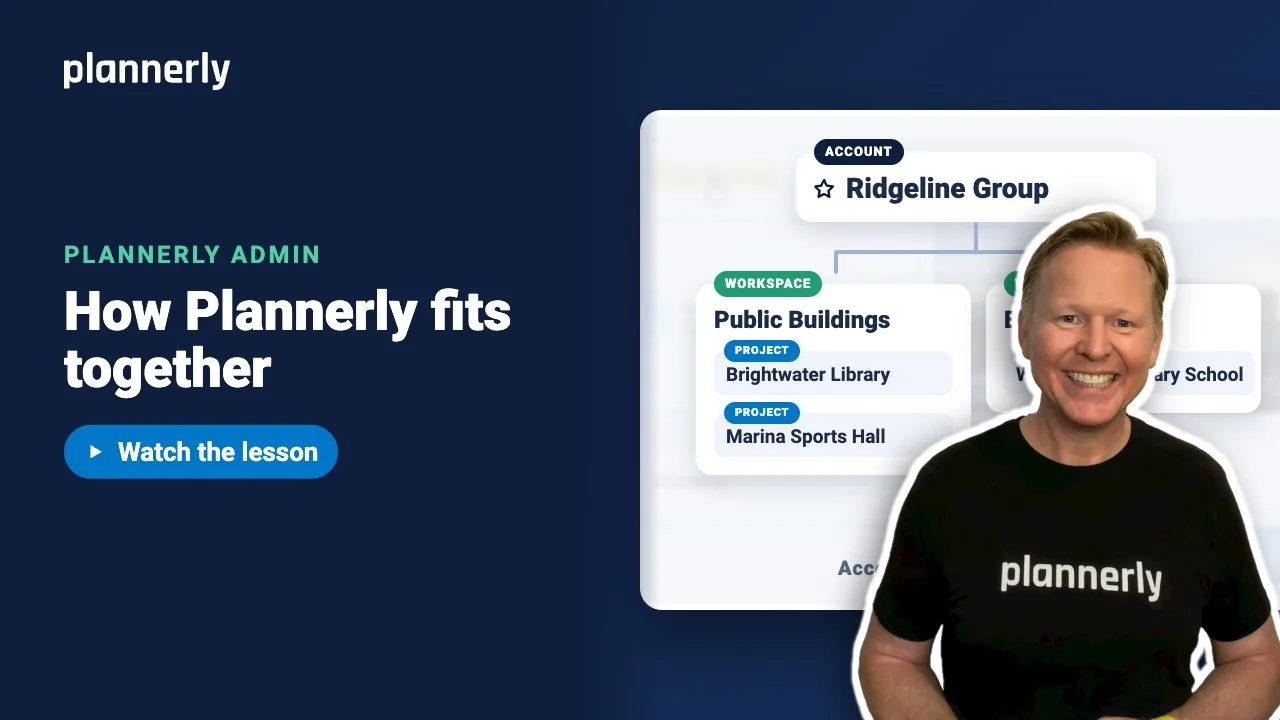 Video · 1:01
Plannerly Accounts, Workspaces and Projects Explained
Step-by-step guide: https://help.plannerly.com/en/article/accounts-workspaces-and-projects-in-plannerly-explained Free Certified Plannerly Administrator course with certificate: https://plannerly.com/courses/admin/
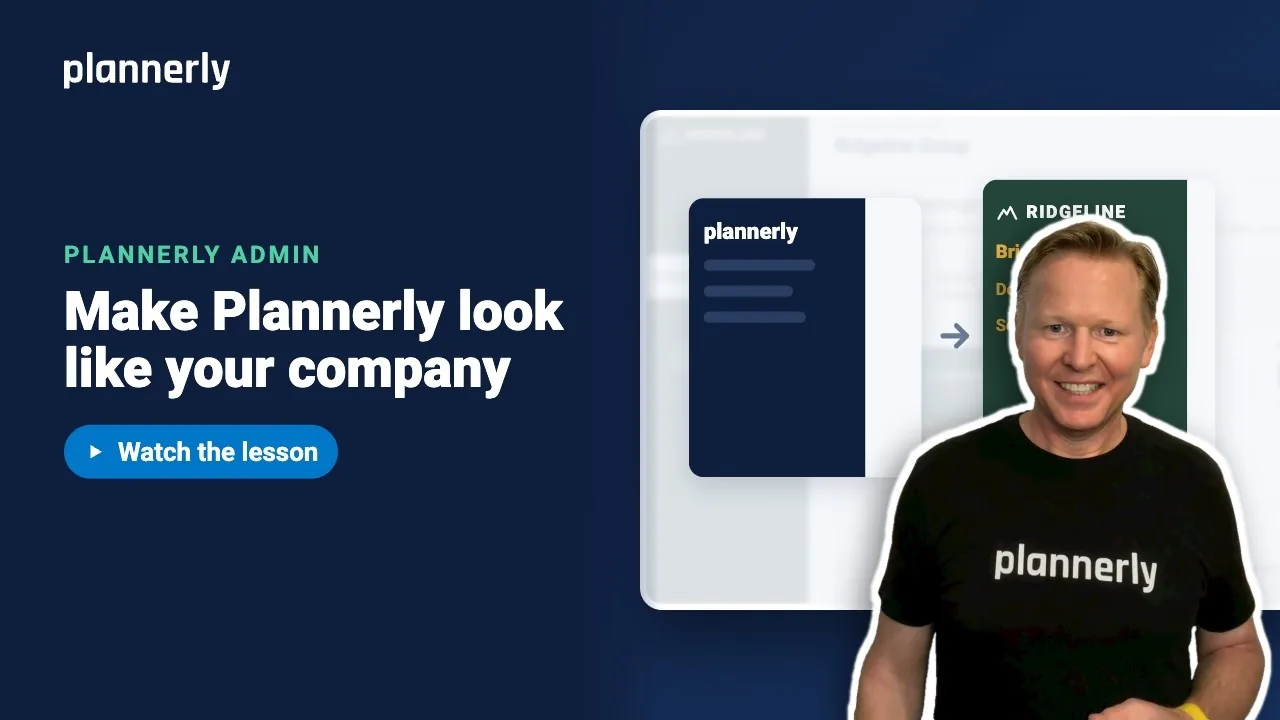 Video · 0:47
How to Add Your Logo and Colors to Your Plannerly Account
Step-by-step guide: https://help.plannerly.com/en/article/how-to-add-your-company-logo-and-colors-to-plannerly Free Certified Plannerly Administrator course with certificate: https://plannerly.com/courses/admin/
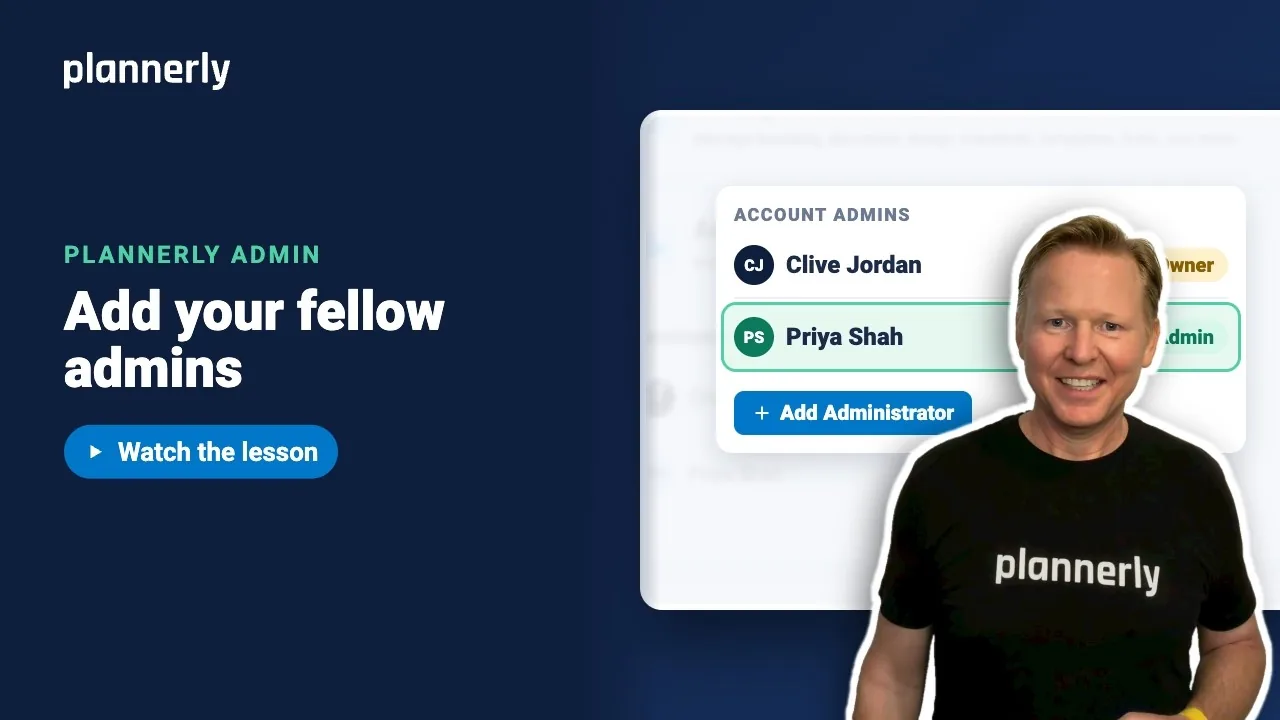 Video · 0:49
How to Add a Second Admin to Your Plannerly Account
Step-by-step guide: https://help.plannerly.com/en/article/how-to-add-another-account-admin-in-plannerly Free Certified Plannerly Administrator course with certificate: https://plannerly.com/courses/admin/
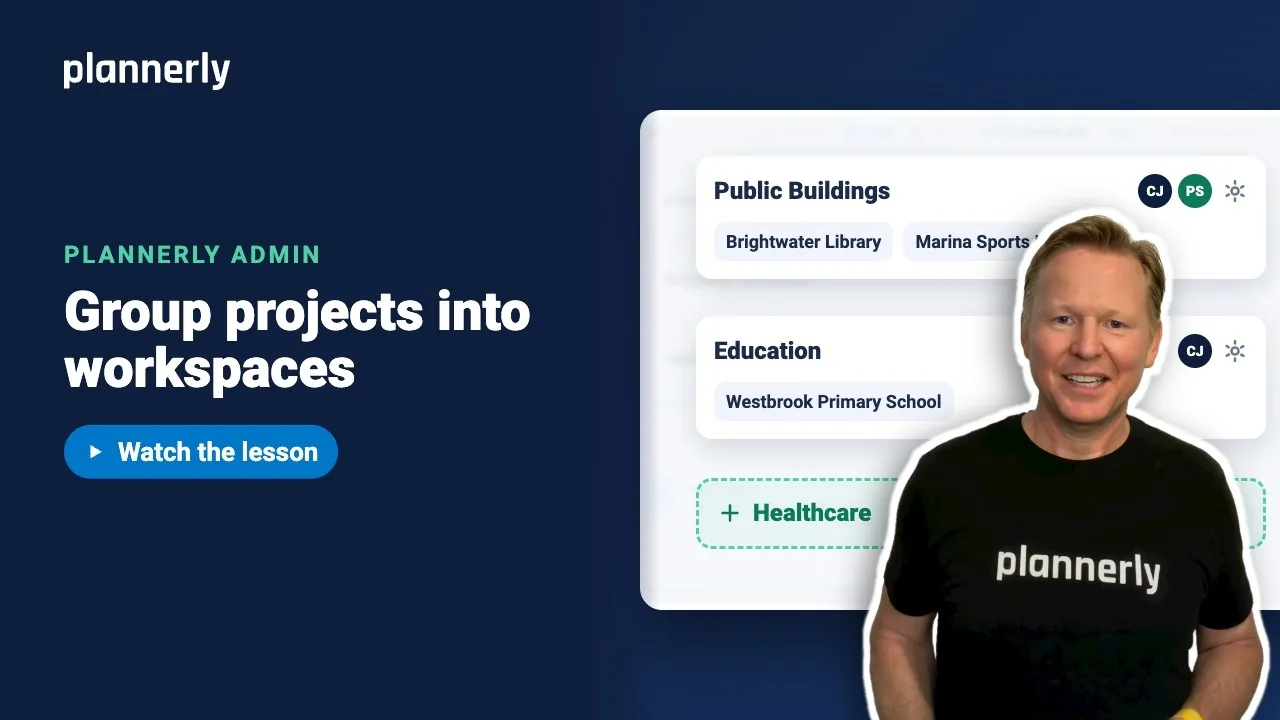 Video · 0:54
How to Group Projects into Workspaces in Plannerly
Step-by-step guide: https://help.plannerly.com/en/article/66-how-to-create-a-new-workspace-in-plannerly Free Certified Plannerly Administrator course with certificate: https://plannerly.com/courses/admin/
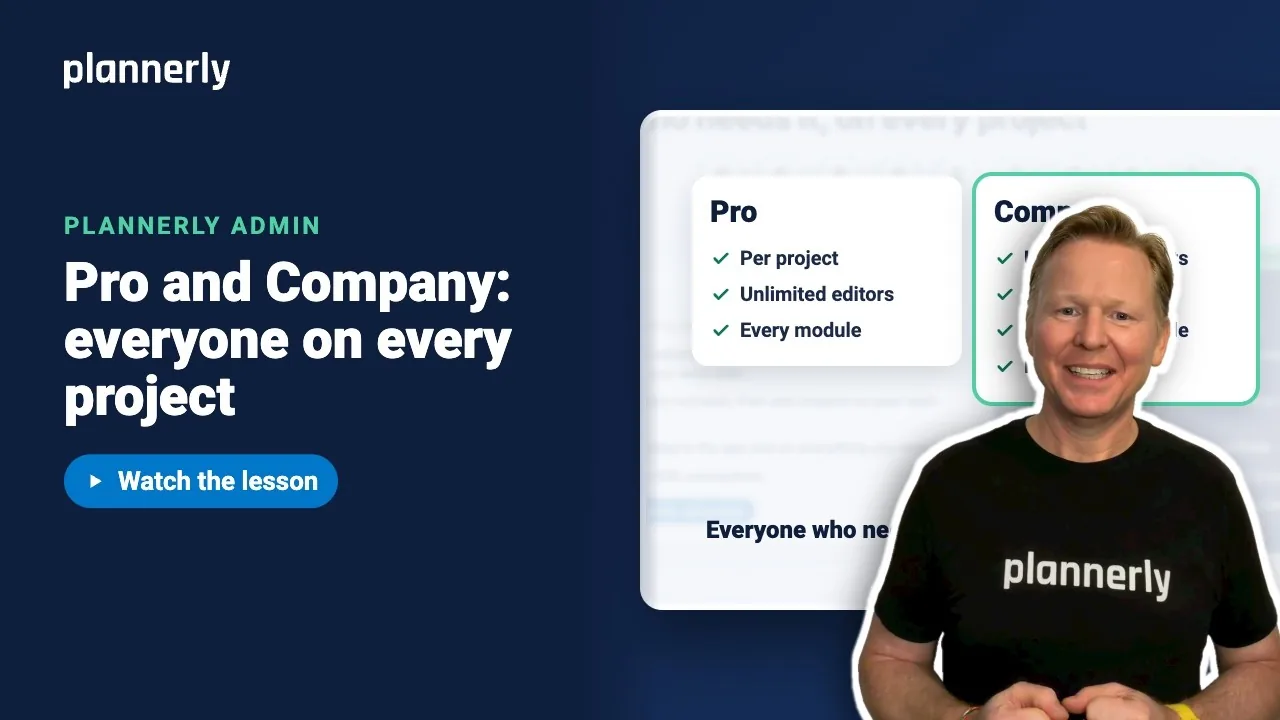 Video · 0:55
Plannerly Pro or Company? Choosing the Right Plan for Your Team
Step-by-step guide: https://help.plannerly.com/en/article/51-how-much-does-plannerly-cost Free Certified Plannerly Administrator course with certificate: https://plannerly.com/courses/admin/
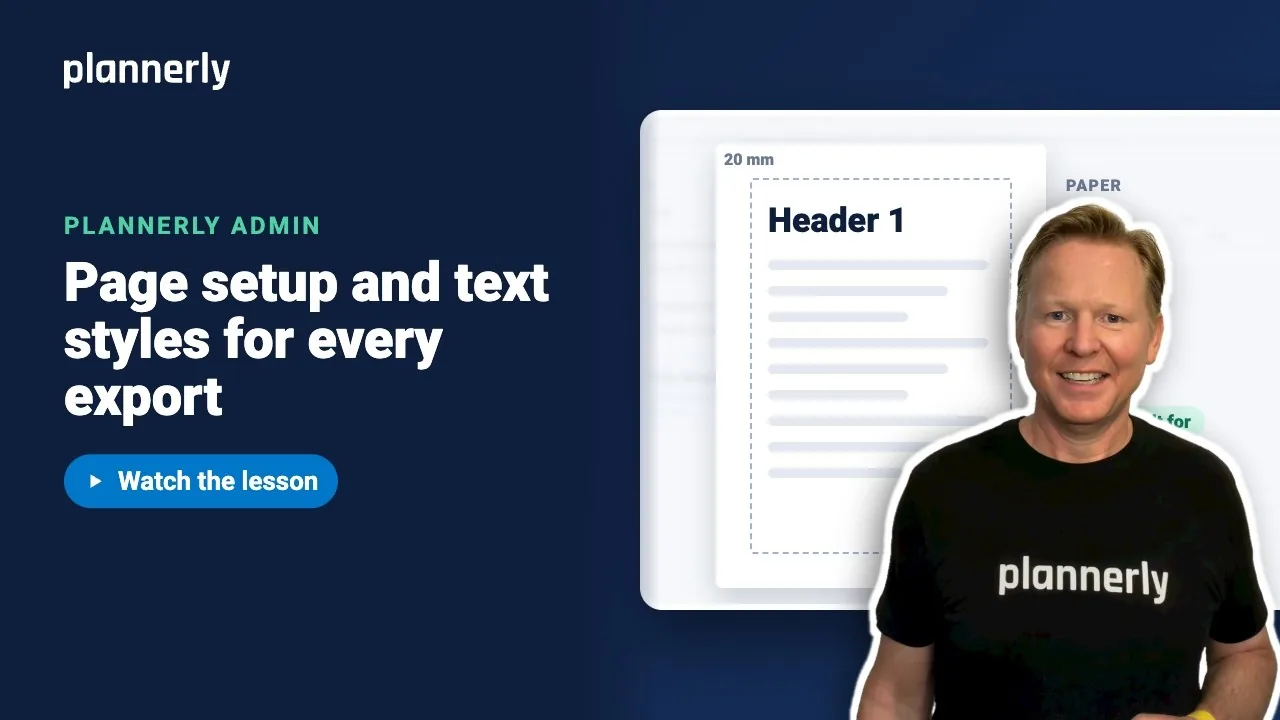 Video · 1:00
How to Set a Default Page Size and Margins in Plannerly
Step-by-step guide: https://help.plannerly.com/en/article/set-company-page-size-margins-and-text-styles-in-plannerly Free Certified Plannerly Administrator course with certificate: https://plannerly.com/courses/admin/