
Video
How to Automate Your Project Documents with SmartFields
About this video
Step-by-step guide: https://help.plannerly.com/en/article/smartfields-in-a-bep-change-a-project-detail-once
Free Certified Plannerly Professional course with certificate: https://plannerly.com/courses/professional/
When the client renames the project and you find the old name in 40 places, SmartFields are the fix. Turn text like the client name into a SmartField, let Plannerly replace other typed copies, and change the value once so every document agrees.
In this video:
0:00 Why SmartFields
0:12 Insert a SmartField
0:23 Replace everywhere
Next: How to Use AI to Draft and Tidy Your Sections: https://youtu.be/WCO_wqHl_aQ
The whole Certified Plannerly Professional course in order: https://www.youtube.com/playlist?list=PLBbqFLwV3gRs
Plannerly is the BIM management platform used by nearly 150,000 teams to plan, scope and check project information.
Try it free: https://plannerly.com/
Free training: https://plannerly.com/training/
Help Center: https://help.plannerly.com/en/
LinkedIn: https://www.linkedin.com/company/plannerly
Instagram: https://www.instagram.com/plannerlyAEC
#BIM #ISO19650 #Plannerly
Featured in
Where this video is used
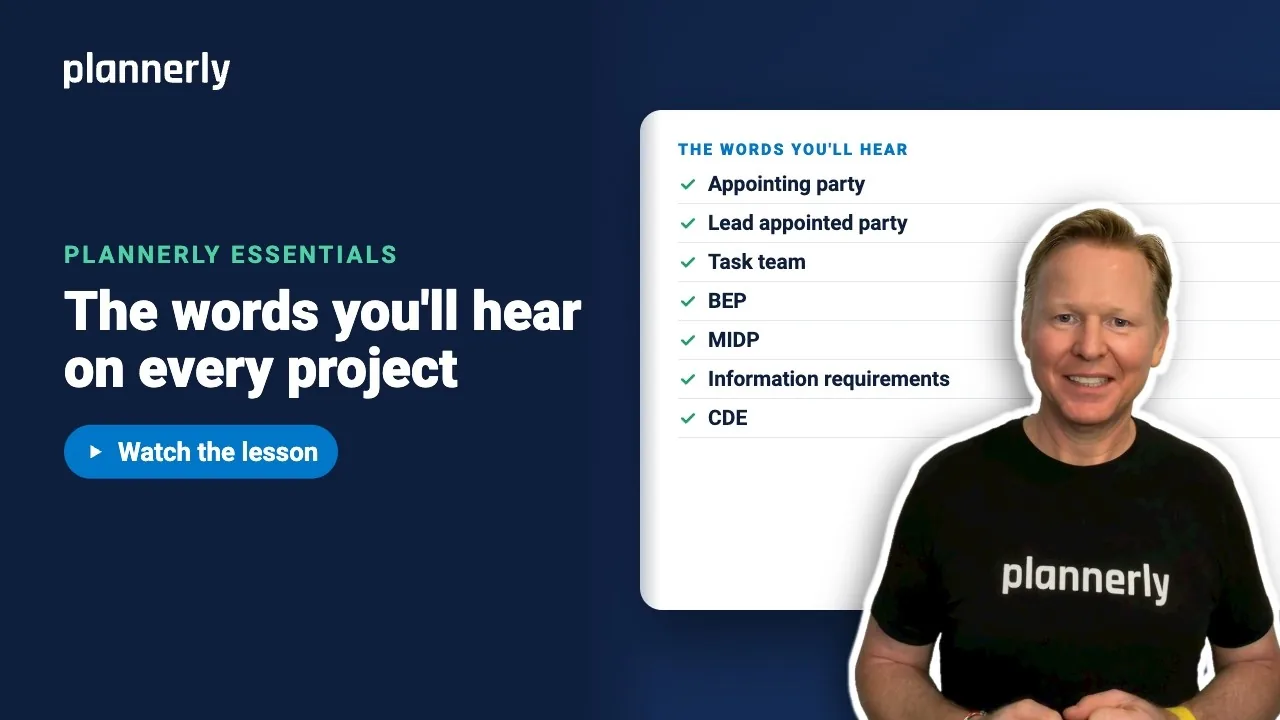 Video · 1:05
ISO 19650 Key Terms Explained in Plain English
Step-by-step guide: https://help.plannerly.com/en/article/iso-19650-key-terms-in-plain-english-with-us-words Free Certified Plannerly Professional course with certificate: https://plannerly.com/courses/professional/
 Video · 0:51
Finally Invited to a Plannerly Project? Start Here
Step-by-step guide: https://help.plannerly.com/en/article/how-to-find-your-project-and-get-around-it-in-plannerly Free Certified Plannerly Professional course with certificate: https://plannerly.com/courses/professional/
 Video · 0:38
The Fastest Way to See Your Work in Plannerly
Step-by-step guide: https://help.plannerly.com/en/article/how-to-see-your-own-tasks-on-a-plannerly-project Free Certified Plannerly Professional course with certificate: https://plannerly.com/courses/professional/
 Video · 0:41
How to Ask Questions Where the Work Actually Happens
Step-by-step guide: https://help.plannerly.com/en/article/how-to-ask-a-question-on-a-task-in-plannerly-and-mention Free Certified Plannerly Professional course with certificate: https://plannerly.com/courses/professional/
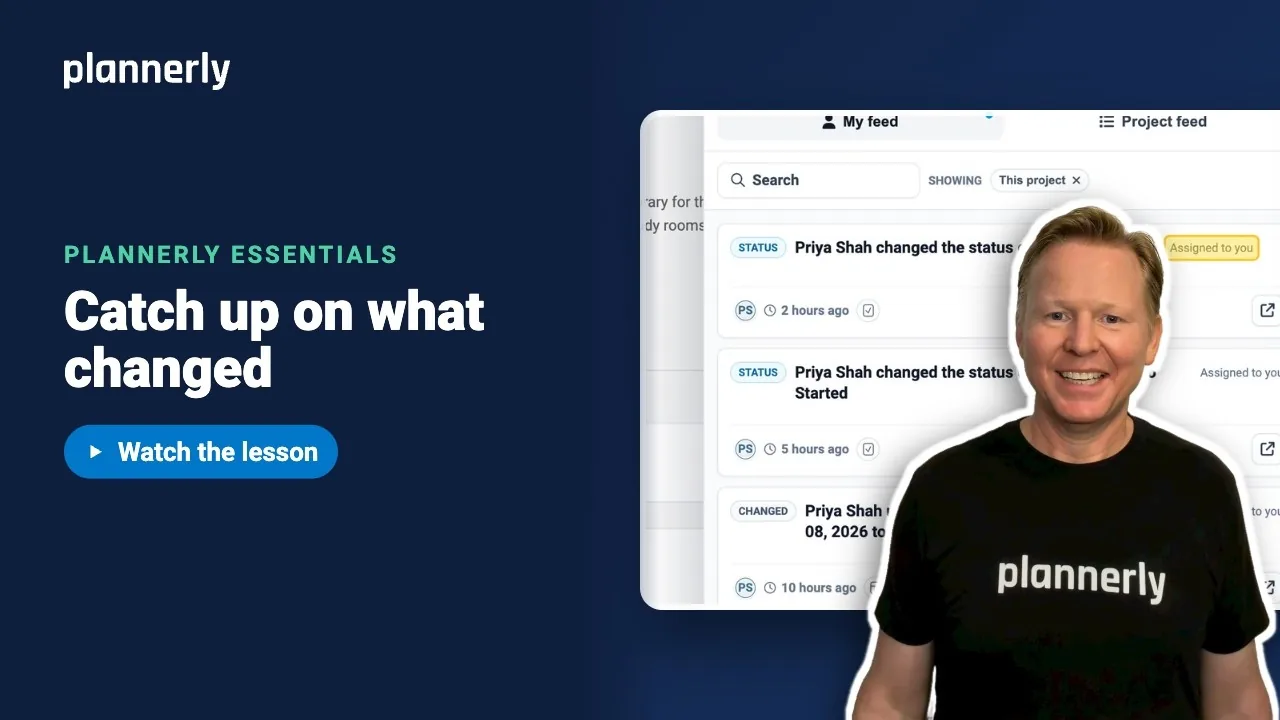 Video · 0:30
Stop Reading Every Notification: The Smarter Way to Catch Up
Step-by-step guide: https://help.plannerly.com/en/article/how-to-catch-up-on-project-activity-in-plannerly Free Certified Plannerly Professional course with certificate: https://plannerly.com/courses/professional/
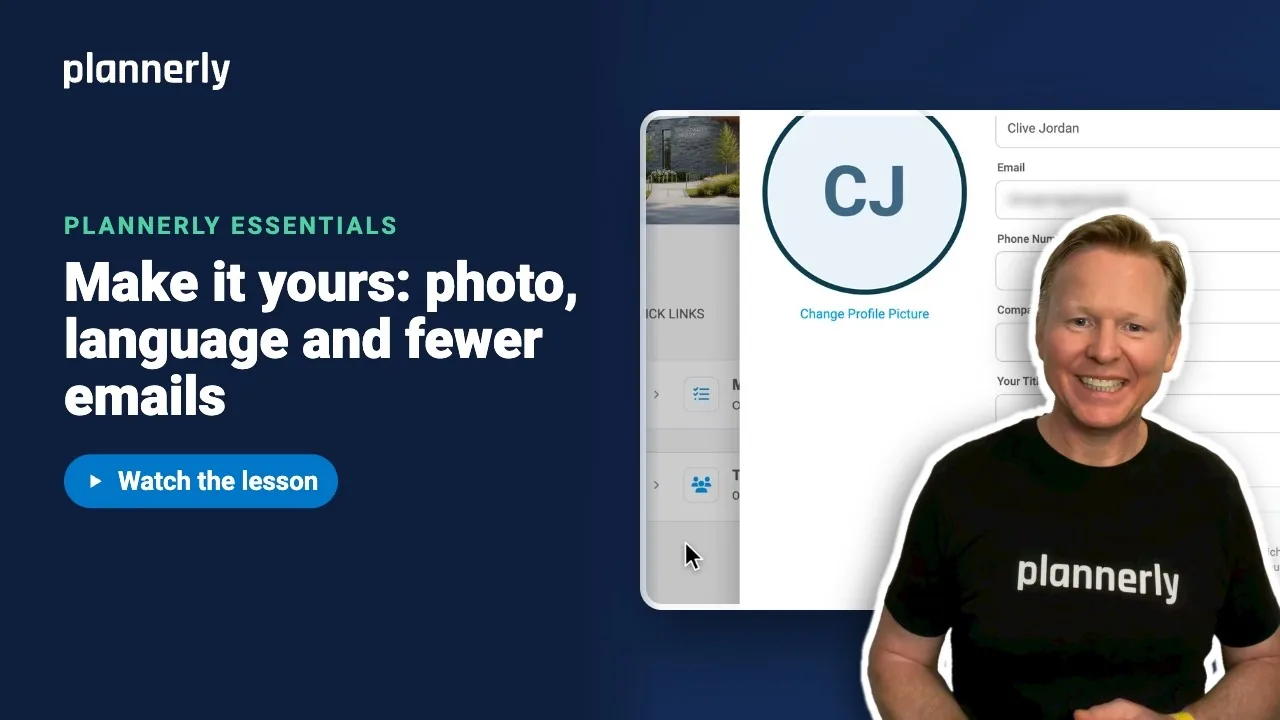 Video · 0:45
How to Set Up Your Profile and Notification Preferences
Step-by-step guide: https://help.plannerly.com/en/article/71-how-can-i-add-my-photo-to-my-profile-in-the-plannerly-app Free Certified Plannerly Professional course with certificate: https://plannerly.com/courses/professional/