
Video
How to Create a MIDP and TIDP - ISO 19650 Task and Master Information Delivery Planning Explained
About this video
Free ISO 19650 Training: https://plannerly.com/training/ Learn how to build a complete Master Information Delivery Plan (MIDP) and Task Information Delivery Plans (TIDPs) using Plannerly. In this video, we show how to define tasks, assign responsibilities, structure deliverables, set dependencies, add checklists, manage timelines, and export a combined ISO 19650 compliant package.
You will see how to:
- Create detailed tasks for activities, building systems, and project deliverables
- Define responsibilities for architects, contractors, and consultants
- Add required documents like floor plans, schedules, AR experiences, method statements, and more
- Build TIDPs for each discipline and then automatically roll them up into a complete MIDP
- Assign milestones, dates, durations, and dependencies
- Switch between grid view and timeline view for clear sequencing
- Add checklists, conditions of satisfaction, and document requirements
- Connect uploaded files directly to tasks and maintain version control
- Export a combined package including EIR, BEP, TIDP, MIDP, grids, and timelines
- Use Plannerly’s Docs and Scope modules together for a structured, ISO 19650 aligned workflow
Whether you’re creating your first TIDP or improving your MIDP process, this walkthrough will help you streamline information delivery and create clear, trackable, and verifiable requirements across your team.
Learn more in BIM Boot Camp: https://plannerly.com/bim-boot-camp/
Featured in
Where this video is used
 Video · 47:24
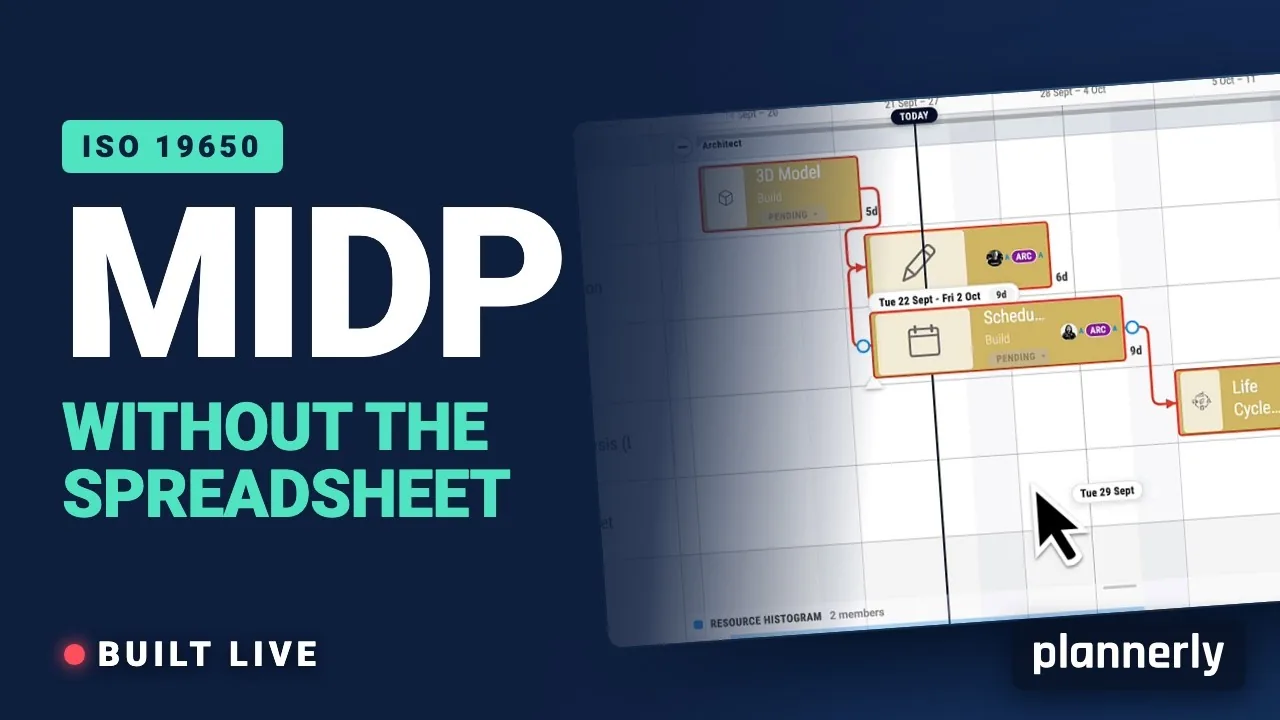
Why your MIDP spreadsheet is failing (and how to fix it)
[Steps for you to create the best TIDP-MIDP workflow.] Your MIDP shouldn't live in a spreadsheet that dies in week three.
 Video · 2:28
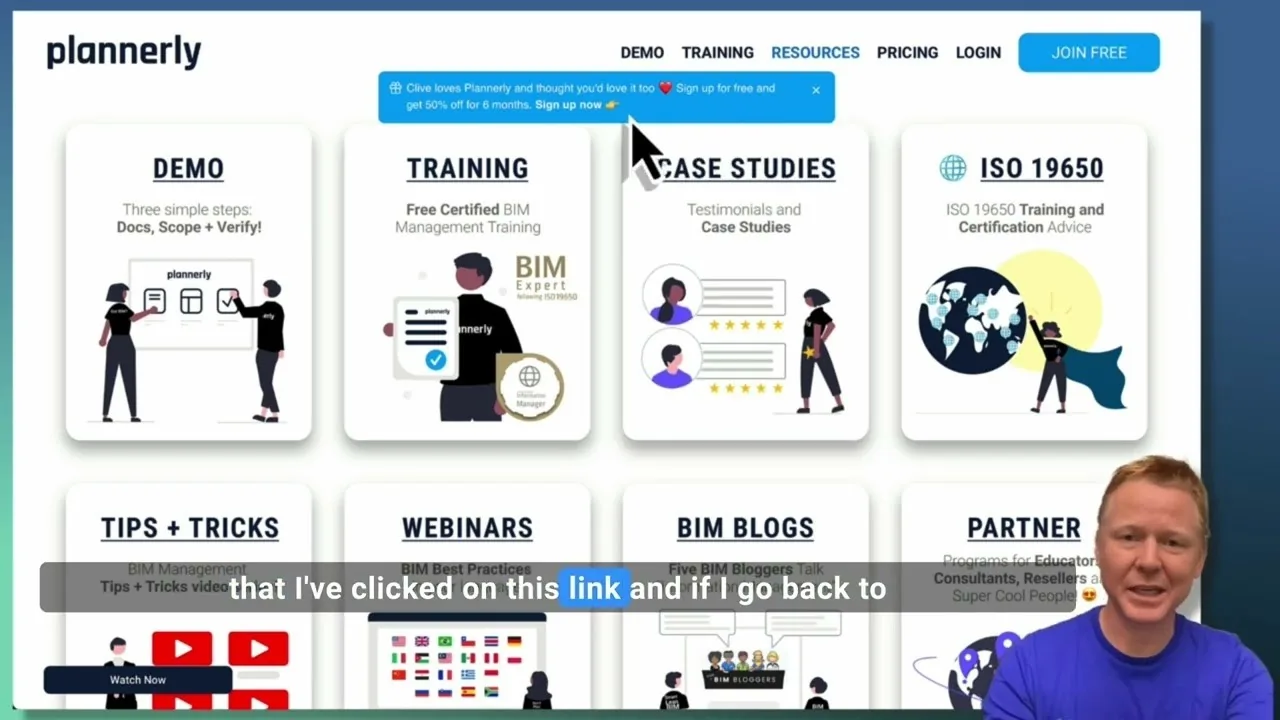
Create a Customized Referral Link
Learn how to create custom referral links for our website in this step-by-step guide. We'll show you how to set up links that point to different pages and ensure your referrals are properly tagged. Best of all, you'll earn a $1000 commission for each person who signs up for a plan through your...
 Video · 1:27
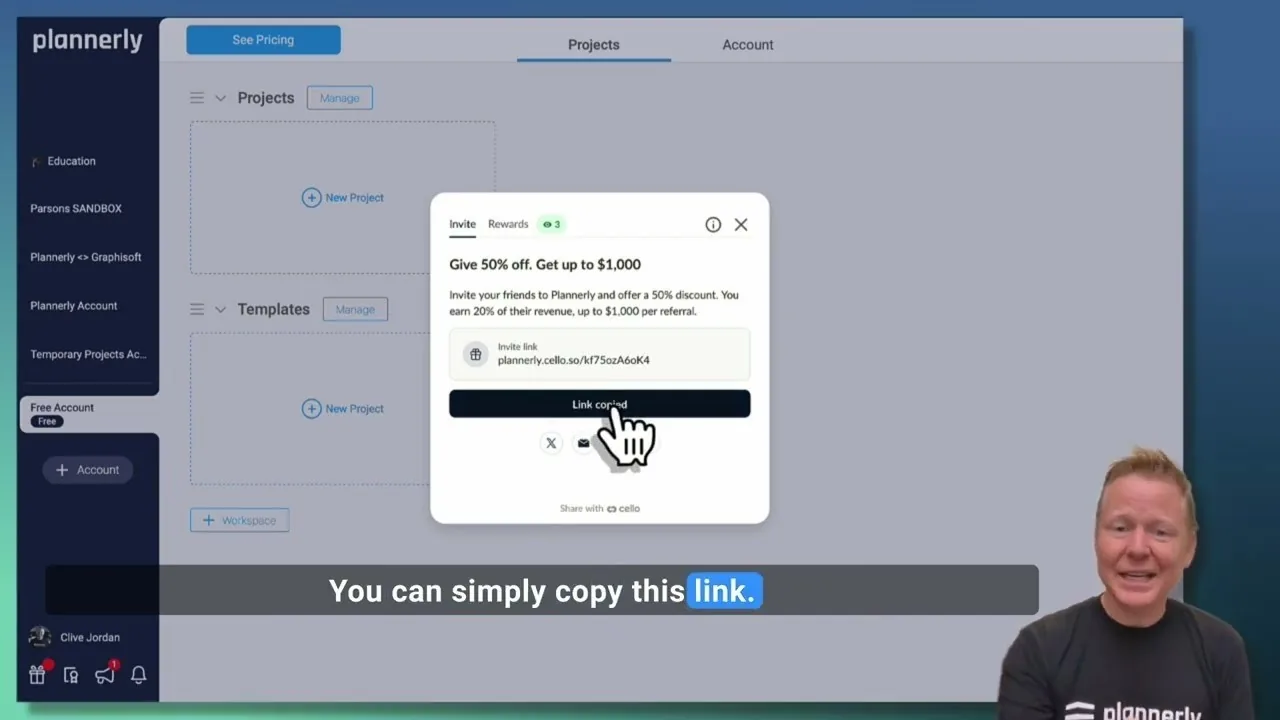
Plannerly Referral Program - You get $1,000 per referral!
You get $1,000 per referral! They get 50% off their Plannerly subscription!
 Video · 39:19
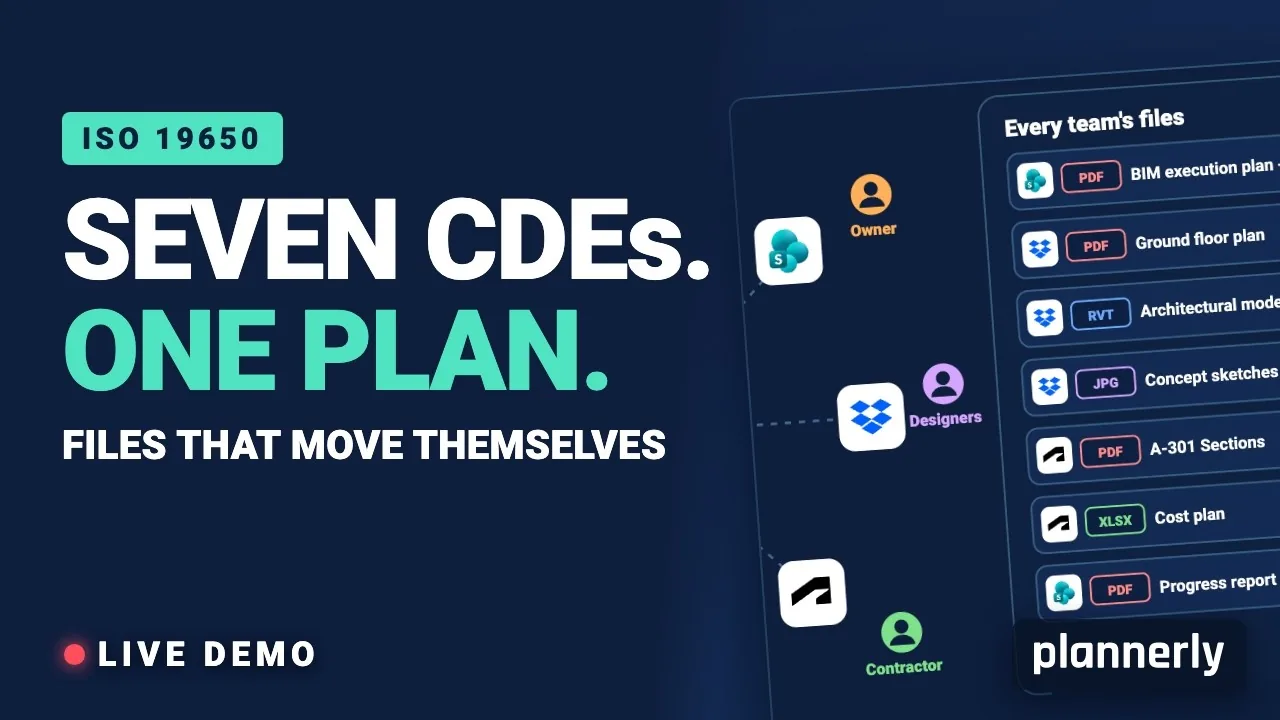
Why Your BIM Files Are Lost in Seven CDEs
Seven CDEs. One plan. In this live session an approved document files itself in the client's SharePoint, files dropped in the design team's Dropbox fill their requests in the MIDP, and a reviewed drawing goes straight on to the contractor's Autodesk Forma.
 Video · 1:01
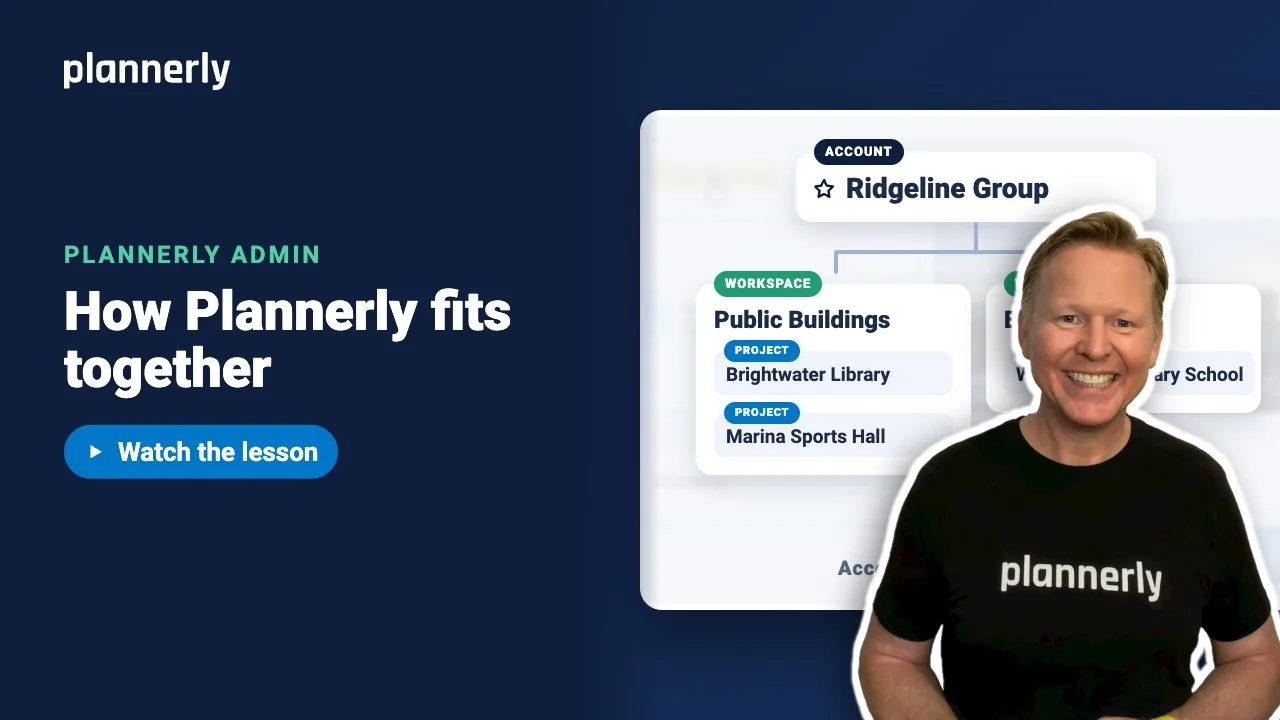
Plannerly Accounts, Workspaces and Projects Explained
Step-by-step guide: https://help.plannerly.com/en/article/accounts-workspaces-and-projects-in-plannerly-explained Free Certified Plannerly Administrator course with certificate: https://plannerly.com/courses/admin/
 Video · 0:47
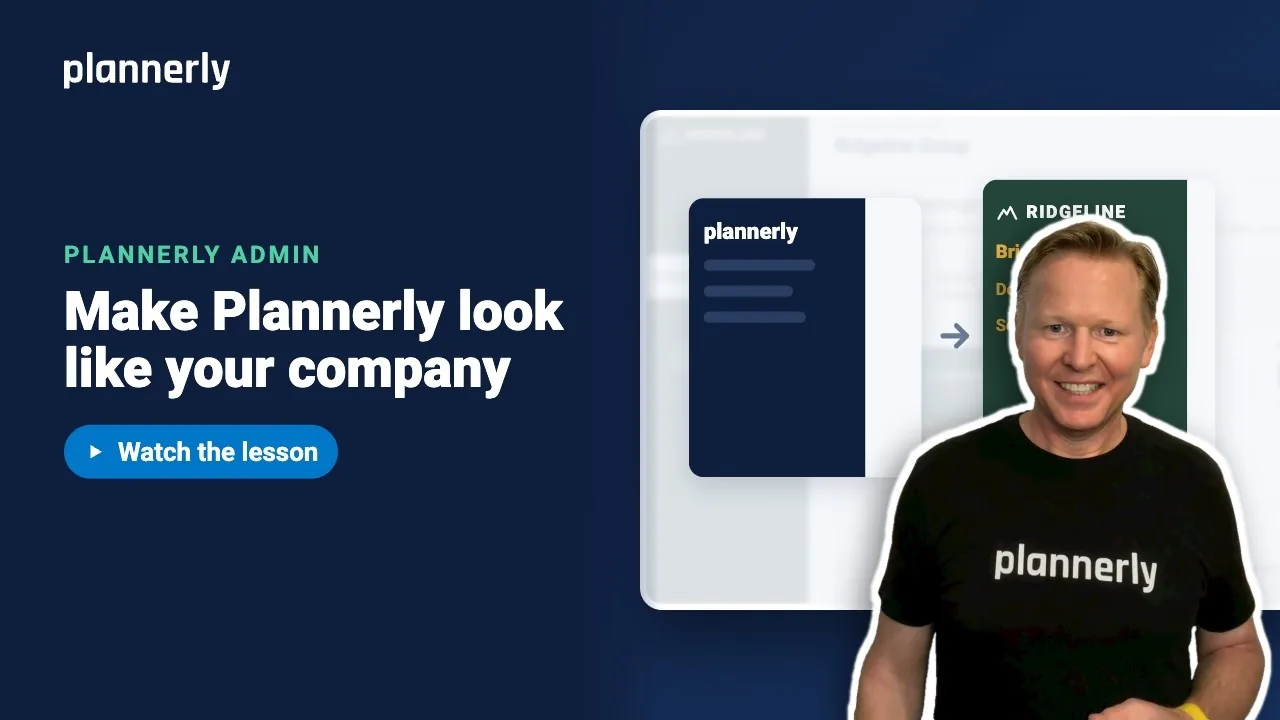
How to Add Your Logo and Colors to Your Plannerly Account
Step-by-step guide: https://help.plannerly.com/en/article/how-to-add-your-company-logo-and-colors-to-plannerly Free Certified Plannerly Administrator course with certificate: https://plannerly.com/courses/admin/