
Video
Why Your BIM Files Are Lost in Seven CDEs
Chapters
- Seven CDEs. One plan.0:00
- What if every CDE just kept up?0:25
- What is a CDE, and how many is your project using?1:41
- The ISO 19650 idea: one source of truth2:55
- Same file, seven places: which one is the latest?3:24
- The eighth CDE: your desktop3:53
- So you become the courier4:19
- Where most project files end up5:17
- Three ways: one CDE for everyone, manage the gaps, or automate5:55
- Put your plan in the middle7:13
- What if your BEP filed itself?8:15
- Demo 1: Auto-Publish - approved here, filed there9:44
- Picking up the plan from Episode 310:46
- Connect the client's SharePoint and set the condition12:21
- Create the combined document13:56
- Request signatures and sign15:30
- Approved, and it files itself in SharePoint16:46
- Demo 2: Auto-Collect - delivered there, filled here18:18
- Episode 1's MIDP: the files we're waiting for19:32
- Link the design team's Dropbox21:34
- Files land, requests fill, charts move23:06
- Reports that send themselves24:25
- Automatic file naming27:18
- Demo 3: Auto-Route - reviewed here, passed on28:23
- Suitability as the quality gate29:24
- Set S4 and it goes to Autodesk Forma31:34
- SmartFolders: see them all in one place32:28
- Your CDE Survival Kit, and what's next34:30
- The dashboards you can build35:24
- Recap: publish, collect, connect37:57
- Free training, and see you on 19 Nov38:24
About this video
Seven CDEs. One plan. In this live session an approved document files itself in the client's SharePoint, files dropped in the design team's Dropbox fill their requests in the MIDP, and a reviewed drawing goes straight on to the contractor's Autodesk Forma.
Episode 4 of How to survive as a BIM Manager, the free webinar series on ISO 19650 workflows, with Clive Jordan (co-founder), Akos Hamar (COO) and Bharathi Balu (Information Management Lead) from Plannerly.
What you'll see:
- Why one project ends up with seven CDEs, and an eighth on somebody's desktop
- Why "let's all use one CDE" doesn't survive the meeting
- Auto-Publish: a document signed by the team files itself in the client's SharePoint
- Auto-Collect: files in the design team's Dropbox fill their requests, and the charts move
- Reports that send themselves, with each new version landing in Autodesk Forma
- Auto-Route: a reviewed drawing set to S4 goes on to the contractor's Autodesk Forma
- Automatic file naming, and SmartFolders that sort your files from their metadata
- The dashboards you can build from all of it
The slides and the CDE Connect handout:
https://plannerly.com/live/surviving-the-cdes/
Want to try new connectors early? Join the beta testing community: sign in to Plannerly (or sign up free at https://app.plannerly.com/sign-up), open Support and type "add me".
Free training, with certificates:
https://plannerly.com/training
Next episode - Surviving AI Model Checking, Thu 19 Nov, 10:00 New York / 15:00 London. Free seat:
https://plannerly.com/live
Chapters
0:00 Seven CDEs. One plan.
0:25 What if every CDE just kept up?
1:41 What is a CDE, and how many is your project using?
2:55 The ISO 19650 idea: one source of truth
3:24 Same file, seven places: which one is the latest?
3:53 The eighth CDE: your desktop
4:19 So you become the courier
5:17 Where most project files end up
5:55 Three ways: one CDE for everyone, manage the gaps, or automate
7:13 Put your plan in the middle
8:15 What if your BEP filed itself?
9:44 Demo 1: Auto-Publish - approved here, filed there
10:46 Picking up the plan from Episode 3
12:21 Connect the client's SharePoint and set the condition
13:56 Create the combined document
15:30 Request signatures and sign
16:46 Approved, and it files itself in SharePoint
18:18 Demo 2: Auto-Collect - delivered there, filled here
19:32 Episode 1's MIDP: the files we're waiting for
21:34 Link the design team's Dropbox
23:06 Files land, requests fill, charts move
24:25 Reports that send themselves
27:18 Automatic file naming
28:23 Demo 3: Auto-Route - reviewed here, passed on
29:24 Suitability as the quality gate
31:34 Set S4 and it goes to Autodesk Forma
32:28 SmartFolders: see them all in one place
34:30 Your CDE Survival Kit, and what's next
35:24 The dashboards you can build
37:57 Recap: publish, collect, connect
38:24 Free training, and see you on 19 Nov
Earlier episodes:
Ep 1 - Surviving the MIDP: https://youtu.be/HIboRq0w7tA
Ep 2 - Surviving the RACI: https://youtu.be/CjjLgWlF4BE
Ep 3 - Surviving ISO 19650 Information Requirements with AI: https://youtu.be/lcloGwzGEhE
#BIM #ISO19650 #CDE
Featured in
Where this video is used
 Video · 39:00
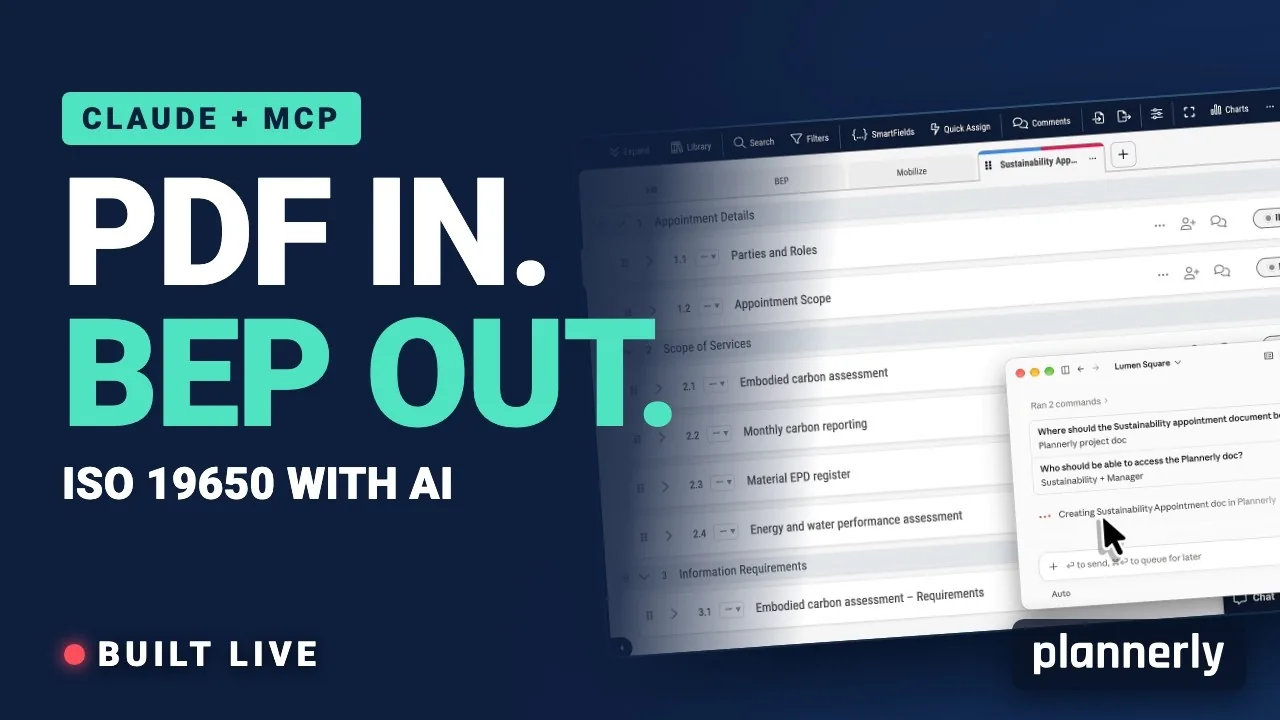
AI in BIM: Claude + MCP Turn a Client EIR into a BEP (ISO 19650)
Your client sent the information requirements as a PDF. In this live session we connect Claude to a Plannerly project with MCP and turn that EIR into a pre-appointment BEP, a scope, a RACI matrix and checkable information requirements - then just ask Javis what's missing.
 Video · 47:24
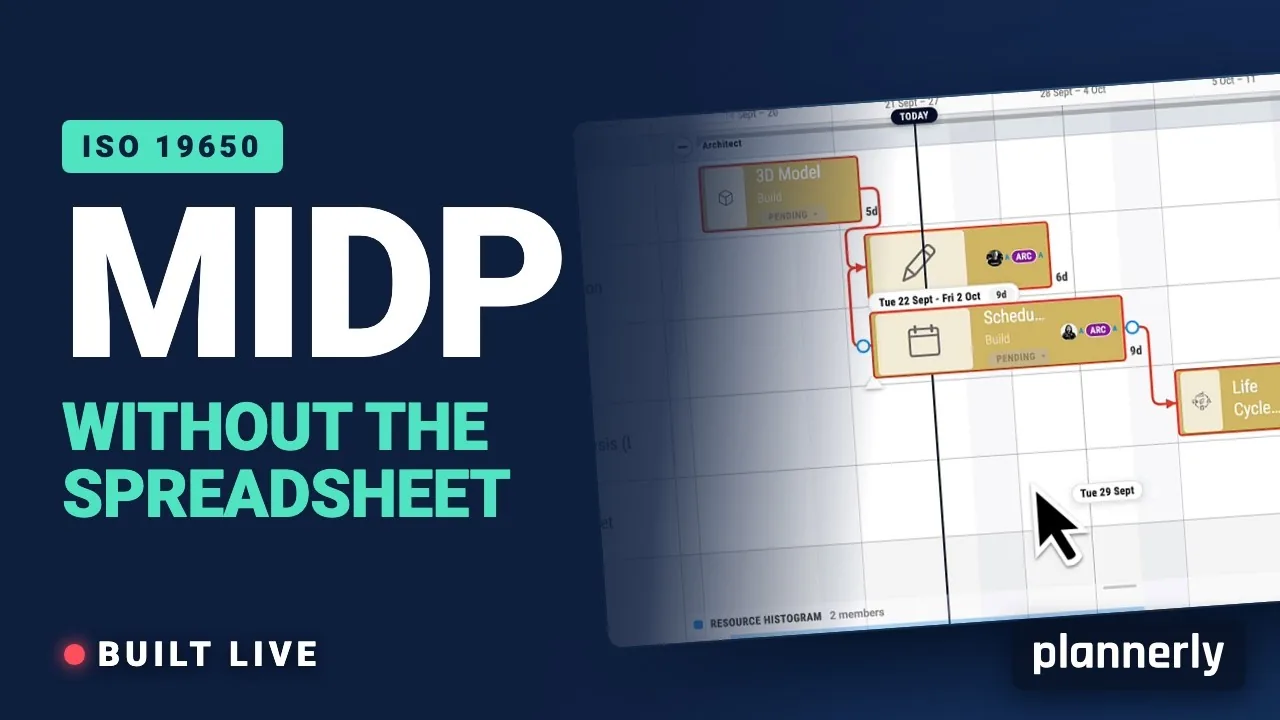
Why your MIDP spreadsheet is failing (and how to fix it)
[Steps for you to create the best TIDP-MIDP workflow.] Your MIDP shouldn't live in a spreadsheet that dies in week three.
 Video · 44:52
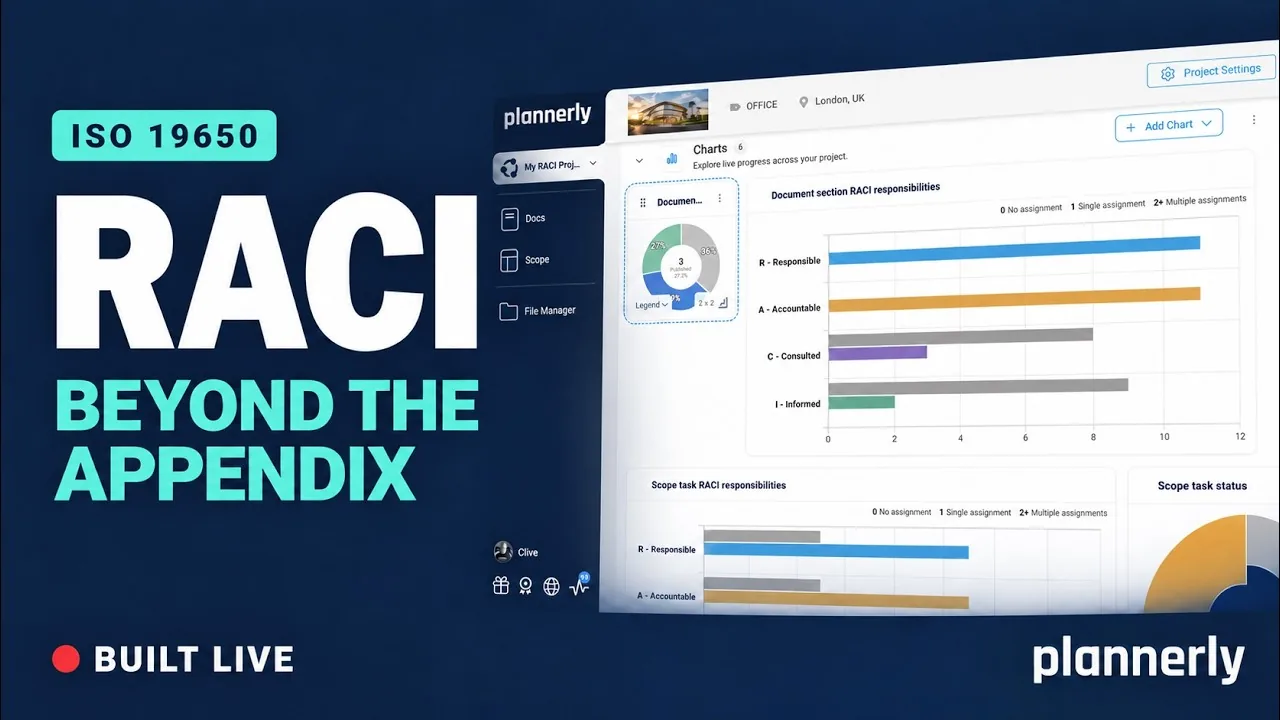
Why your RACI matrix isn’t enough (and how to fix it)
Your RACI matrix is complete. So why are you still chasing everyone?
 Video · 42:47
BIM Boot Camp - Collaborative Contracts, Responsibility Matrices and Work Packages
Free BIM + ISO 19650 Training: https://plannerly.com/training/
 Video · 1:25
How to Connect Autodesk Construction Cloud Models to Verify - BIM Model Sync and Checking
Free BIM + ISO 19650 Training: https://plannerly.com/training/
 Video · 1:36
Verify Module Overview - 3D Model Checking for BIM, ISO 19650 and Information Management
Free BIM + ISO 19650 Training: https://plannerly.com/training/