
Video
How to Re-check a New Model Version Against the Same Requirements
About this video
Step-by-step guide: https://help.plannerly.com/en/article/how-to-re-check-a-new-model-version-in-plannerly
Free Certified Plannerly Professional course with certificate: https://plannerly.com/courses/professional/
Version 2 arrives the day before the review, and you need to know which results still hold. Drop the new version onto Upload File with the same file name, keep working on the old one meanwhile, then re-check the tasks that need it, against the same requirements as before.
In this video:
0:00 Version 2 arrives
0:10 Upload the new version
0:20 Check tasks again
Next: How to Share Failed Model Checks with the Team That Owns the Fix: https://youtu.be/700Hvb8OxF8
The whole Certified Plannerly Professional course in order: https://www.youtube.com/playlist?list=PLBbqFLwV3gRs
Plannerly is the BIM management platform used by nearly 150,000 teams to plan, scope and check project information.
Try it free: https://plannerly.com/
Free training: https://plannerly.com/training/
Help Center: https://help.plannerly.com/en/
LinkedIn: https://www.linkedin.com/company/plannerly
Instagram: https://www.instagram.com/plannerlyAEC
#BIM #ISO19650 #Plannerly
Featured in
Where this video is used
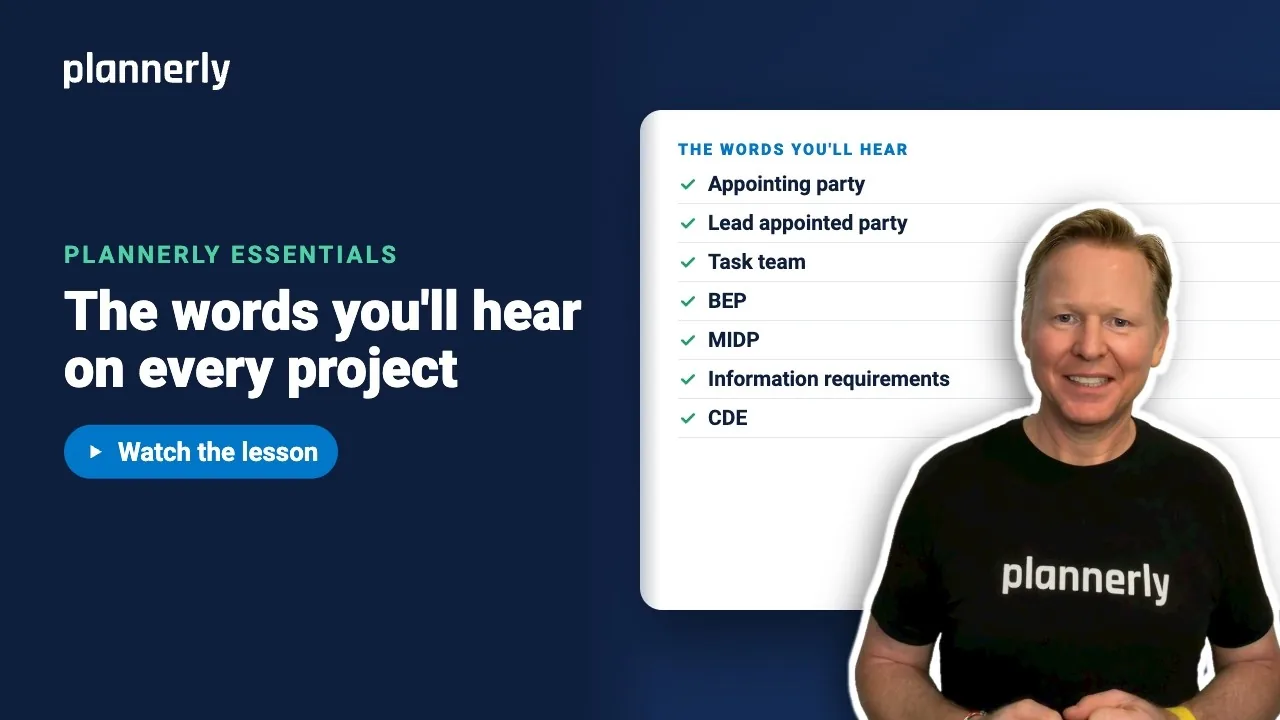 Video · 1:05
ISO 19650 Key Terms Explained in Plain English
Step-by-step guide: https://help.plannerly.com/en/article/iso-19650-key-terms-in-plain-english-with-us-words Free Certified Plannerly Professional course with certificate: https://plannerly.com/courses/professional/
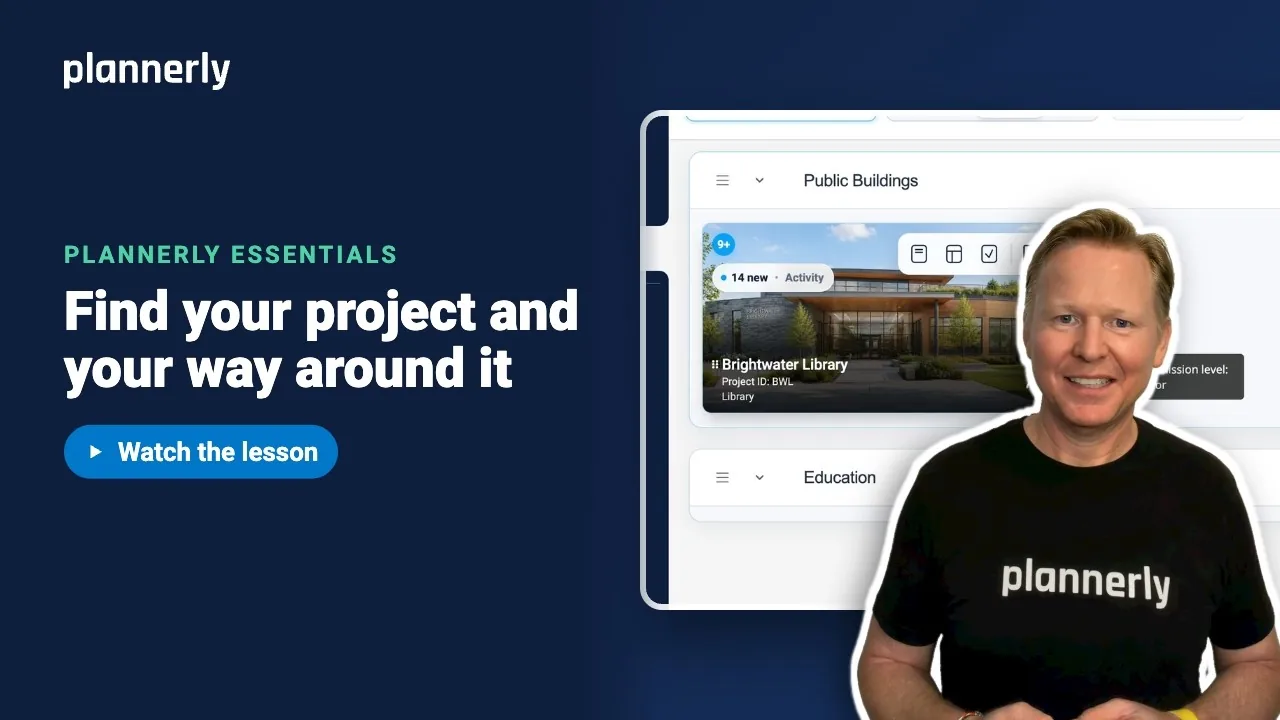 Video · 0:51
Finally Invited to a Plannerly Project? Start Here
Step-by-step guide: https://help.plannerly.com/en/article/how-to-find-your-project-and-get-around-it-in-plannerly Free Certified Plannerly Professional course with certificate: https://plannerly.com/courses/professional/
 Video · 0:38
The Fastest Way to See Your Work in Plannerly
Step-by-step guide: https://help.plannerly.com/en/article/how-to-see-your-own-tasks-on-a-plannerly-project Free Certified Plannerly Professional course with certificate: https://plannerly.com/courses/professional/
 Video · 0:41
How to Ask Questions Where the Work Actually Happens
Step-by-step guide: https://help.plannerly.com/en/article/how-to-ask-a-question-on-a-task-in-plannerly-and-mention Free Certified Plannerly Professional course with certificate: https://plannerly.com/courses/professional/
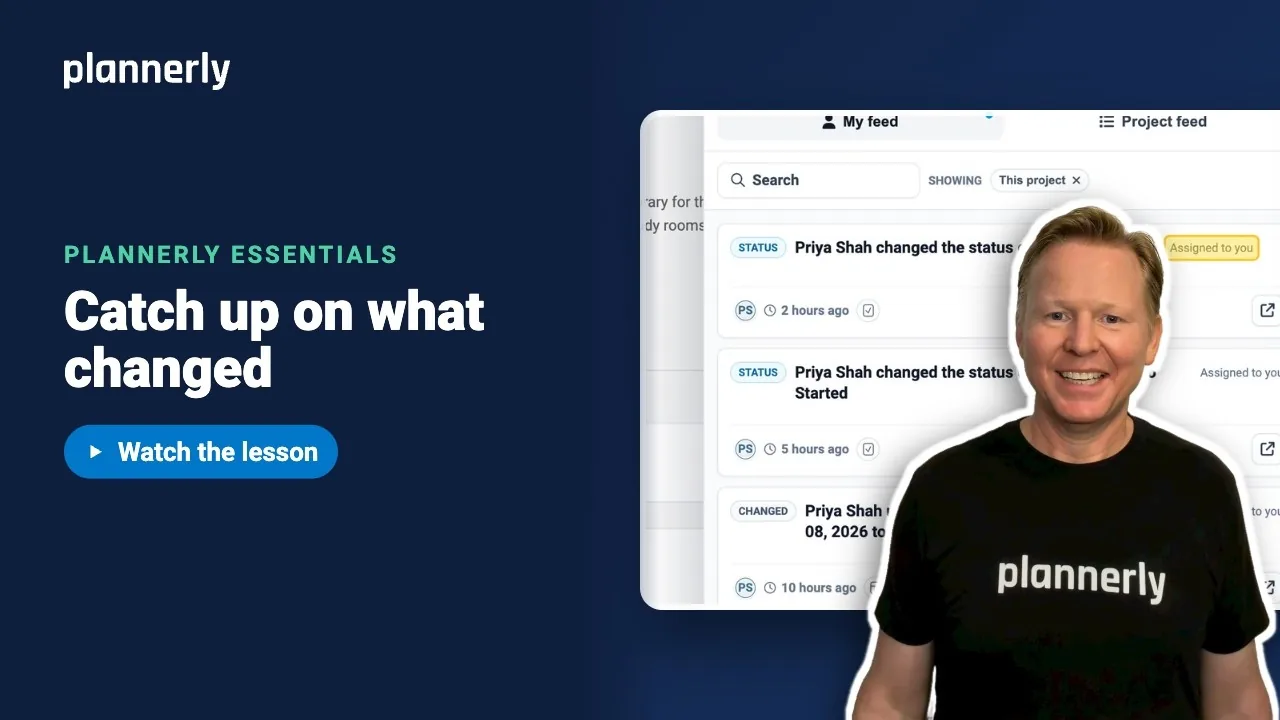 Video · 0:30
Stop Reading Every Notification: The Smarter Way to Catch Up
Step-by-step guide: https://help.plannerly.com/en/article/how-to-catch-up-on-project-activity-in-plannerly Free Certified Plannerly Professional course with certificate: https://plannerly.com/courses/professional/
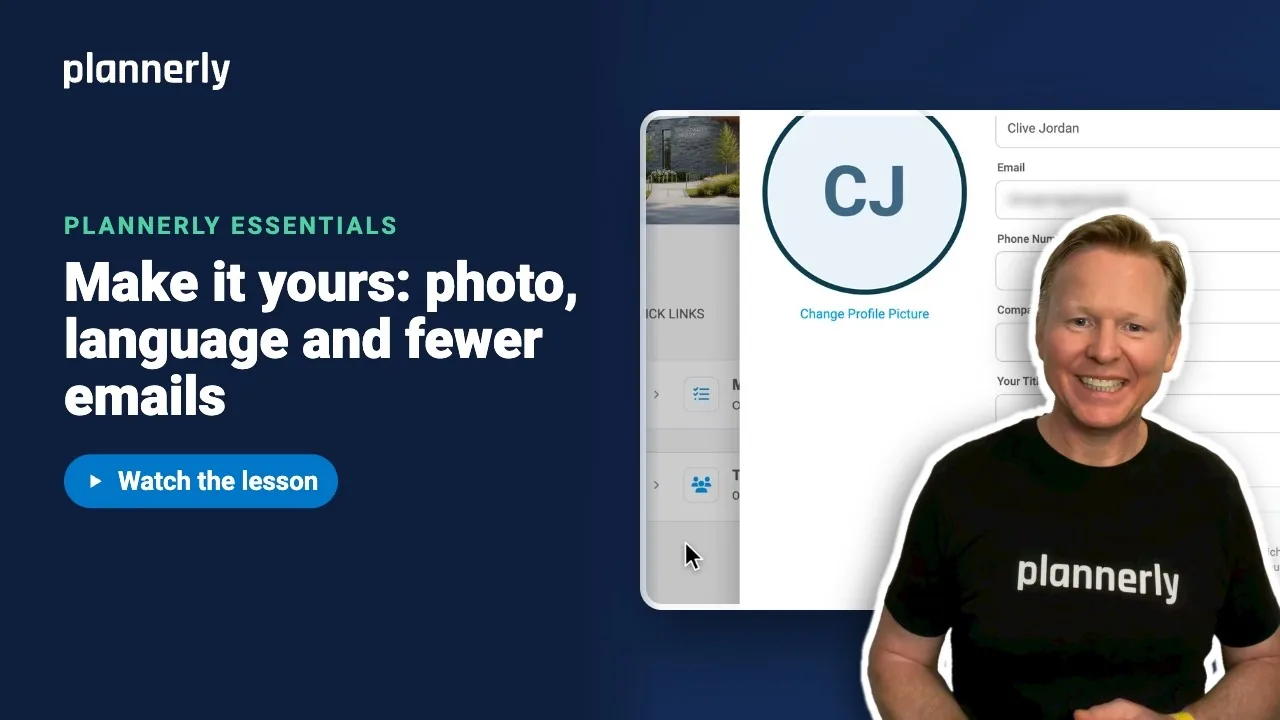 Video · 0:45
How to Set Up Your Profile and Notification Preferences
Step-by-step guide: https://help.plannerly.com/en/article/71-how-can-i-add-my-photo-to-my-profile-in-the-plannerly-app Free Certified Plannerly Professional course with certificate: https://plannerly.com/courses/professional/