
Video
How to Assign Document Responsibility and Approval Status in BIM Workflows - ISO 19650 Made Simple
About this video
Free BIM + ISO 19650 Training: https://plannerly.com/training/
One of the biggest problems with traditional Word documents is not knowing who is responsible for each part, what is ready for review, and what has actually been approved.
In this video, see how Plannerly makes document responsibility, review status, and approval workflows much simpler for BIM management and information management teams. This structured approach helps project teams assign ownership, track progress, and manage approval states more clearly in line with ISO 19650 principles.
In this video, you'll learn:
- How to assign responsibility for specific document sections
- How team members are notified when content is assigned to them
- How in progress, shared, and published states work
- How document sections move from drafting to review to approved use
- How editing permissions are controlled by document state
- How comments, actions, and approvals are tracked through the workflow
- How this improves clarity and accountability across project teams
This is a practical workflow for teams that want better control over document ownership, collaboration, and approval without relying on unstructured Word files.
This video is ideal for:
- BIM Managers
- Information Managers
- Project Managers
- Design teams
- Construction teams
- Anyone working with ISO 19650 document workflows and approvals
If you want a clearer way to manage responsibility, review, and approval across project documents, this video shows a simple and structured approach.
Free BIM + ISO 19650 Training: https://plannerly.com/training/
BIM Boot Camp: https://plannerly.com/bim-boot-camp/
Featured in
Where this video is used
 Video · 39:19
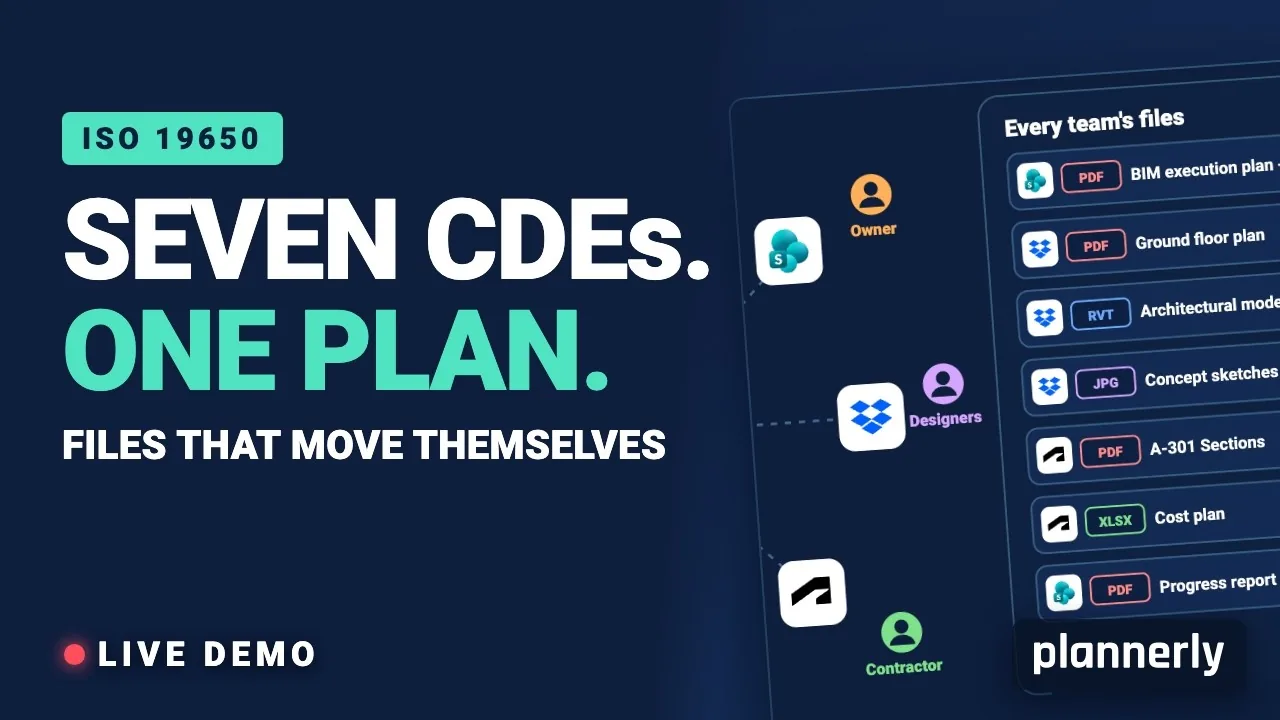
Why Your BIM Files Are Lost in Seven CDEs
Seven CDEs. One plan. In this live session an approved document files itself in the client's SharePoint, files dropped in the design team's Dropbox fill their requests in the MIDP, and a reviewed drawing goes straight on to the contractor's Autodesk Forma.
 Video · 1:30
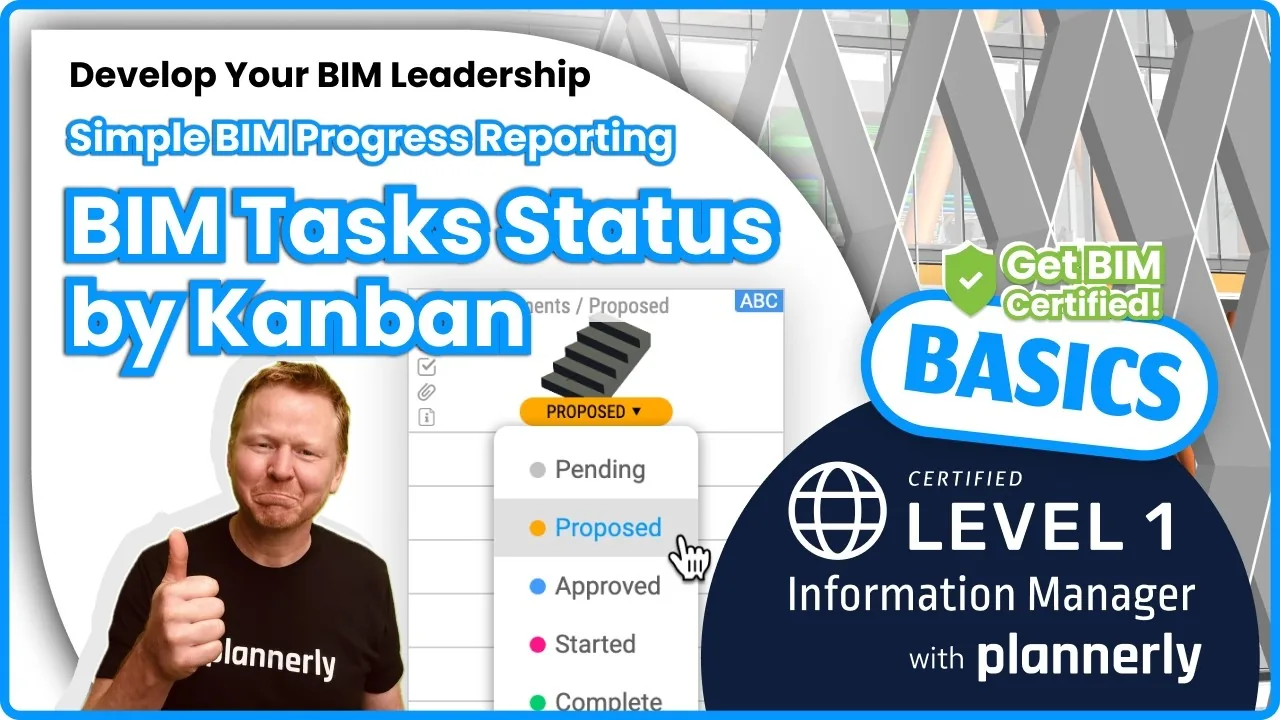
How to Track BIM Task Status Across Grid, Timeline and Kanban - ISO 19650 Scope Management
Free BIM + ISO 19650 Training: https://plannerly.com/training/
 Video · 2:45
How to Get Your BIM and Information Management Certificate - Add It to LinkedIn
Free BIM + ISO 19650 Training: https://plannerly.com/training/
 Video · 3:16
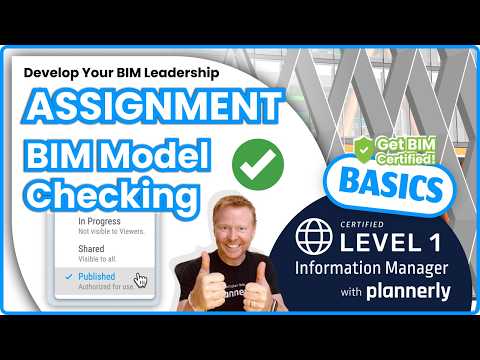
Verify Module Assignment - Check BIM Model Properties Against Scope Requirements
Free BIM + ISO 19650 Training: https://plannerly.com/training/
 Video · 1:25
How to Connect Autodesk Construction Cloud Models to Verify - BIM Model Sync and Checking
Free BIM + ISO 19650 Training: https://plannerly.com/training/
 Video · 3:54
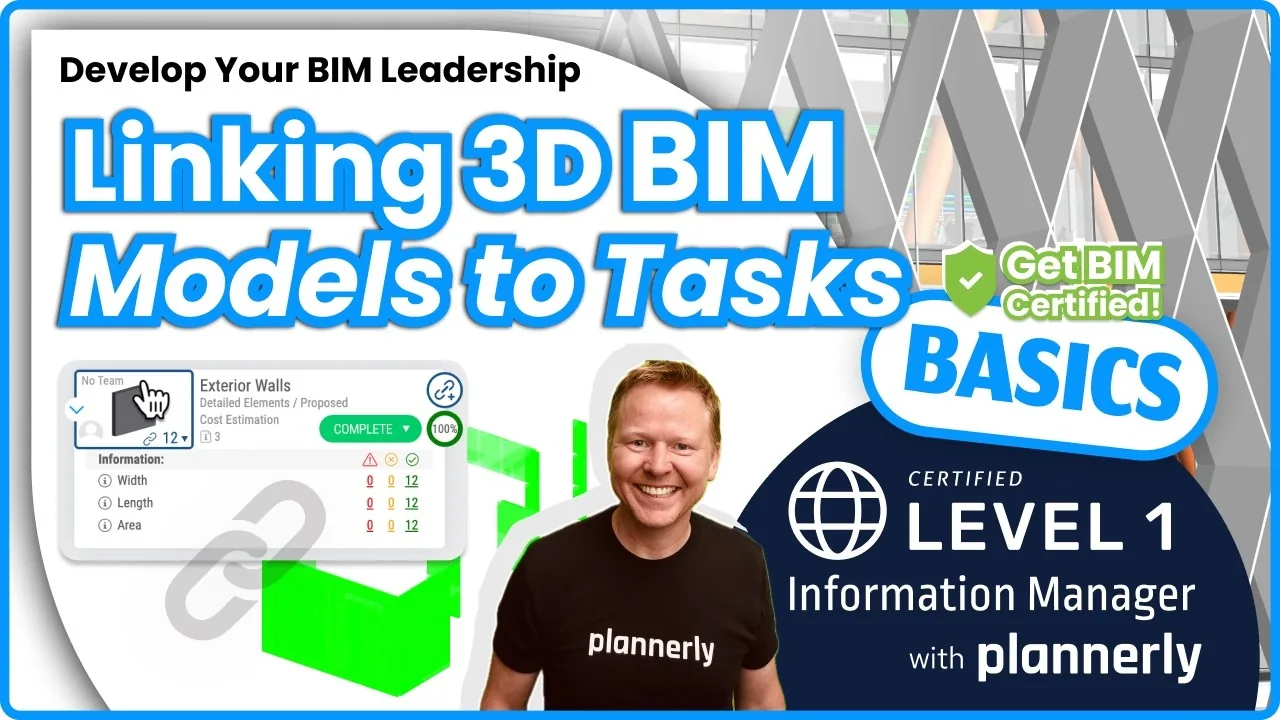
How to Use QA Model Checking in Verify - BIM Quality Control for ISO 19650 Workflows
Free BIM + ISO 19650 Training: https://plannerly.com/training/