
Video
How to Connect Autodesk Construction Cloud Models to Verify - BIM Model Sync and Checking
About this video
Free BIM + ISO 19650 Training: https://plannerly.com/training/
Using Autodesk Construction Cloud models in your BIM verification workflow just got a lot easier.
In this video, see how to connect Autodesk Construction Cloud to Plannerly's Verify module so you can bring models into the browser, index their content, and automatically synchronize versions for checking against your project requirements.
You'll learn how to install the Plannerly add-on in Autodesk Construction Cloud, authorize the connection, access your hubs and projects, and connect the right model folder for use inside Verify. You will also see how File Manager can be used as another route for bringing models into the checking workflow.
In this video, you'll learn:
- How to install the Plannerly add-on in Autodesk Construction Cloud
- How to authorize the ACC connection
- How to access your hubs and projects inside Plannerly
- How to connect ACC folders and models into Verify
- How connected models are loaded and indexed for checking
- How model versions are synchronized automatically
- How File Manager can also be used to connect models
- How synchronized folders from other CDEs can support model checking
- How model rules and task rules connect models to project requirements
- How this supports a more efficient BIM management and information management workflow
This is a practical workflow for teams using Autodesk Construction Cloud, File Manager, and other connected environments to streamline BIM verification, model coordination, and ISO 19650 information management.
This video is ideal for:
- BIM Managers
- Information Managers
- Project Managers
- Design teams
- Construction teams
- Anyone working with Autodesk Construction Cloud and BIM model checking
If you want a simpler way to connect ACC models into a structured verification workflow, this video shows how to get set up quickly and keep models synchronized for review.
Free BIM + ISO 19650 Training: https://plannerly.com/training/
BIM Boot Camp: https://plannerly.com/bim-boot-camp/
Featured in
Where this video is used
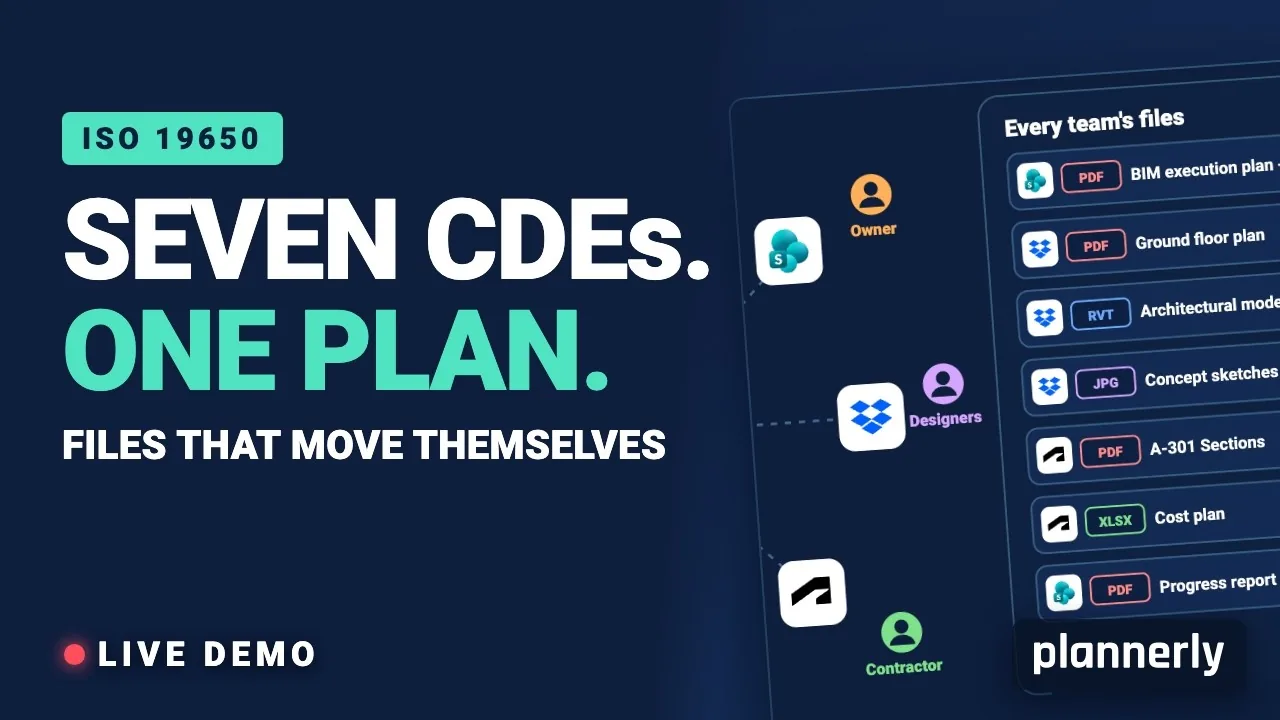 Video · 39:19
Why Your BIM Files Are Lost in Seven CDEs
Seven CDEs. One plan. In this live session an approved document files itself in the client's SharePoint, files dropped in the design team's Dropbox fill their requests in the MIDP, and a reviewed drawing goes straight on to the contractor's Autodesk Forma.
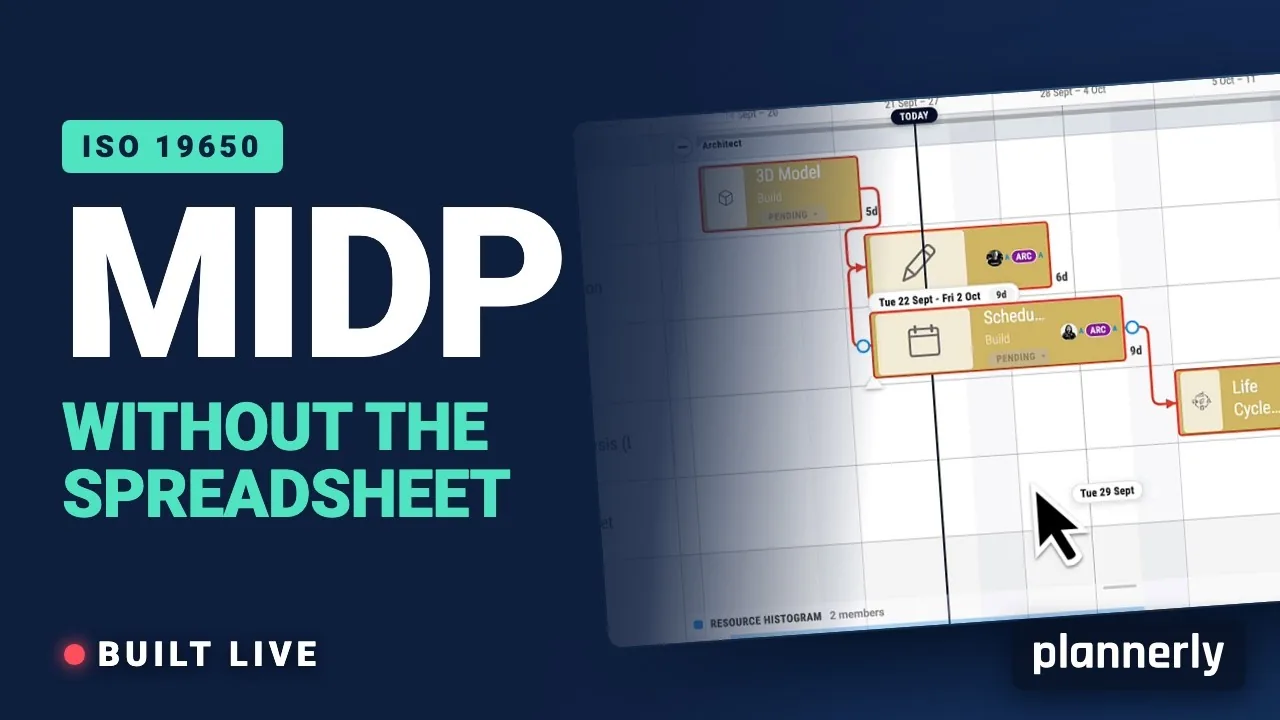 Video · 47:24
Why your MIDP spreadsheet is failing (and how to fix it)
[Steps for you to create the best TIDP-MIDP workflow.] Your MIDP shouldn't live in a spreadsheet that dies in week three.
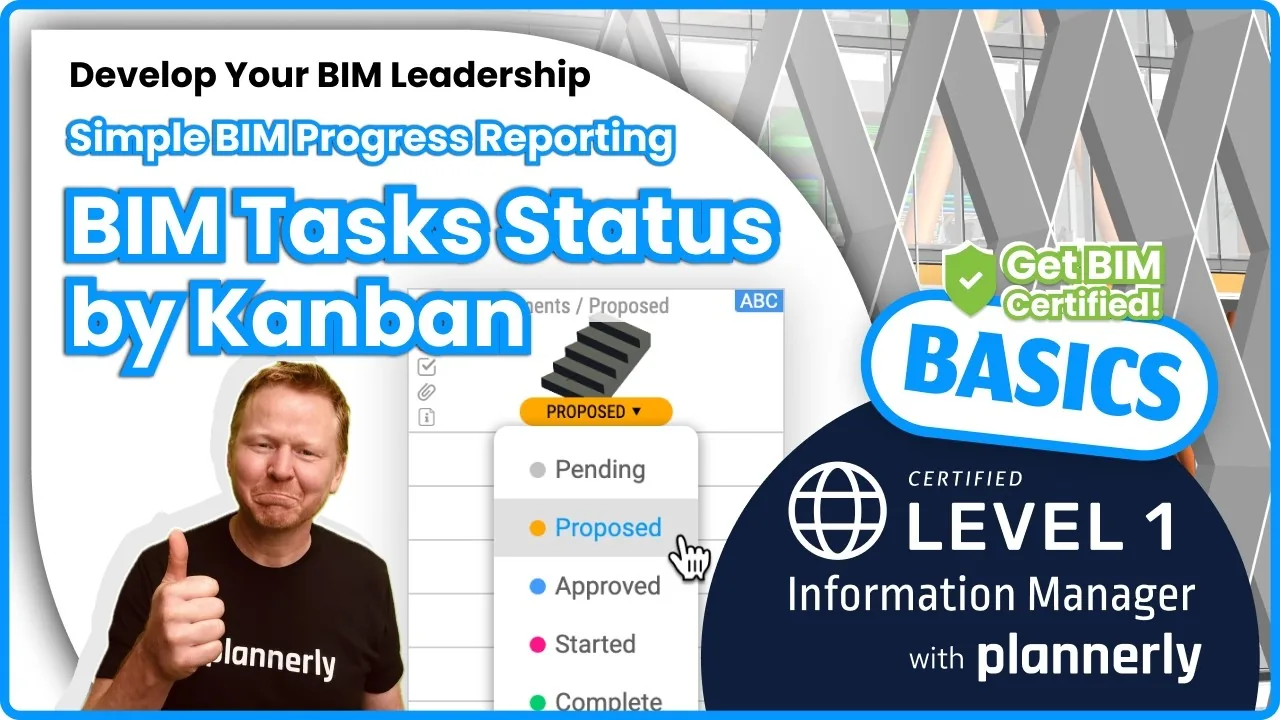 Video · 1:30
How to Track BIM Task Status Across Grid, Timeline and Kanban - ISO 19650 Scope Management
Free BIM + ISO 19650 Training: https://plannerly.com/training/
 Video · 2:45
How to Get Your BIM and Information Management Certificate - Add It to LinkedIn
Free BIM + ISO 19650 Training: https://plannerly.com/training/
 Video · 3:16
Verify Module Assignment - Check BIM Model Properties Against Scope Requirements
Free BIM + ISO 19650 Training: https://plannerly.com/training/
 Video · 3:54
How to Use QA Model Checking in Verify - BIM Quality Control for ISO 19650 Workflows
Free BIM + ISO 19650 Training: https://plannerly.com/training/