
Video
How to Export BIM Documents to PDF and Request eSignatures - ISO 19650 Workflow
About this video
Free BIM + ISO 19650 Training: https://plannerly.com/training/
Need to export a polished PDF from your BIM documents and collect signatures without jumping between different tools?
In this video, see how to export professionally formatted BIM documents, generate contracts, request eSignatures, and keep everything organized in one connected workflow. This is a practical approach to document management, information management, and ISO 19650-aligned project delivery.
You'll learn how to export one or more documents, choose published content only, apply automatic formatting, and even turn an export into a contract that requires signatures.
In this video, you'll learn:
- How to export BIM documents to PDF
- How to select one or multiple documents for export
- How to choose published content only
- How to include cover pages and formatted project documents
- How to request eSignatures during the export process
- How signatories receive and complete signatures
- How signatures are added to the final document automatically
- How export files and signed contracts are stored in File Manager
- How automatic formatting, bookmarks, and versioning improve document control
- How to export to Word as well as PDF
This workflow is ideal for teams that need a faster and more professional way to finalize BIM execution plans, contracts, and other important project documents.
This video is ideal for:
- BIM Managers
- Information Managers
- Project Managers
- Design teams
- Construction teams
- Anyone working with ISO 19650 and controlled project documentation
If you want a simple way to export well-formatted documents and collect approvals with less admin, this video shows how to do it.
Free BIM + ISO 19650 Training: https://plannerly.com/training/
BIM Boot Camp: https://plannerly.com/bim-boot-camp/
Featured in
Where this video is used
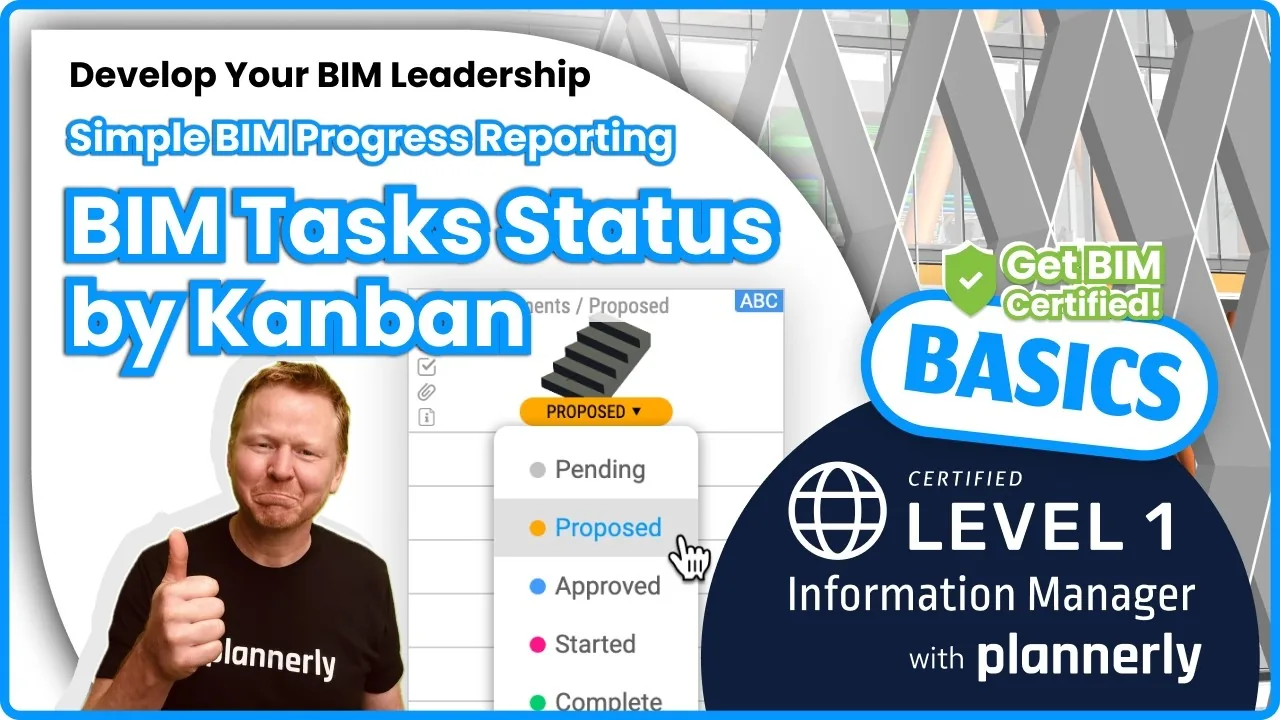 Video · 1:30
How to Track BIM Task Status Across Grid, Timeline and Kanban - ISO 19650 Scope Management
Free BIM + ISO 19650 Training: https://plannerly.com/training/
 Video · 2:45
How to Get Your BIM and Information Management Certificate - Add It to LinkedIn
Free BIM + ISO 19650 Training: https://plannerly.com/training/
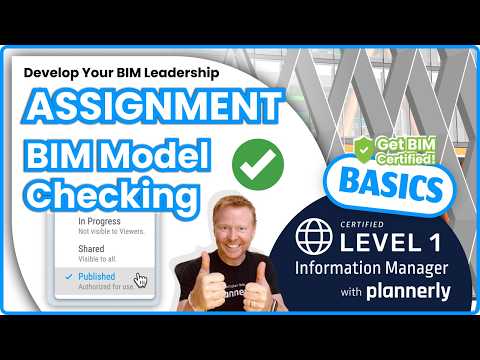 Video · 3:16
Verify Module Assignment - Check BIM Model Properties Against Scope Requirements
Free BIM + ISO 19650 Training: https://plannerly.com/training/
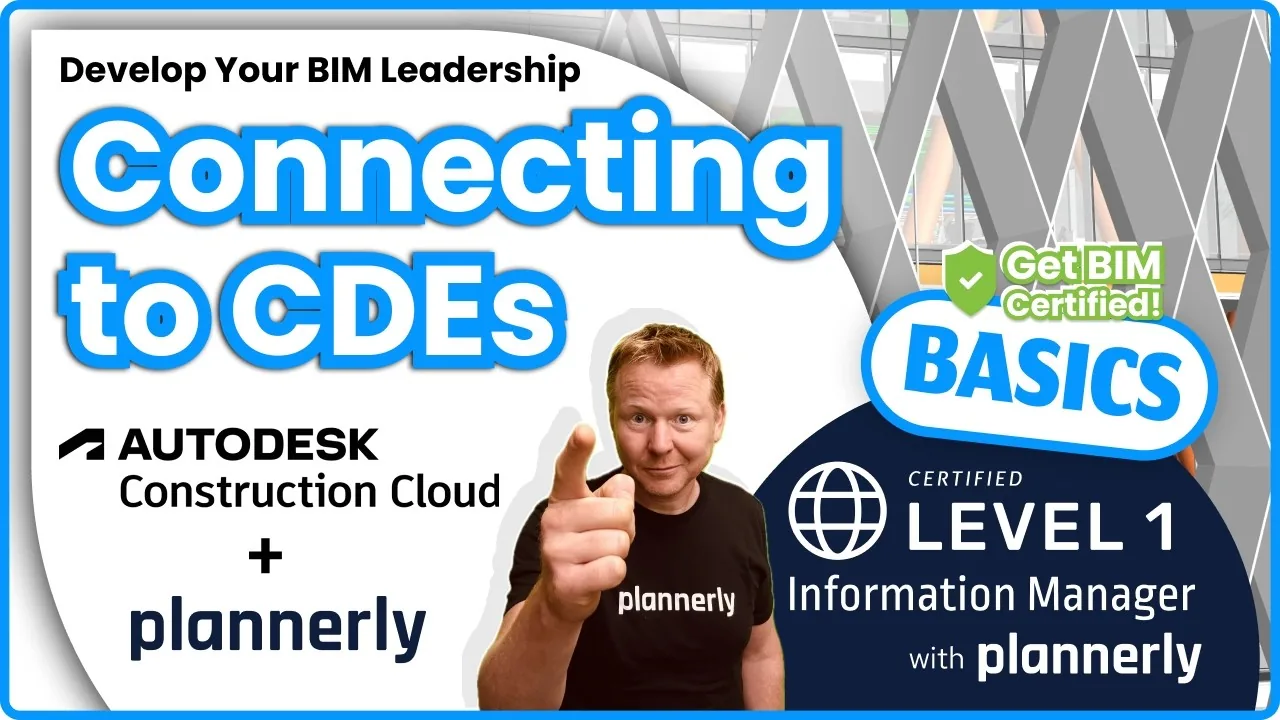 Video · 1:25
How to Connect Autodesk Construction Cloud Models to Verify - BIM Model Sync and Checking
Free BIM + ISO 19650 Training: https://plannerly.com/training/
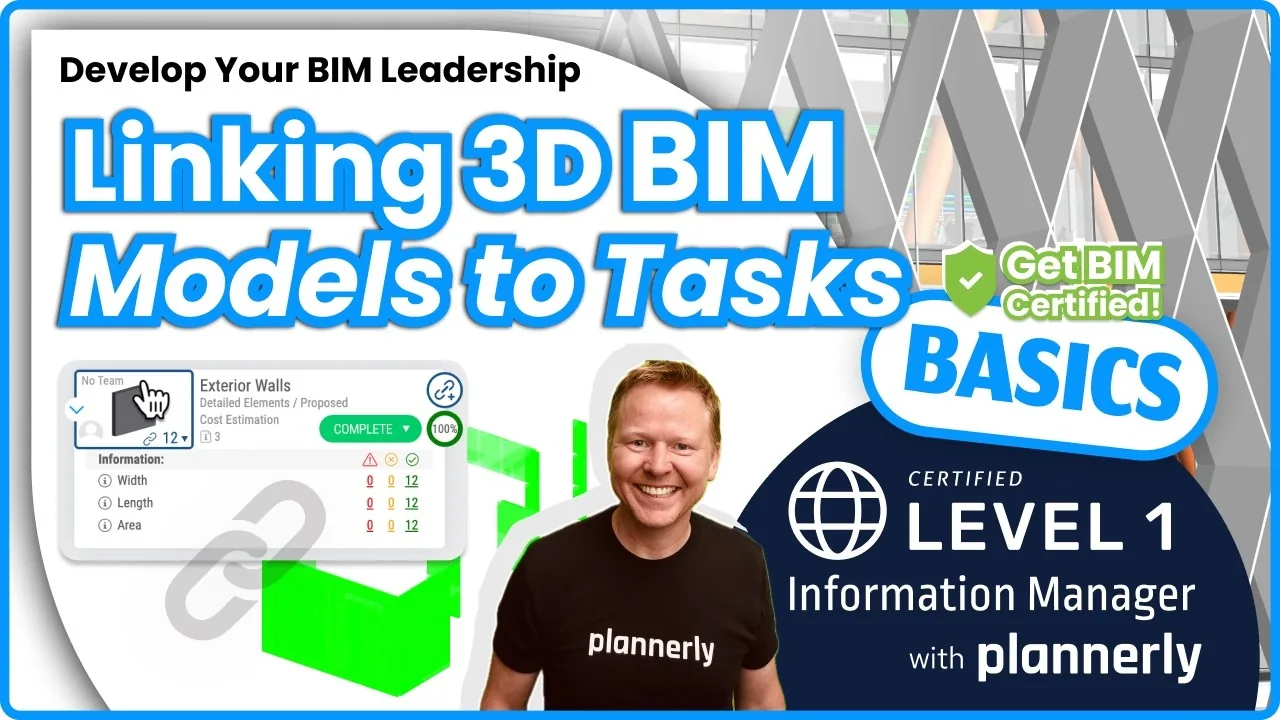 Video · 3:54
How to Use QA Model Checking in Verify - BIM Quality Control for ISO 19650 Workflows
Free BIM + ISO 19650 Training: https://plannerly.com/training/
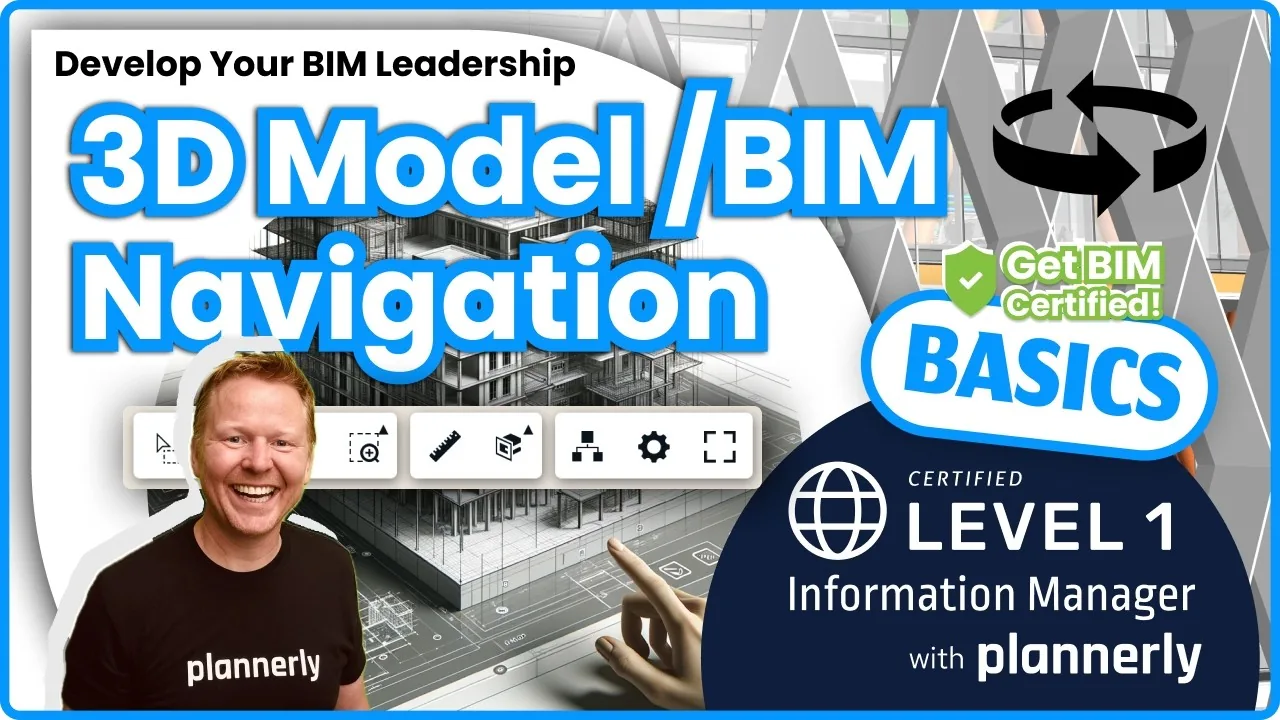 Video · 6:21
How to Upload, View and Review BIM Models in 3D - ISO 19650 Verify Module Guide
Free BIM + ISO 19650 Training: https://plannerly.com/training/