
Video
How to Structure BIM Documents Automatically - ISO 19650 Document Management Made Simple
About this video
Free BIM + ISO 19650 Training: https://plannerly.com/training/
Tired of messy Word documents, broken heading structures, and painful tables of contents?
In this video, see how structured BIM documents can be created and managed far more effectively using automated sections, categories, hierarchy, numbering, and reusable content. This is a simple but powerful way to improve BIM management, information management, and ISO 19650 document workflows.
You'll see how Plannerly helps teams break documents into bite-sized sections that are easier to organize, reuse, navigate, and maintain across projects.
In this video, you'll learn:
- How to structure BIM documents using sections and categories
- How to automatically organize content into a clear hierarchy
- How indentation creates a logical tree structure
- How auto-numbering saves time and keeps documents consistent
- How to move sections between categories and across documents
- How to reuse complete content hierarchies in other project documents
- How expand and collapse controls make navigation easier
- How version history helps track changes and contributors
This is especially useful for teams managing Exchange Information Requirements, BIM Execution Plans, project standards, and other structured project documentation.
This video is ideal for:
- BIM Managers
- Information Managers
- Project Managers
- Digital Construction teams
- Anyone managing structured project documents under ISO 19650
If you want cleaner, more reusable, and better-organized project documentation, this video shows a smarter way to do it.
Free BIM + ISO 19650 Training: https://plannerly.com/training/
BIM Boot Camp: https://plannerly.com/bim-boot-camp/
Featured in
Where this video is used
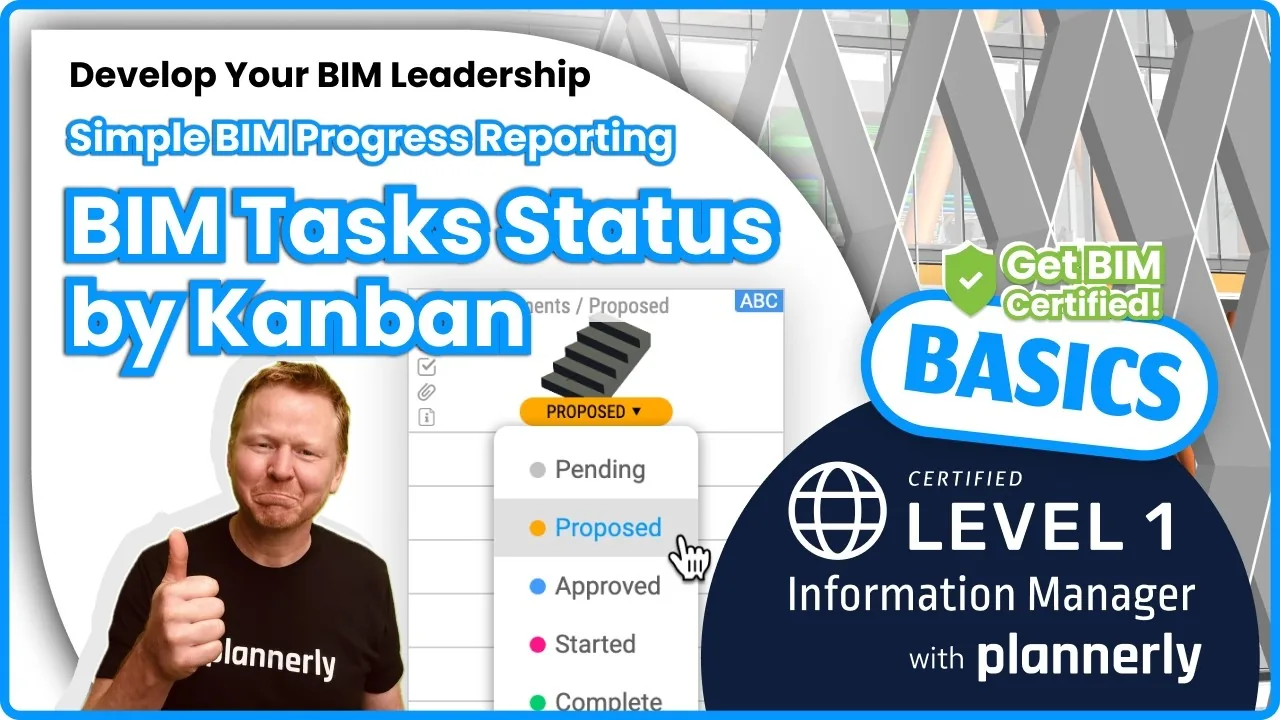 Video · 1:30
How to Track BIM Task Status Across Grid, Timeline and Kanban - ISO 19650 Scope Management
Free BIM + ISO 19650 Training: https://plannerly.com/training/
 Video · 2:45
How to Get Your BIM and Information Management Certificate - Add It to LinkedIn
Free BIM + ISO 19650 Training: https://plannerly.com/training/
 Video · 3:16
Verify Module Assignment - Check BIM Model Properties Against Scope Requirements
Free BIM + ISO 19650 Training: https://plannerly.com/training/
 Video · 1:25
How to Connect Autodesk Construction Cloud Models to Verify - BIM Model Sync and Checking
Free BIM + ISO 19650 Training: https://plannerly.com/training/
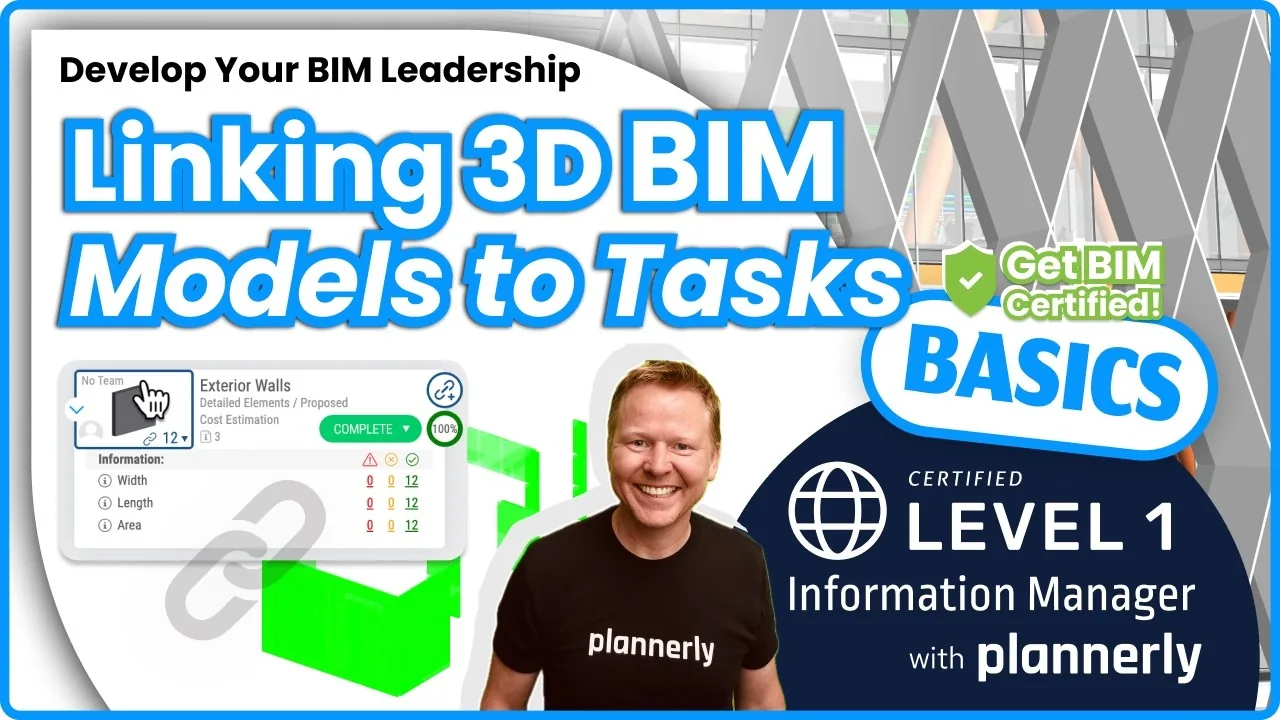 Video · 3:54
How to Use QA Model Checking in Verify - BIM Quality Control for ISO 19650 Workflows
Free BIM + ISO 19650 Training: https://plannerly.com/training/
 Video · 6:21
How to Upload, View and Review BIM Models in 3D - ISO 19650 Verify Module Guide
Free BIM + ISO 19650 Training: https://plannerly.com/training/