
Video
Import Word Documents into BIM Templates - Smarter ISO 19650 Document Management
About this video
Free BIM + ISO 19650 Training: https://plannerly.com/training/
Still buried in old Word documents, inconsistent templates, and messy formatting?
In this video, see how to import Word documents into a more structured, reusable, and efficient BIM document workflow. You'll learn how to drag and drop existing Word files into Plannerly, automatically turn headings into structured categories and sections, and convert legacy content into reusable templates for future projects.
This is a practical workflow for teams looking to improve BIM management, information management, and ISO 19650 document control without starting from scratch.
In this video, you'll learn:
- How to import Word documents into a structured BIM environment
- How headings become categories and sections automatically
- How body text is converted into editable content
- How to preview a Word import before bringing it into your project
- How to copy and paste content directly from Word
- How to clean formatting for lighter, easier-to-maintain documents
- How to turn imported content into reusable templates for future projects
This workflow helps teams move away from disconnected Word files and toward a more consistent, professional, and scalable approach to project information management.
This video is ideal for:
- BIM Managers
- Information Managers
- Project Managers
- Design teams
- Construction teams
- Anyone managing ISO 19650 documentation and templates
Free BIM + ISO 19650 Training: https://plannerly.com/training/
BIM Boot Camp: https://plannerly.com/bim-boot-camp/
Featured in
Where this video is used
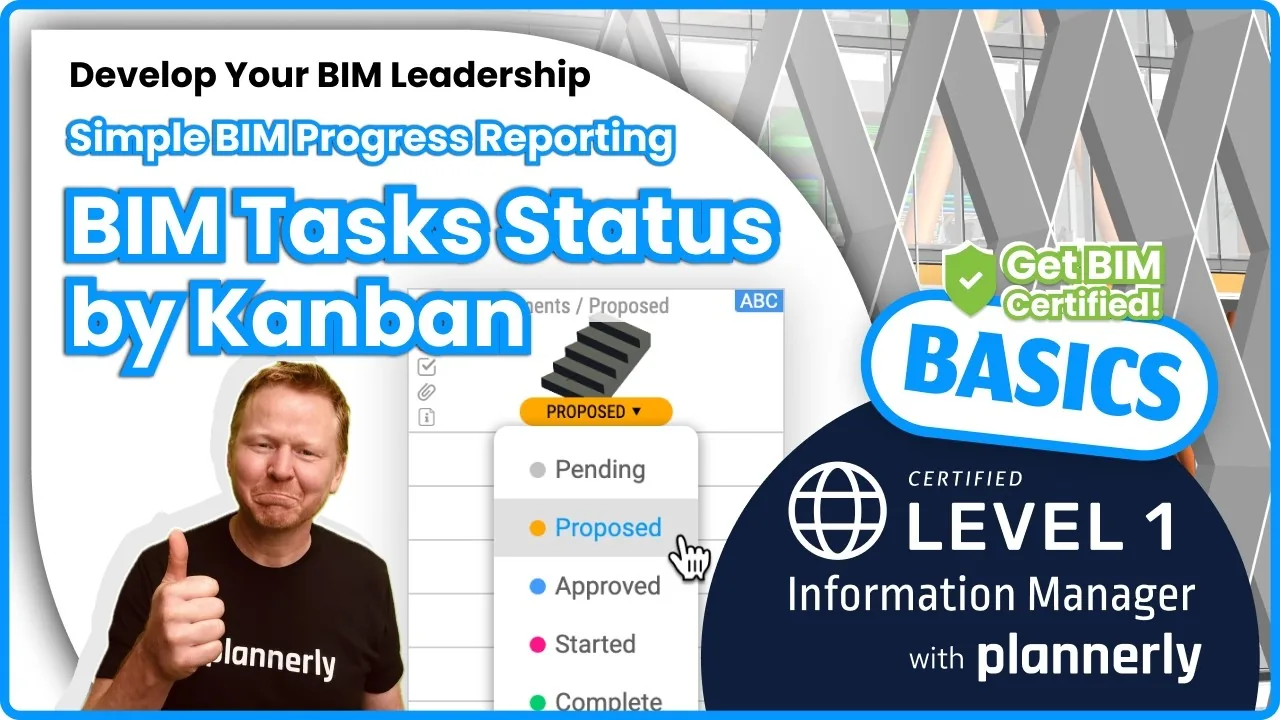 Video · 1:30
How to Track BIM Task Status Across Grid, Timeline and Kanban - ISO 19650 Scope Management
Free BIM + ISO 19650 Training: https://plannerly.com/training/
 Video · 2:45
How to Get Your BIM and Information Management Certificate - Add It to LinkedIn
Free BIM + ISO 19650 Training: https://plannerly.com/training/
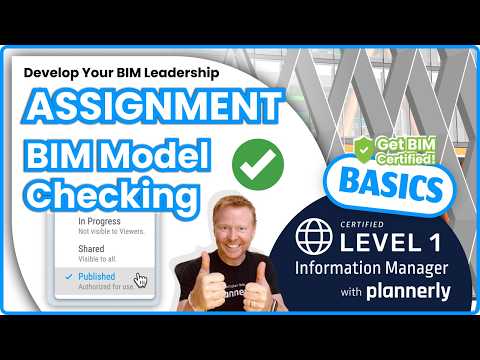 Video · 3:16
Verify Module Assignment - Check BIM Model Properties Against Scope Requirements
Free BIM + ISO 19650 Training: https://plannerly.com/training/
 Video · 1:25
How to Connect Autodesk Construction Cloud Models to Verify - BIM Model Sync and Checking
Free BIM + ISO 19650 Training: https://plannerly.com/training/
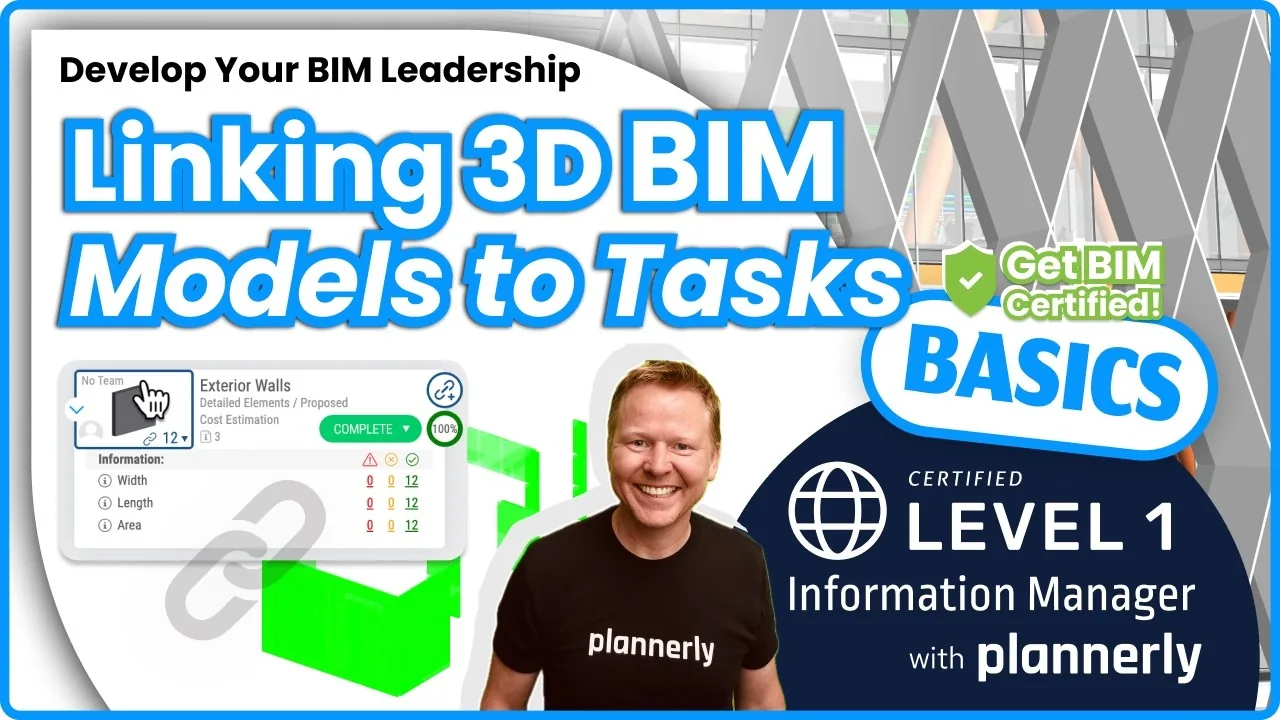 Video · 3:54
How to Use QA Model Checking in Verify - BIM Quality Control for ISO 19650 Workflows
Free BIM + ISO 19650 Training: https://plannerly.com/training/
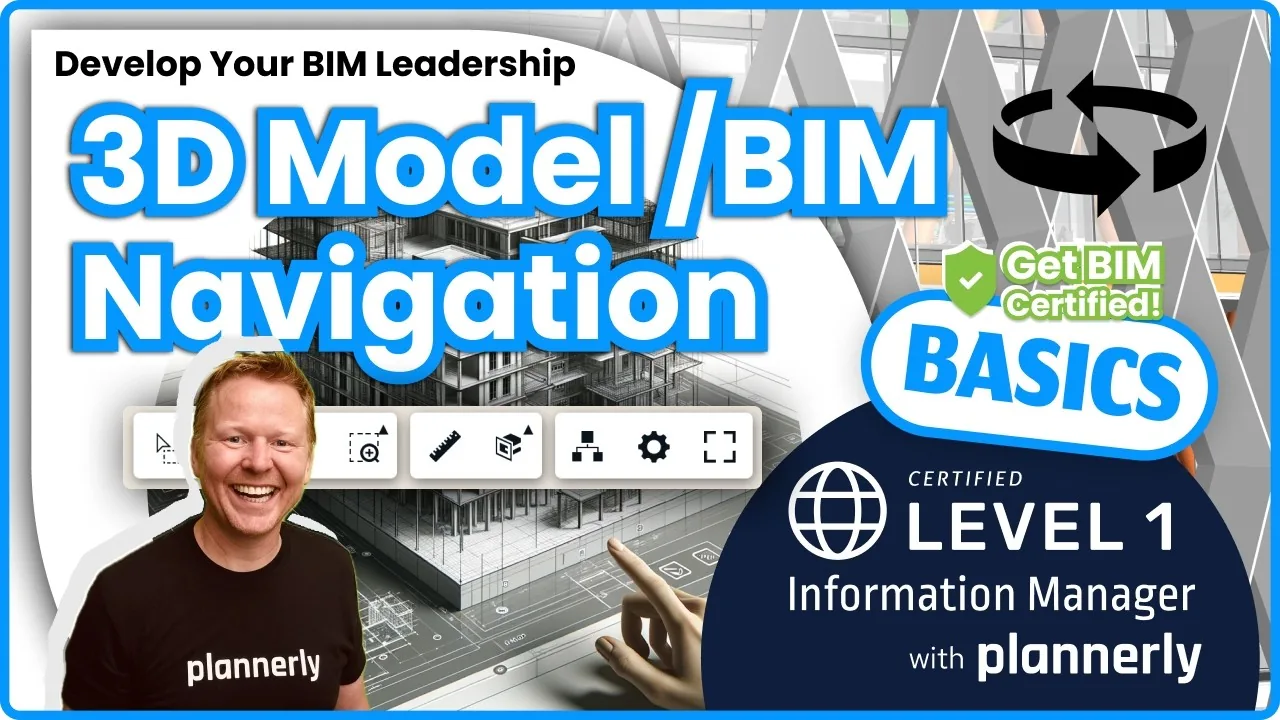 Video · 6:21
How to Upload, View and Review BIM Models in 3D - ISO 19650 Verify Module Guide
Free BIM + ISO 19650 Training: https://plannerly.com/training/