
Video
Scope Assignment - Reuse BIM Documents and Scope to Create a Combined PDF Export
About this video
Free BIM + ISO 19650 Training: https://plannerly.com/training/
Ready for the next assignment?
In this video, you'll reuse content from an existing project to quickly create a new project, pull in a BIM document, bring in a selected scope milestone, and export everything together into one combined PDF.
This is a practical hands-on exercise that helps reinforce how Docs and Scope work together inside a structured BIM management and information management workflow. It is also a great example of how teams can reuse previous project data instead of starting from scratch every time.
In this video, you'll learn:
- How to create a new project from the account home
- How to reference a previous project as a starting point
- How to reuse an existing BIM Execution Plan
- How to selectively bring in a milestone from a previous Scope
- How to include only the scope information needed for a specific exchange
- How project teams, requirements, and attachments carry across
- How to combine documents and scope into one PDF export
- How bookmarks and indexing make the final export easier to navigate
- How this workflow supports reusable and efficient ISO 19650 project setup
This assignment is designed to help you apply what you learned in the Docs and Scope modules and prepare for the next stage, where project deliverables and models are checked against the requirements you have defined.
This video is ideal for:
- BIM Managers
- Information Managers
- Project Managers
- Students learning BIM workflows
- Design teams
- Construction teams
- Anyone working with ISO 19650 documents, scope, and deliverables
By the end of this exercise, you'll have reused a previous project, built a new coordinated workflow, and exported a combined PDF containing both document and scope information.
Free BIM + ISO 19650 Training: https://plannerly.com/training/
BIM Boot Camp: https://plannerly.com/bim-boot-camp/
Featured in
Where this video is used
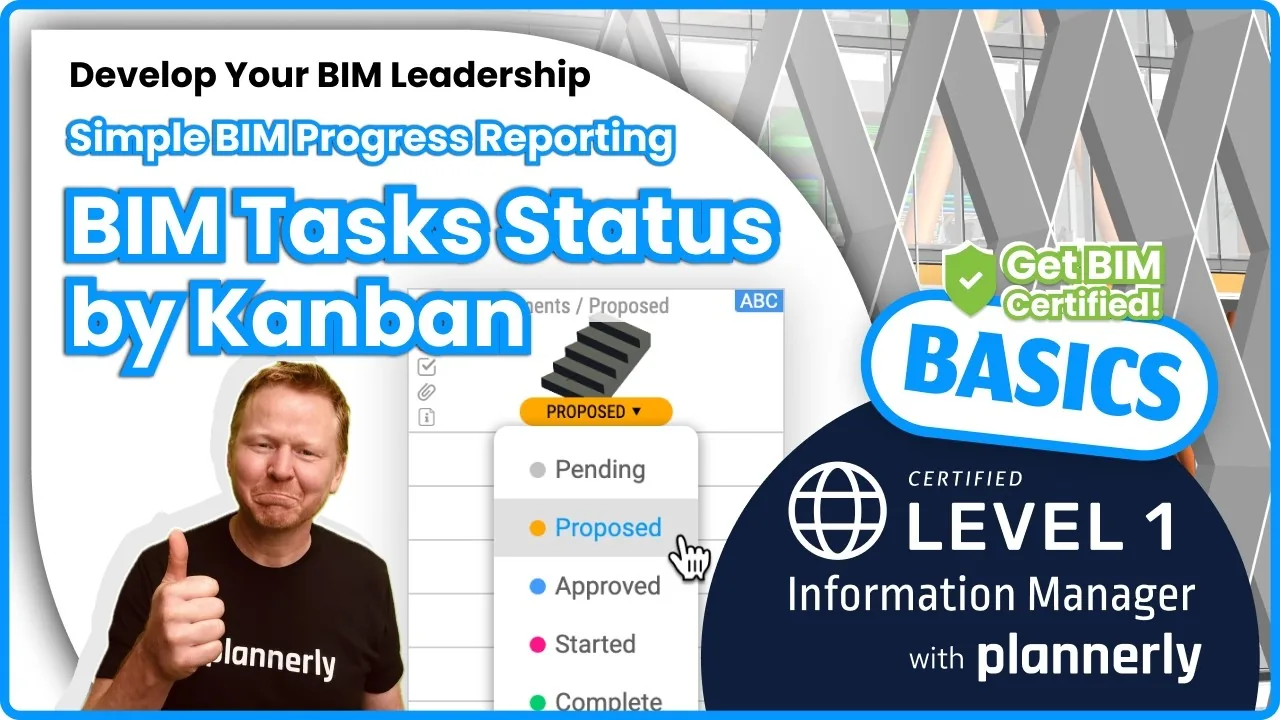 Video · 1:30
How to Track BIM Task Status Across Grid, Timeline and Kanban - ISO 19650 Scope Management
Free BIM + ISO 19650 Training: https://plannerly.com/training/
 Video · 2:45
How to Get Your BIM and Information Management Certificate - Add It to LinkedIn
Free BIM + ISO 19650 Training: https://plannerly.com/training/
 Video · 3:16
Verify Module Assignment - Check BIM Model Properties Against Scope Requirements
Free BIM + ISO 19650 Training: https://plannerly.com/training/
 Video · 1:25
How to Connect Autodesk Construction Cloud Models to Verify - BIM Model Sync and Checking
Free BIM + ISO 19650 Training: https://plannerly.com/training/
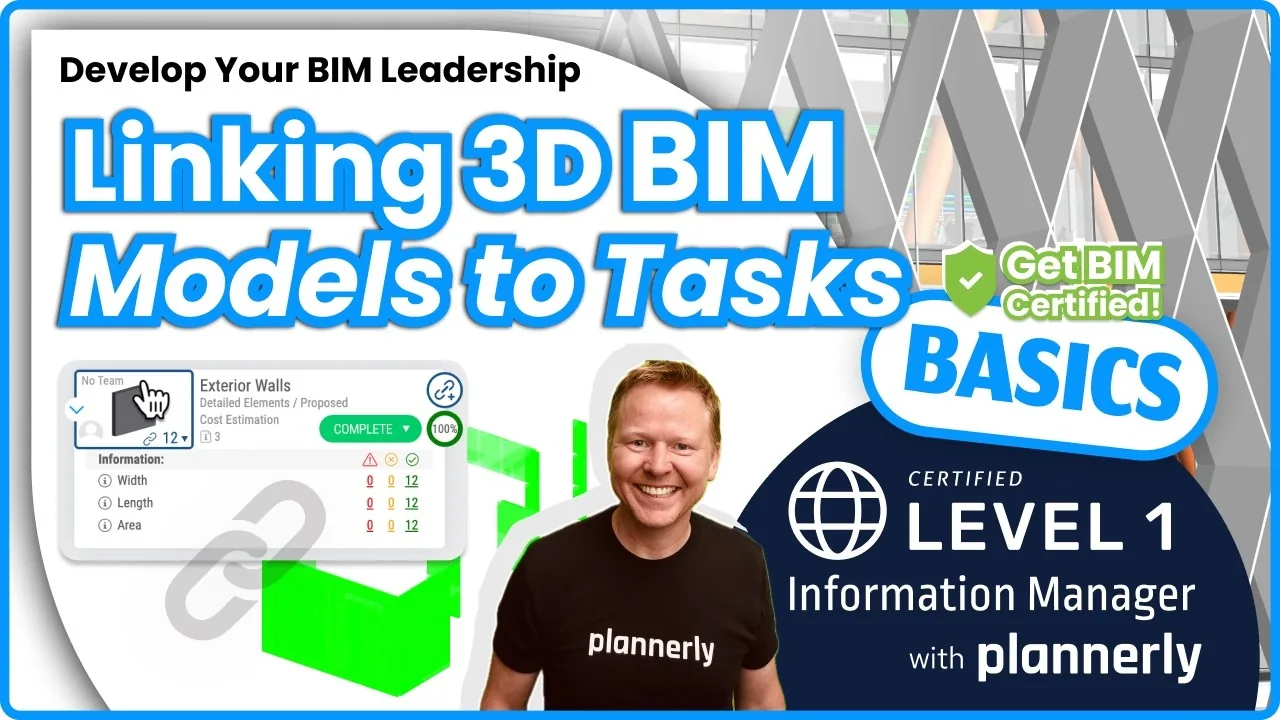 Video · 3:54
How to Use QA Model Checking in Verify - BIM Quality Control for ISO 19650 Workflows
Free BIM + ISO 19650 Training: https://plannerly.com/training/
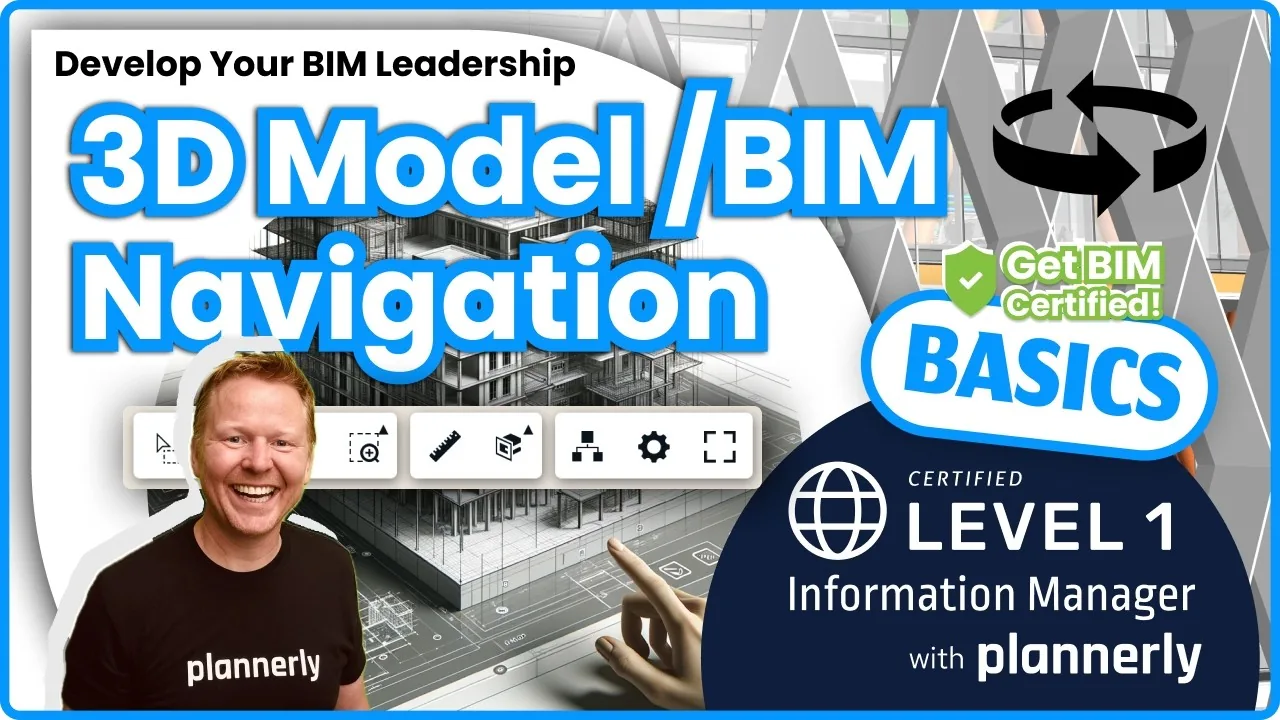 Video · 6:21
How to Upload, View and Review BIM Models in 3D - ISO 19650 Verify Module Guide
Free BIM + ISO 19650 Training: https://plannerly.com/training/