
Video
Docs Module Assignment - Create, Export and Sign a BIM Document in Minutes
About this video
Free BIM + ISO 19650 Training: https://plannerly.com/training/
Ready to put the Docs module into practice?
In this video, you'll complete a simple hands-on assignment by creating a new project, adding your first document, exporting it as a PDF, and applying an eSignature - all in just a couple of minutes.
This is a practical way to reinforce the core skills from the Docs module while building confidence with BIM document management, information management, and ISO 19650-aligned workflows.
In this video, you'll learn:
- How to create a new project
- How to add your first document using a template, AI, import, or scratch
- How to use a BIM Execution Plan as your starting point
- How to edit content and assign sections to team members
- How to move sections through shared and published states
- How to export a document as a PDF
- How to copy a document into contracts
- How to add and apply an eSignature
- How to structure a professional project document in just a few minutes
This assignment is designed to help you quickly apply what you have learned and build a complete mini workflow from document creation through to signed output.
This video is ideal for:
- BIM Managers
- Information Managers
- Project Managers
- Students learning BIM workflows
- Design teams
- Construction teams
- Anyone working with ISO 19650 documentation
By the end of this exercise, you'll have created a structured project document, exported it, and signed it - all inside one connected workflow.
Free BIM + ISO 19650 Training: https://plannerly.com/training/
BIM Boot Camp: https://plannerly.com/bim-boot-camp/
Featured in
Where this video is used
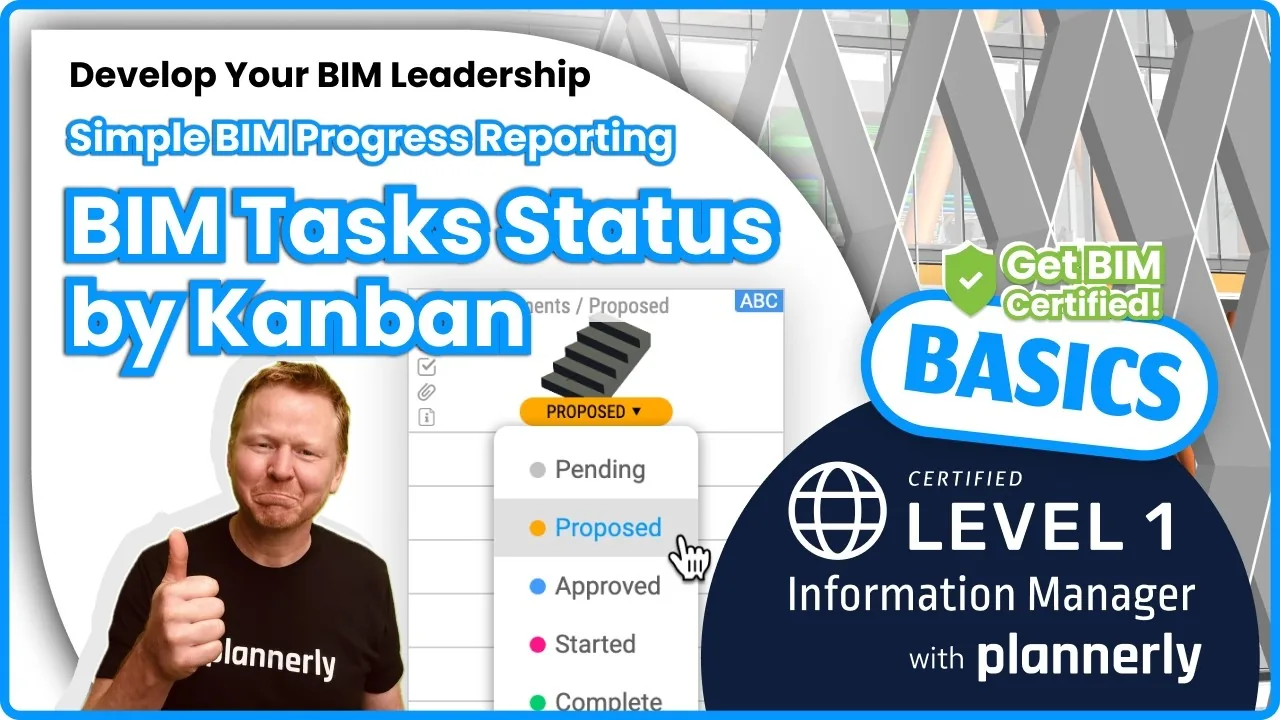 Video · 1:30
How to Track BIM Task Status Across Grid, Timeline and Kanban - ISO 19650 Scope Management
Free BIM + ISO 19650 Training: https://plannerly.com/training/
 Video · 2:45
How to Get Your BIM and Information Management Certificate - Add It to LinkedIn
Free BIM + ISO 19650 Training: https://plannerly.com/training/
 Video · 3:16
Verify Module Assignment - Check BIM Model Properties Against Scope Requirements
Free BIM + ISO 19650 Training: https://plannerly.com/training/
 Video · 1:25
How to Connect Autodesk Construction Cloud Models to Verify - BIM Model Sync and Checking
Free BIM + ISO 19650 Training: https://plannerly.com/training/
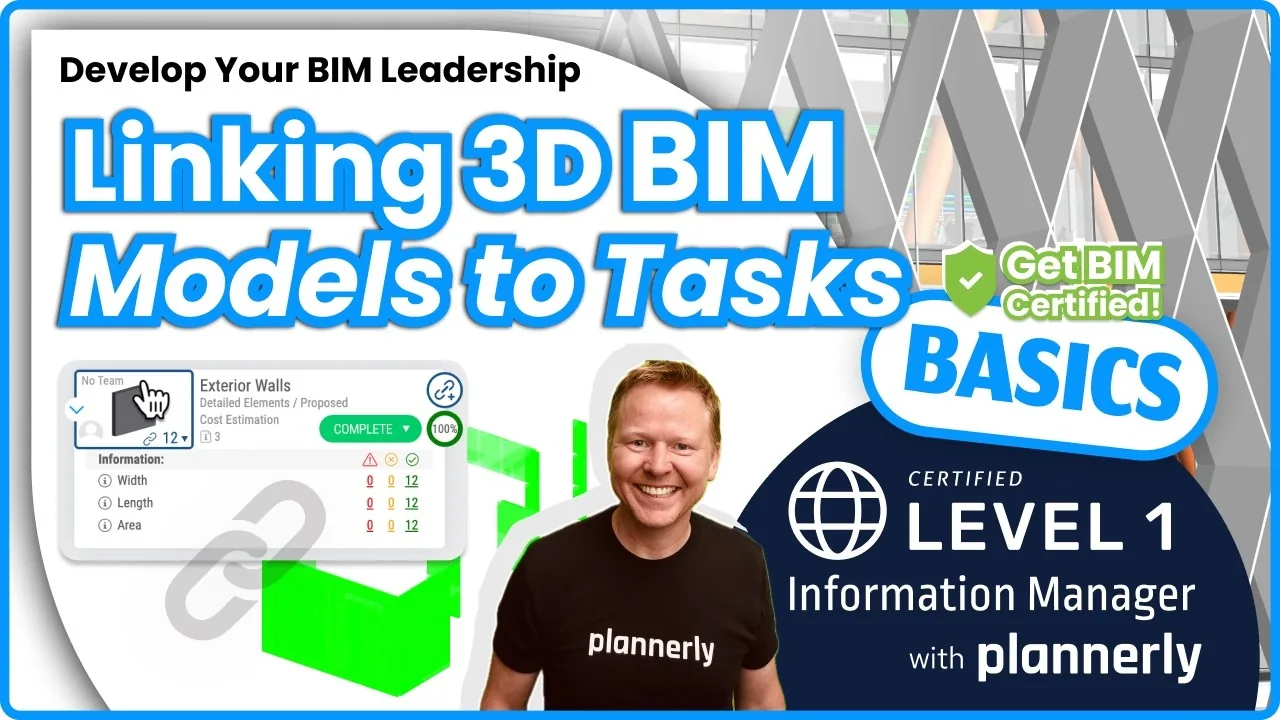 Video · 3:54
How to Use QA Model Checking in Verify - BIM Quality Control for ISO 19650 Workflows
Free BIM + ISO 19650 Training: https://plannerly.com/training/
 Video · 6:21
How to Upload, View and Review BIM Models in 3D - ISO 19650 Verify Module Guide
Free BIM + ISO 19650 Training: https://plannerly.com/training/