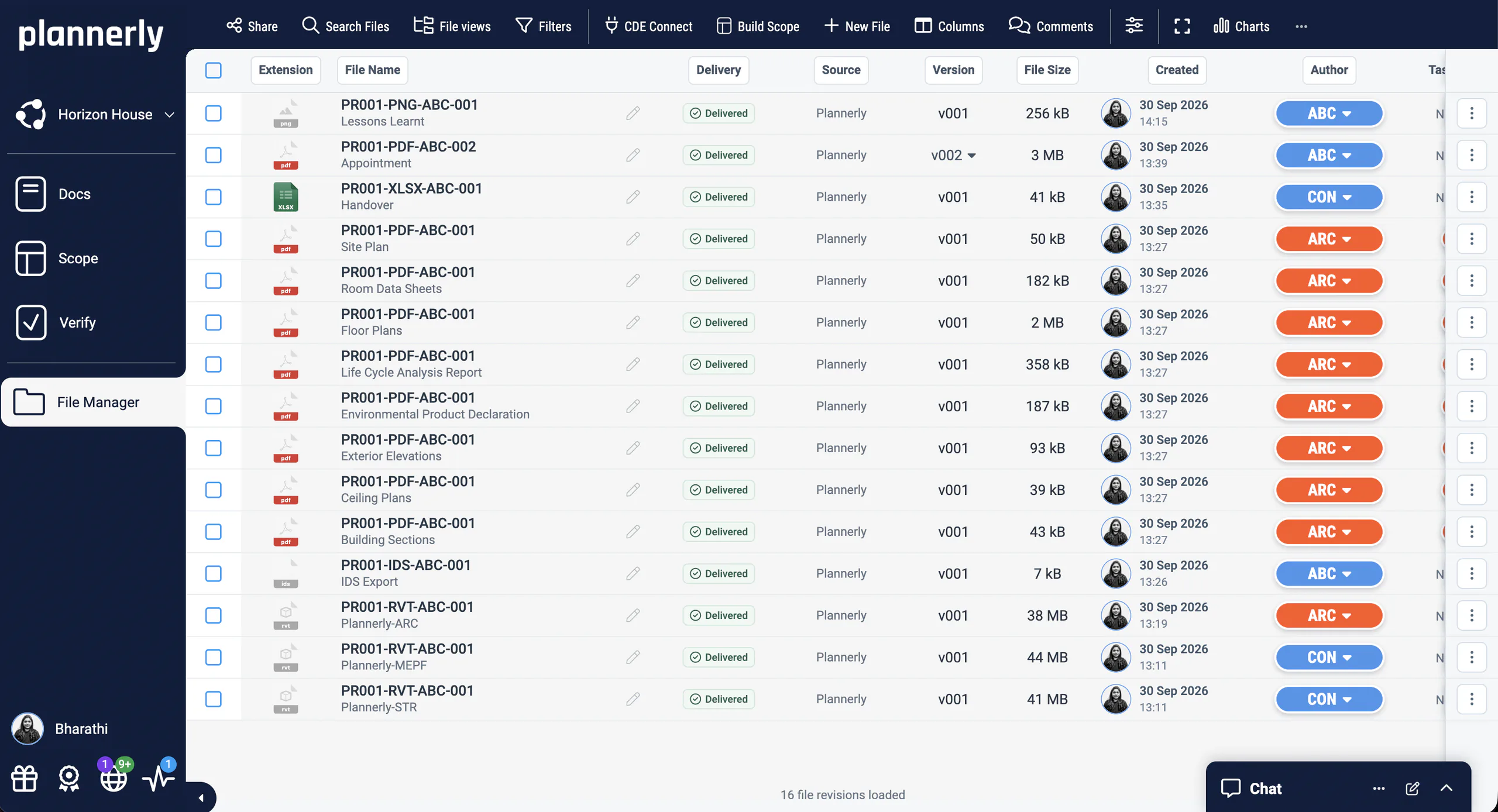
To connect your CDE to Plannerly, open CDE Connect in File Manager and pick the folders to sync from Autodesk, Procore, SharePoint, OneDrive, Dropbox, Box or Egnyte. Delivered files fill the matching requests in your plan, models are checked automatically and the charts update.
See what your appointed parties have delivered without asking. They keep working in their own CDE; files that match your plan's requests fill them, models are checked automatically and the charts update. One view, not five hubs and a tracker.
Stop downloading your subcontractors' files to upload them again. Connect the CDEs they already use - Autodesk, Procore, SharePoint and more - pick the folders, and each file that matches a request fills it. Models are checked automatically and the charts update without a Friday upload session.
Keep working where you model. Sync the folders your design team already shares - in ACC, SharePoint, OneDrive, Dropbox or Box - and each drawing and model that matches a request fills it in the plan - no download, rename and upload loop for whoever runs the MIDP.
Track delivery for your clients without owning their CDE. Connect each client's CDE once, with their say-so, and the files their teams share fill the plan you set up - the same way on every project.
Show students what a CDE does on a real project: files shared in one place, matched to the plan that asked for them, and progress charts that update as they arrive. The ISO 19650 workflow, not just its diagram.
Free plan, no card. Connecting a CDE is part of Pro - try it free for 14 days.
app.plannerly.com
The problem
One project, several CDEs, and you in the middle
ISO 19650 asks for one common data environment. Real projects get the client's, the contractor's and each designer's. Files are downloaded from one, renamed and uploaded to another, and the tracker is updated by hand. The plan only knows what someone told it.
Open CDE Connect in File Manager, sign in to Autodesk, Procore, SharePoint, OneDrive, Dropbox, Box or Egnyte, and pick the folders to sync. Files keep their metadata, and the permissions you already have still apply.
Your CDE folders connected to the plan
Name the files you need
Each deliverable in your MIDP becomes a named file request on its task, following your naming convention. Everyone can see which files are still to come and which team owns each one.
Every expected file named, with an owner
Let delivered files fill them
When a file shared in your CDE matches a request by name, it fills that request. A second file with the same name is flagged for you to check, so nothing is swapped in without someone saying yes.
No more download, rename and upload
Check models, watch progress
Linked models are checked automatically against your requirements, and the progress charts update automatically as files arrive. You see who has delivered what, and what's still due, without asking.
Evidence of what each team delivered
See it work
Three automations that move the files for you
Send it out
Approved here, filed in the client's SharePoint
Agree a document in Plannerly and collect the signatures. The moment it's approved, it lands in the folder your client already looks in. Set the condition once, and new revisions follow by themselves.
Goes only when it meets your condition, such as Approved
Your designers keep working in their own folder. As each file lands it fills the request with the same name, its status moves from Requested to Delivered, and the charts update. Nobody has to tell you it's there.
Nothing new for the design team to learn
Keeps both names: theirs, and the one from your file naming standard
Reviewed here, straight on to the contractor's Autodesk Forma
Bring a drawing in, review it in Plannerly and make its status your quality gate. Set it to S4 and it goes on to the contractor's folder, in the CDE they already use. Only what has passed your review moves on.
One workflow, from the designer's folder to the contractor's
You choose the condition, such as suitability S4
See the same files together with File views and SmartFolders
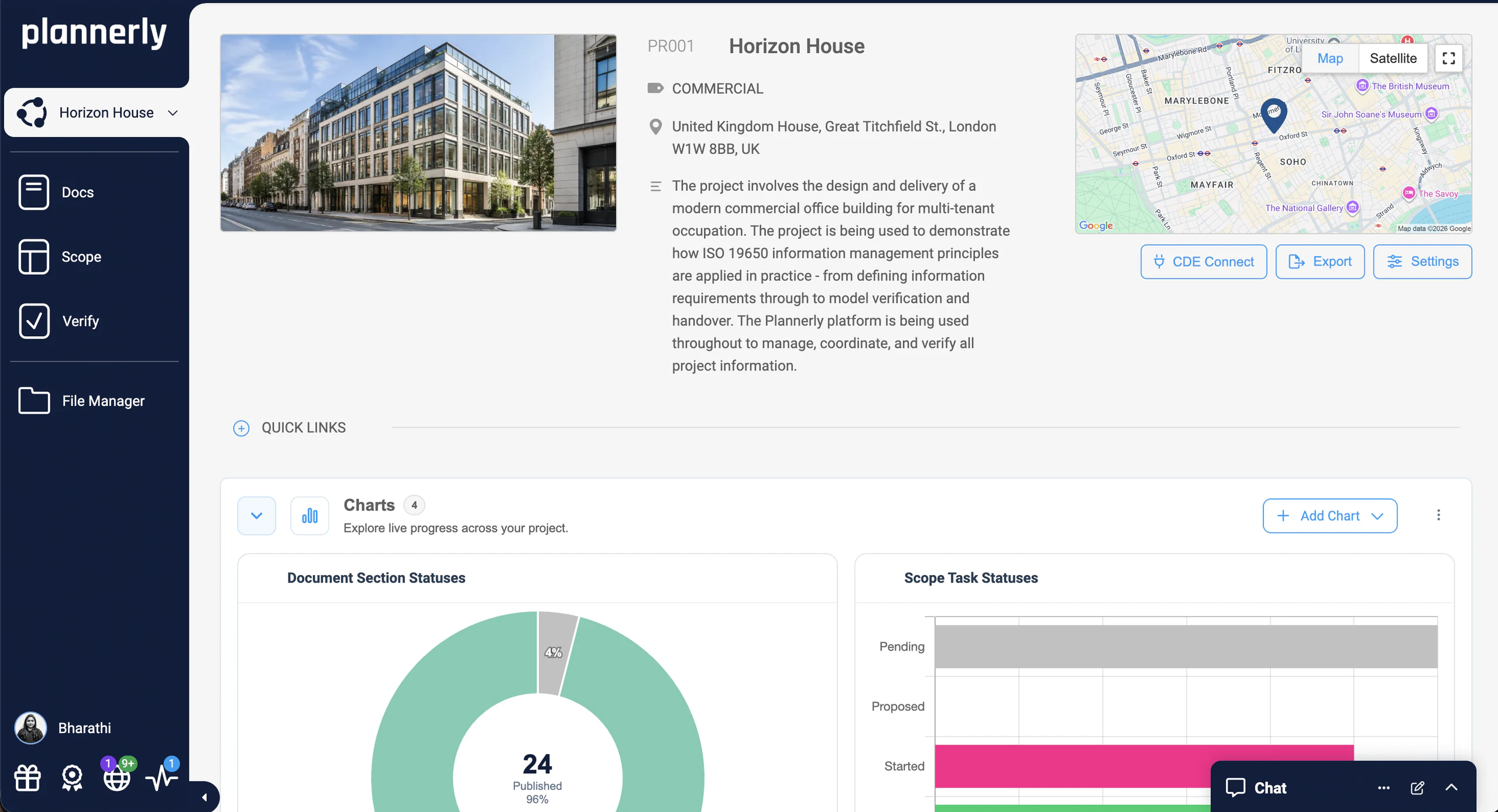
No more Friday tracker update built from emails and memory. As delivered files fill their requests and tasks move on, the charts of document and task statuses update automatically, so the whole project sees who has delivered what. Filter a chart by milestone, team or work package, and export the dashboard to PDF to send every week by itself.
Charts of document and task statuses on the project dashboard
Filtered by milestone, team, team member, status or work package
Link your Autodesk Construction Cloud models to Plannerly once, and new versions come across by themselves.
Free live webinar
Surviving AI Model Checking
Agree it. Check it. Fix what failed. Everyone is talking about AI checking BIM models, but it only works if the model has something to be checked against. How to turn your information requirements into rules a model passes or fails, check every delivered model against them, and get each failure to the team that can fix it.
Nov19Thu
Free webinar on Zoom · 45 minutes · How to survive as a BIM Manager
Thursday 19 November 2026
10:00New York15:00London19:00Dubai
You'll leave with
Requirements a model either passes or fails
Every delivered model checked against them
Each failed check with the team that owns it
Free webinar replay
Why your MIDP spreadsheet is failing (and how to fix it)
Episode 1 built a MIDP live, then connected it to Autodesk. Use the chapters to skip straight to the CDE part: connecting and syncing your CDEs, mapping folders, and charts that update automatically.
Why "common" data environments aren't
Connecting and syncing your CDEs
Mapping folders and keeping files in step
Dashboards that update automatically
Also worth watching
Episode 1: connect your CDE to the MIDP, from 32:23
Everything to connect your CDE to the plan: a starter project and three free PDFs
Free download
CDE Survival Kit: a starter project and 3 free PDFs
Everything to connect your CDE to the plan: a starter project with its file requests ready to fill, and three PDFs on how a CDE works under ISO 19650 and how to track what's delivered.
1 starter project
3 PDFs
Free
PDF
PDF
PLANNERLY
CDE starter project
A project with task teams, milestones and named file requests in Scope, ready to connect to your CDE from File Manager.
How three teams stopped carrying files between systems
A VDC consultancy that replaced five tools with one, an architecture practice that left Dropbox, SharePoint and scattered spreadsheets behind, and a BIM services firm that stopped collecting compliance statistics by screenshot.
For owners the payoff is evidence without chasing: AdRem's teams spend less time collecting compliance statistics with screenshots and more on the quality of what's delivered.
Contractors get one place to see what has arrived: reiSource replaced five disconnected tools with one platform and grew from 3 people to 15 without losing quality.
Design teams stop filing the same drawing twice: SODArchitects replaced Dropbox, SharePoint and scattered spreadsheets with one workflow and cut BIM administration time by over 70%.
Consultants keep the evidence for every client: AdRem works across Singapore, Malaysia and Indonesia with tracking reports built in, instead of collecting compliance statistics by screenshot.
These are the delivery problems your students will inherit on their first project: several CDEs, one plan, and someone expected to keep the two in step.
Integrated Plannerly with Solibri's Accessibility Code Checker for automated CORENET X compliance in Singapore, and now rolling out ISO 19650 certification across Malaysia and Indonesia.
Plannerly is critical to our information compliance standards and now with the tracking reports built in, we can spend more time ensuring better quality deliverables and less time collecting compliance statistics with screenshots.
VLVoon Lok, Managing Director · AdRem IT Solutions
CORENET X
Solibri
ISO 19650
Read the story
See all case studiesOwners, design teams, contractors, consultants and educators - filter them by your kind of organisation.
What teams say
Why teams track delivery in Plannerly
From Autodesk's head of integrations, a government owner and the teams tracking delivery every day.
Owners use it to make every requirement traceable, and to check what arrives against it.
Contractors use it to track scope and check models without a second set of tools.
Design teams use it to work together across offices and countries.
Consultants use it to track scope and verify models for every client the same way.
Educators use it so students see the real workflow, not a slide about it.
5 out of 5
Verify's integration with Autodesk Construction Cloud helps make BIM management more seamless for customers.
JCJames CookHead of Integrations · Autodesk
5 out of 5
Compliance checks used to be a black box. Now, every requirement is traceable and auditable.
JKJohn KiongDirector, Future of Building & Infrastructure · JTC Corporation
5 out of 5
Plannerly cut the time we spent tracking scope and verifying models by 60%.
With the ISO 19650 standard gaining greater traction internationally, the Plannerly platform does the heavy lifting in terms of documentation management. The Kanban style board for tracking task progress is also invaluable in terms of production.
What is a common data environment (CDE) in ISO 19650?
A common data environment (CDE) is the agreed place where a project's information is collected, managed and shared among the delivery team. ISO 19650 describes information moving through four states - work in progress, shared, published and archived - with a check before each move. A CDE is the tool and the workflow around it, which is why one project can end up with several. The Level 3 lesson on the CDE covers the detail, and so does the UK BIM Framework's CDE guidance.
What is CDE Connect?
CDE Connect is the part of Plannerly's File Manager that syncs files and their metadata between your CDE and Plannerly, so work moves between the two without being downloaded and uploaded again. You choose the folders. Files that match a request in your plan by name fill it, and the progress charts update automatically. How Plannerly works as a CDE.
How do I keep several CDEs in step?
Put your plan in the middle. Each team keeps the CDE it already uses, and CDE Connect links them to one Plannerly project. Files go out to the CDE a client or team works in, come in from another team's CDE and fill their requests, or do both: in, reviewed, and on to the next team. Watch all three in the replay.
Which CDEs can I connect to Plannerly?
Autodesk Construction Cloud (ACC), BIM 360, Autodesk Docs and Forma, Procore, Microsoft SharePoint, OneDrive, Dropbox, Box and Egnyte. More are coming - Oracle Aconex, Asite, Bentley ProjectWise, Trimble Connect and others - and CDE Connect has a link to vote for the one you use. Using one that isn't listed? Tell us in the in-app chat. Which CDEs connect today.
Do I need an administrator to connect?
For Autodesk, yes, once per hub: an ACC or BIM 360 administrator finds Plannerly in the hub's Apps and adds it, and each hub is separate. For the other CDEs you sign in with your own account and see the folders it can already reach. In Plannerly, people with Manager permission connect CDEs and link files. Step by step.
Does Plannerly replace my CDE?
It doesn't have to. Many teams keep storing models and drawings in their CDE and use Plannerly to say what should be delivered, by whom and when, then check what arrives. Plannerly can also be your CDE: File Manager keeps files with their metadata, permissions, naming and versions. Plannerly and Autodesk CDEs compared.
How does a synced file fill a request?
By name. Each deliverable in your plan can carry a named file request. When a file with that name arrives from your CDE, it fills the request and takes the request's visibility, team and metadata, just as an upload in Plannerly would. If a second file with the same name turns up, it stays separate and is flagged for someone to confirm. Where requests come from: the MIDP.
Will Plannerly show files I can't see in my CDE?
No. Plannerly respects the permissions you already have: you only see the folders and files your CDE account can already reach. Inside Plannerly, files keep the permissions set on their requests and folders. Troubleshooting hub access.
Do new model versions come across by themselves?
Yes. Once an ACC model is linked, new versions come into Plannerly by themselves, so you look at the version the team actually shared, not the one someone emailed last week. Large models take a few minutes to process. How long processing takes, and checking every model with IDS.
Which plan includes CDE Connect?
Connecting a CDE is part of Pro, including its free 14-day trial, and Company, which adds unlimited CDE connections. If your account is on one of Plannerly's earlier paid plans, you keep the access you already have. On Free you can upload files to File Manager and to file requests yourself. Compare plans.
Can I still upload files by hand?
Yes. Upload to a task's file request in Scope or Verify when the file is a defined deliverable, or to File Manager for general coordination files, with metadata and permissions. A file uploaded to a request fills it just as a synced one does. Where to upload.
Does a file keep its original name?
Yes. You keep both names: what the team called it in their own system, and the name it gets in Plannerly from your file naming standard.
Pricing
Start free, and connect your CDE on the 14-day Pro trial
Free$0forever
Five projects included
The account owner edits; everyone they invite can view
100 MB of project files
Explore Docs, Scope and Verify
Upload files to your requests yourself, no card needed