Information checks
Does each element carry the properties the project asked for, with the right values and units, in the right property set?

Model checking
BIM checking means testing a model against what the project asked for: the information each element must carry, how it's modelled and named, and whether anything clashes. Done by eye, it's slow and patchy. Done against requirements written as data, every element is checked, every time.
Free plan, no card. Check your own models on the 14-day Pro trial.
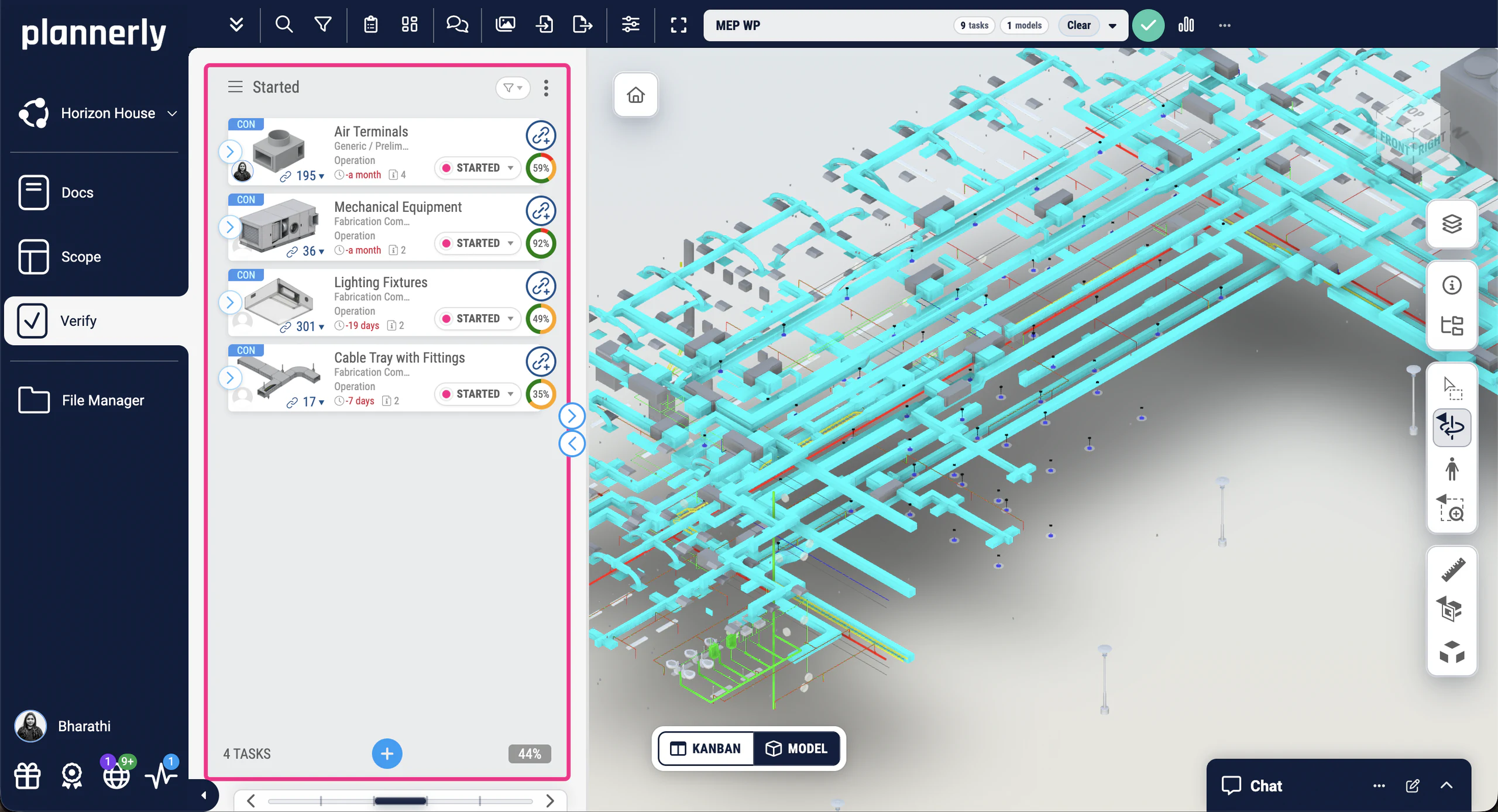
"Check the model" can mean very different things. Most projects need all four, often from different tools:
Does each element carry the properties the project asked for, with the right values and units, in the right property set?
Do elements clash, keep their clearances and sit where they should? This is clash detection.
Do the files, models and elements follow the naming, classification and coordinates in the project's information standard?
Does the design meet rules such as accessibility or escape distances? Tools such as Solibri check these.
Under ISO 19650 everyone in the chain checks, against the same requirements:
| Who | When | What they check |
|---|---|---|
| The task team | Before sharing in the CDE | Its own models, against the requirements for that milestone |
| The lead appointed party | Before each information exchange | Every task team's models, before authorising them |
| The appointing party (the client) | At each information exchange | What's been delivered, before accepting it |
ISO 19650-4 covers how information is exchanged, and our Help Center explains when to submit a model for review.
Here's one requirement, as it's set up in Plannerly Scope:
| Element | Basic wall |
|---|---|
| Milestone | Preconstruction |
| Property | AcousticRating |
| Property set | Pset_WallCommon |
| Rule | A number between 30 and 40 dB |
When the model is checked, every wall linked to that task gets one of three results:
Names must match exactly: a trailing space or a lowercase l for a capital I is enough to fail a check. That's what Queensland's transport department found.
In Plannerly Verify
Set the rules
In Plannerly Scope, set each requirement against the elements and milestones it applies to: the property, its property set, the rule, the value and the unit. The same requirement goes to your authors as an IDS file and becomes the check Verify runs.
Set the information requirements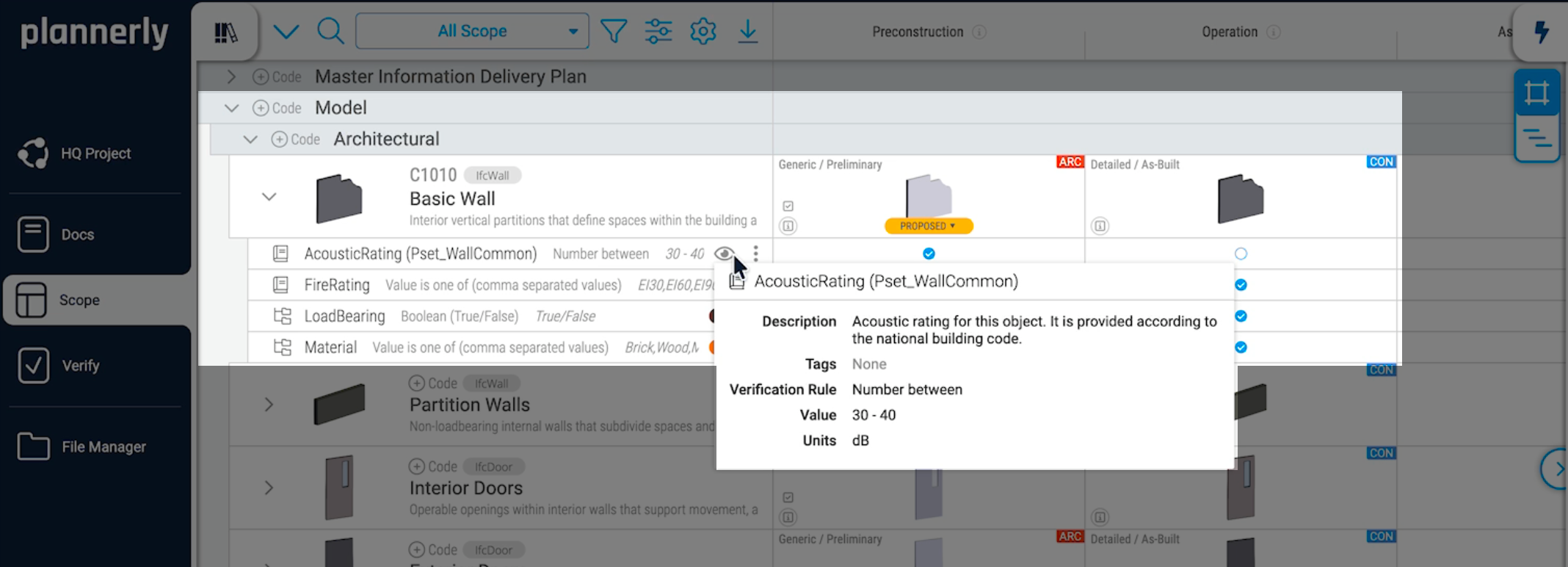
See the results
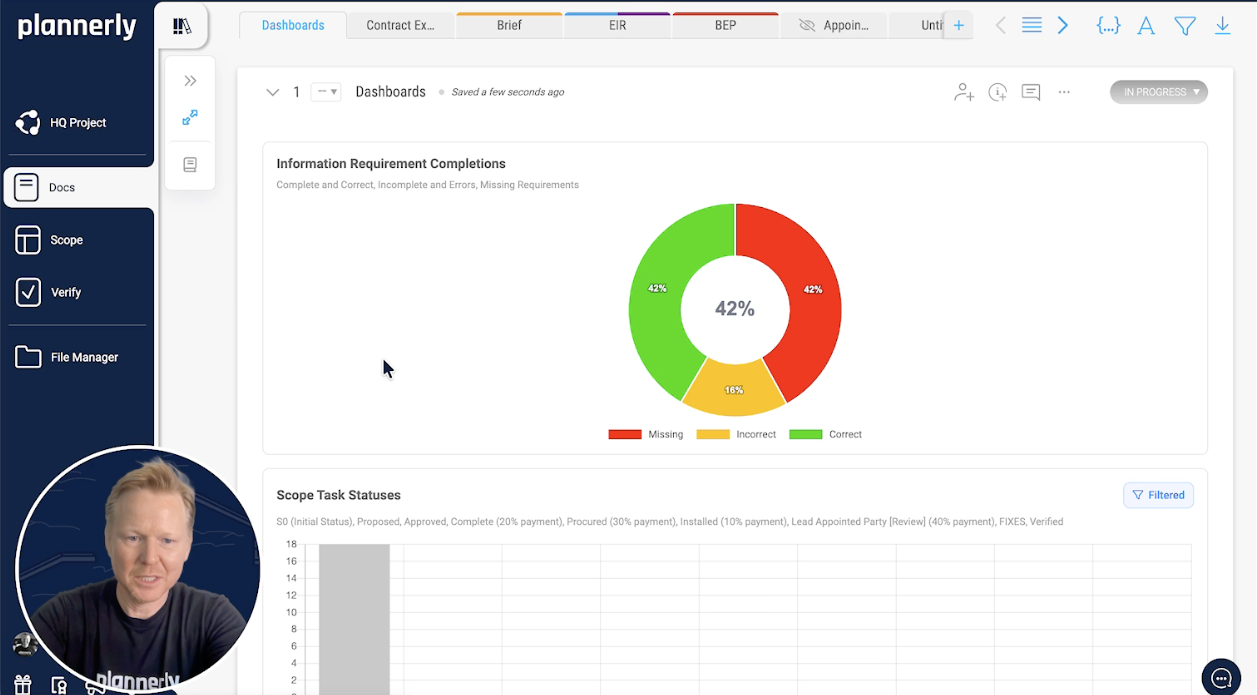
Link the model's elements to their tasks and every check runs automatically. A dashboard in Docs counts the results by milestone, team or work package, and it updates as teams fix what failed and move their tasks on.
Look closer
Free lessons
 Level 1 lesson - start here
What Verify checks, and how a model is checked against requirements you've already written.
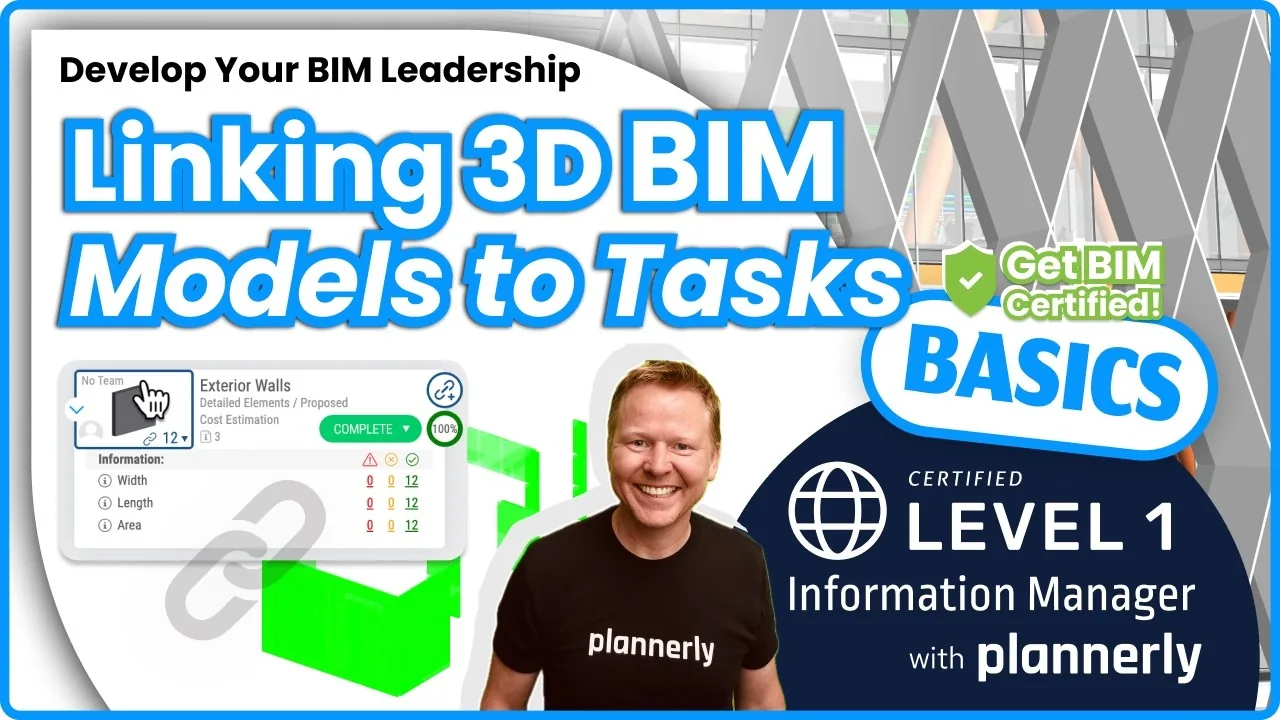 Level 1 lesson - check every element
Link model elements to their tasks, so every element is checked automatically.
 Level 2 lesson - verification
Checking models before handover, so there are no surprises at the end.
 Level 1 - free certificate
Docs, Scope and Verify, from the first requirement to the first model check, with a free certificate.
Free download
Everything to check models the way this page does: a starter project with example requirements ready to check, the IDS checking guide, the model checking slides from BIM Boot Camp and the ISO 19650 tracking and compliance step.
Example requirements in Scope, ready to export as an IDS file and to check your first model in Verify.
Read more
The model checking software behind this page: what it checks, file formats, ACC and pricing.
ProductThe whole job, step by step, with a free starter project.
Use caseDefine the requirements, link the model, and every version is checked.
GuideThree ideas for getting the BIM you asked for.
GuideA government agency in Singapore that replaced 11,000 Excel rows with automated checks.
Case studyWhen to stop clashes happening, and when to find them.
GuideFrom the blog
 English
Curious to discover the easiest way to inspect your BIM models? Dive into this article (and video) where we walk you through setting up your model checking process to guarantee precision in every detail.
 English
Enhance the quality of your BIM model with Plannerly's Verify Module. Streamline your BIM checks, identify issues effortlessly, foster collaboration, track progress, and achieve remarkable project outcomes!
 BIM execution plan
Discover how Plannerly simplifies BIM management by providing a comprehensive web-based solution. Streamline your workflow and improve collaboration with these powerful BIM tools.
 English
This company eliminated traditional BIM QC roles, saving between 2 and 3 team members on each BIM project. Learn about their enhanced BIM workflows and how they achieve optimal quality and cost efficiency for their AEC industry clients.
Questions
Start free, write your requirements once, and check your first model on the 14-day Pro trial. No card needed.
Free plan · No card · The Pro trial includes model checking